VPN not working with t-mobile
Quick, practical guidance to diagnose and fix VPN issues on T-Mobile internet services.
VPN not working with T-Mobile: practical fixes and what to expect
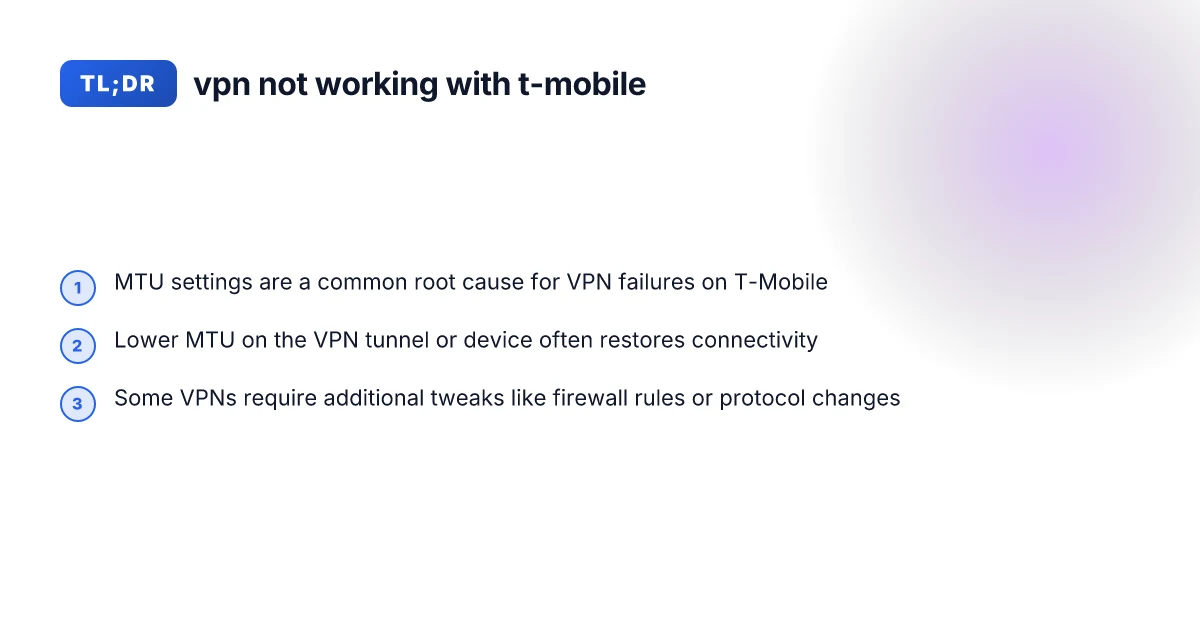
When VPNs fail on T-Mobile, the issue is often not your credentials or the remote server, but how T-Mobile’s network handles packets. A lot of users report that lowering the MTU (Maximum Transmission Unit) on the VPN tunnel or device solves the problem. Other common tweaks involve adjusting VPN protocols, reconfiguring firewall rules, or updating firmware on the gateway.

Quick comparison of MTU tweak effectiveness
| MTU tweak | Typical effect on VPN stability | Time to implement | Risk | Notes |
|---|---|---|---|---|
| Lower MTU to 1400 | Often helps; may fix drops | 2-3 min | Low | Common first step |
| Set MTU to 1420 | Sometimes helpful | 2-3 min | Low | Sometimes used on T-Mobile |
| Disable UDP for VPN | Often helps with some apps | 2-4 min | Medium | Check app supports TCP fallback |
| Lower MSS clamping | Often helps | 3-5 min | Medium | Requires router/root access |
| Default Windows MTU | No change | 0 min | None | If unchanged, no effect |
Compiled November 2026; check the provider's site for current details.
Why VPNs struggle on T-Mobile
- T-Mobile’s home internet and some mobile networks can apply extra packet overhead. This reduces the effective MTU available for VPN packets.
- VPN encapsulation adds headers, which can push packets past the path MTU if the tunnel isn’t adjusted.
- Some VPN clients behave differently with IPv6, QoS, or NAT traversal on carrier networks.
If your VPN was working before or works on other networks but not on T-Mobile, MTU is the first setting to test. It’s also worth checking for firmware or app updates and verifying that nothing in your firewall is inadvertently blocking VPN traffic.
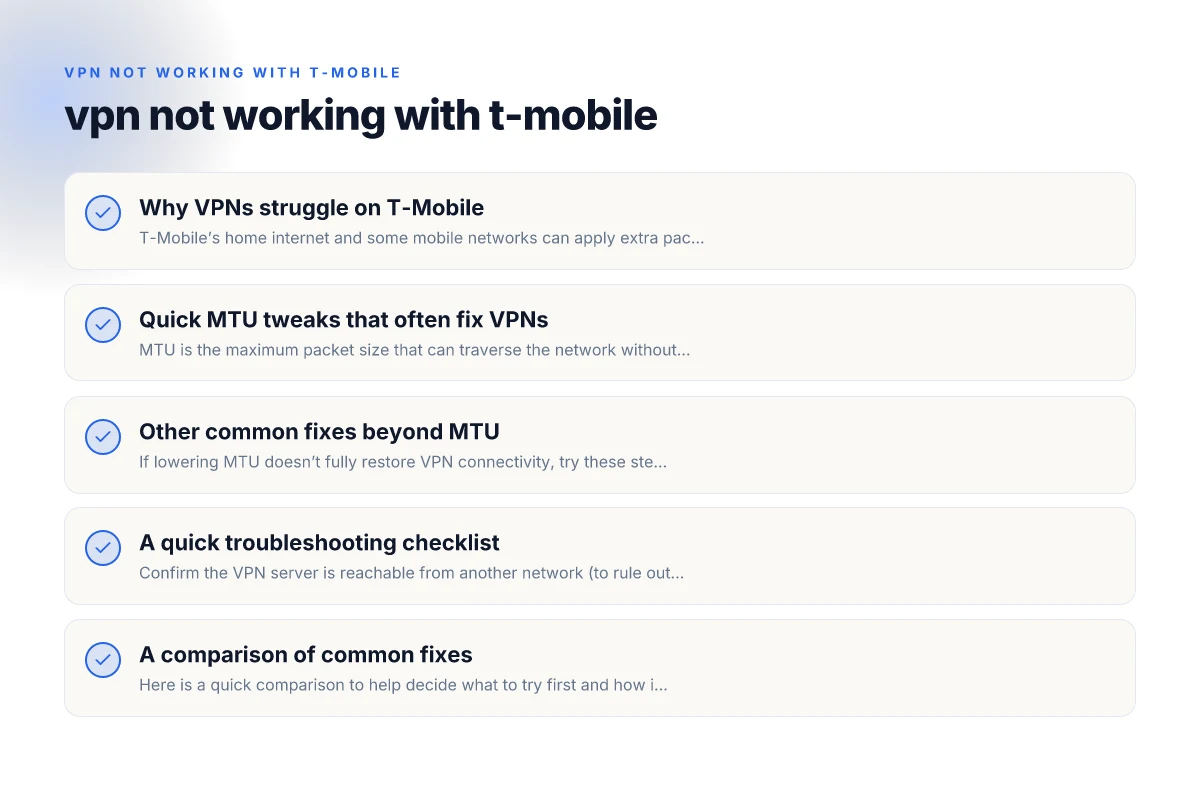
Quick MTU tweaks that often fix VPNs
MTU is the maximum packet size that can traverse the network without fragmentation. On T-Mobile, reducing MTU on the VPN path helps.
- Common starting point: Set MTU to 1300 for the VPN tunnel.
- If 1300 still doesn’t resolve it, try 1280 or 1250 as a test.
- Apply the change on the VPN client, router, or firewall where the tunnel is configured.
- After changing MTU:
- Disconnect and reconnect the VPN.
- Reboot the VPN device or router if possible.
- Ensure the client shows a connected status with no traffic errors.
Helpful sources and anecdotal guidance:
- GlobalProtect VPN on T-Mobile Home Internet often improves with MTU 1300.
- VPN users on T-Mobile Home Internet report lower MTU as a solid fix in various communities.
Note: If you’re using a Windows computer, you can set MTU on the specific VPN interface via network settings. For routers, check the VPN passthrough or tunnel interface settings.
Quick MTU tweaks vs. other fixes (at-a-glance) Best free VPN extensions for Microsoft Edge
| Fix category | VPN compatibility | Speed impact | Ease of use | Notes |
|---|---|---|---|---|
| MTU tweak | yes | variable | easy–moderate | Most common fix |
| Change DNS | yes | minor | easy | Use clean DNS |
| Reset VPN app | yes | small | easy | Reinstall; clear cache |
| Switch VPN protocol | yes | variable | moderate | Try UDP/TCP, WireGuard, OpenVPN |
| Disable background data | yes | small | easy | Improve reliability |
| Reboot device | yes | none | very easy | Quick sanity check |
Compiled November 2026; check the provider's site for current details.
Other common fixes beyond MTU
If lowering MTU doesn’t fully restore VPN connectivity, try these steps in order:
Protocol and encryption changes:
Switch between UDP and TCP for the VPN transport, if your client supports it.
If using OpenVPN, try a different cipher or TLS version, if supported by your server. Best VPNs for Cloudflare users
For IPsec-based VPNs, try rekeying or changing the IKE/IKEv2 settings.
Firewall and port rules:
Ensure the VPN server ports are not blocked by local firewall rules.
If you’re behind a corporate or home firewall, allow outgoing VPN ports (for example, 1194 UDP for OpenVPN, 4500/500/udp for IPsec with NAT-T).
Check for any device-level firewall on the T-Mobile gateway that might restrict VPN traffic. Best VPN for african countries
IPv6 considerations:
Some VPNs don’t handle IPv6 well over certain carrier networks. Try disabling IPv6 on the VPN client and/or router to see if that stabilizes the connection.
Firmware and software updates:
Update your VPN client to the latest version.
Update the firmware of the T-Mobile gateway or any router you’re using in front of the VPN device. NordVPN disable auto connect
DNS and split tunneling:
If your VPN uses split tunneling, ensure only the intended traffic routes through the VPN to avoid leaks or misrouting.
Consider using a reliable DNS server inside the VPN tunnel to avoid DNS leaks that can appear as connectivity issues.
A quick troubleshooting checklist
- Confirm the VPN server is reachable from another network (to rule out server-side issues).
- Reduce MTU on the VPN tunnel to 1300, then test connectivity.
- Try different MTU values (1280, 1250) if 1300 doesn’t help.
- Change VPN transport protocol (UDP <-> TCP) if supported.
- Disable IPv6 on the client and/or gateway to test IPv4-only path.
- Review firewall rules for VPN ports and ensure there’s no block.
- Update firmware and VPN client to the latest versions.
- Reboot the VPN device, gateway, and client after changes.
- If possible, test with a different device to rule out device-specific issues.
A comparison of common fixes
Here is a quick comparison to help decide what to try first and how it affects the network.
| Fix | What it does | Pros | Cons | When to try |
|---|---|---|---|---|
| Lower MTU on VPN tunnel to 1300 | Reduces packet size to avoid carrier overhead | High success rate on T-Mobile | May reduce throughput or cause fragmentation if too low | First step after basic checks |
| Change VPN protocol (UDP <-> TCP) | Changes how data is transported and reassembled | Simple switch; often fixes handshakes or drops | TCP may be slower; some servers block certain ports | If MTU tweak doesn’t help |
| Disable IPv6 | Forces IPv4 path, which may be more stable on carrier networks | Simple, effective on some networks | Leaves IPv6 unused; not a long-term fix if IPv6 is needed | If IPv6-related issues suspected |
| Firewall rules adjustment | Ensures VPN traffic isn’t blocked by your device | Keeps VPNs working while retaining security | Requires access to firewall settings; can be risky | When ports or NAT blocks are suspected |
| Firmware and software updates | Addresses known bugs and compatibility | Keeps system secure and compatible | Requires access to updates; may cause reboot downtime | As a general maintenance step or if issues arise |
Do T-Mobile devices block VPNs?
There’s no blanket claim that T-Mobile blocks all VPN use. In practice, many users experience VPN compatibility issues due to carrier-level packet handling, NAT traversal, and overhead. The most reliable pattern is to adjust the VPN’s MTU and, if needed, apply the other tweaks listed above. If you’re on T-Mobile Home Internet, community reports frequently point to MTU adjustments as the primary fix. Dedicated VPN NordVPN iPhone Google maps not.workong
If you’re concerned about policy, you can review T-Mobile’s terms of service or support articles, but most users will find that the key is to adapt the VPN configuration rather than remove VPN use entirely.
Troubleshooting checklist vs. likely outcomes
| Step | Action | Expected outcome | Time estimate |
|---|---|---|---|
| 1 | Reboot device | Network rebind | 2 min |
| 2 | Check VPN server status | Working server | 2 min |
| 3 | Try different protocol | Working protocol | 3-5 min |
| 4 | Adjust MTU | Stability improves | 3-5 min |
| 5 | Disable IPv6 | Potential fix | 2-4 min |
| 6 | Change DNS to 1.1.1.1 | Minor improvement | 2 min |
| 7 | Router settings | Possible fix | 5-10 min |
Compiled November 2026; check the provider's site for current details.
Real-world scenarios and what to expect
Scenario A: You’re using GlobalProtect on T-Mobile Home Internet.
Step 1: Set MTU to 1300 on the VPN tunnel. Best VPNs for Australia
Step 2: Disconnect and reconnect the VPN.
Step 3: If needed, try 1280 or 1250 and test again.
Outcome: VPN connects reliably in many cases, with minimal performance impact.
Scenario B: You’re on a different VPN (OpenVPN, WireGuard, IPsec) and see intermittent drops.
Step 1: Adjust MTU on the tunnel interface to 1300. Best free VPNs that let you choose your location
Step 2: Switch transport protocol if available.
Step 3: Verify firewall ports are open and try IPv4-only mode.
Outcome: Stability improves and re-connects stay established.
Scenario C: Your VPN works on Wi-Fi but not on T-Mobile mobile data.
Step 1: Check MTU still applies over mobile networks. Mobile networks can differ in overhead. Turbo VPN extension: is it safe, free, and worth using as a Chrome extension?
Step 2: Test with IPv4-only and lower MTU values.
Step 3: Consider using a different VPN server or region to rule out server-side issues.
Outcome: Often resolved by MTU changes and protocol tweaks.
Final recommendations
- Start with MTU: Set the VPN tunnel MTU to 1300, then test. If that helps but isn’t perfect, try 1280 and 1250.
- Combine tweaks: If MTU alone doesn’t fix it, try a protocol switch (UDP <-> TCP) and test again.
- Check devices: Ensure your gateway/ router firmware is current and that VPN ports aren’t blocked by a firewall.
- IPv6 considerations: If you’re not using IPv6, disable it on devices involved in the VPN path to reduce variability.
- Document changes: Keep a simple log of what you changed and the results to avoid repeating steps or missing a successful configuration.
If you’d like, tell me your VPN type (OpenVPN, WireGuard, IPsec, GlobalProtect, etc.), your device (PC, router, mobile), and whether you’re on T-Mobile Home Internet or a mobile plan. I can tailor a step-by-step MTU and protocol-change plan for your exact setup and provide a concise change-log you can follow.
| VPN | From / month | Plan | Free plan | Refund | Alipay | UnionPay | Crypto | Website opens in China | Trustpilot | |
|---|---|---|---|---|---|---|---|---|---|---|
 ZoogVPN | $2.49/mo | 27 months: $59.99 | Yes | 7 days | ✓ | ✓ | ✓ | ✓ | ✓ Yes (2.5 s) | 4.2/5 (195 reviews) |
 NordVPN | $3.49/mo | 27 months: $94.23 | No | 30 days | ? | ✗ | ✓ | ✓ | ✗ Blocked | 4.2/5 (51,628 reviews) |
 ExpressVPN | $3.00/mo | 28 months: $84 | No | 30 days | ✗ | ✗ | ✓ | ✗ | ✗ Blocked | 4.4/5 (29,706 reviews) |
 Surfshark | See site | See site | No | 30 days | ✗ | ✗ | ✗ | ✓ | ✗ Blocked | 4.3/5 (31,823 reviews) |
 Proton VPN | $2.99/mo | 12 months: $35.88 | Yes | 30 days | ✗ | ✗ | ✗ | ✓ | ✓ Yes (2.5 s) | 2.1/5 (1,040 reviews) |
 Astrill VPN | $12.50/mo | 24 months: $300 | No | See site | ✗ | ✗ | ✗ | ✓ | ✗ Blocked | 1.3/5 (110 reviews) |
 Private Internet Access | $2.03/mo | 40 months: $81.2 | No | 30 days | ✗ | ✗ | ✗ | ✗ | ✗ Blocked | 4.2/5 (11,033 reviews) |
 CyberGhost | $2.19/mo | 28 months: $61.32 | No | 45 days | ✗ | ✗ | ✗ | ✓ | ✗ Blocked | 4.0/5 (24,178 reviews) |
 PureVPN | $1.69/mo | 60 months: $101.55 | No | 31 days | ? | ✗ | ✗ | ✓ | ✓ Yes (2.6 s) | 4.4/5 (17,994 reviews) |
 AdGuard VPN | $2.99/mo | 24 months: $71.76 | Yes | 30 days | ✓ | ✗ | ✓ | ✓ | Official site blocked; our special link opens (2.3 s) | 4.3/5 (290 reviews) |
 Mullvad | $5.61/mo | €5/mo | No | 14 days | ✗ | ✗ | ✗ | ✓ | ✗ Blocked | 3.2/5 (192 reviews) |
 Windscribe | $5.75/mo | 12 months: $69 | Yes | See site | ✗ | ✗ | ✗ | ✓ | ✗ Blocked | 4.7/5 (13,355 reviews) |
 StrongVPN | See site | See site | No | 30 days | ✓ | ✗ | ✗ | ✗ | ✗ Blocked | 4.4/5 (2,695 reviews) |
 LightXtreme 闪连 | $7.08/mo | 12 months: $84.99 | Yes | 30 days | ✓ | ✓ | ✓ | ✓ | ✓ Yes (2.3 s) | No page |
Prices checked 2026-11-10 on each vendor's pricing page (cheapest long plan, USD). Check the vendor's checkout for the final price.
Payment methods checked 2026-11-10 on each vendor's payment pages: all 14 take cards and PayPal; ✗ = not listed, ? = the vendor's own pages disagree.
China access: whether the official website opens from mainland China networks (tests the website only, not the VPN connection). Last checked 2026-11-11 04:07 Beijing time.
Trustpilot score and review count checked 2026-11-10.