NordVPN disable auto connect
A practical guide to turning off NordVPN’s auto-connect feature across devices, with steps, tips, and troubleshooting.
Setting NordVPN to stop auto-connecting is a common request for users who want full manual control over their VPN connections. Whether you’re on Windows, macOS, Android, or iOS, you can disable the auto-connect feature and decide when and where to connect. This guide walks you through the steps, what to expect, and practical tips to keep your connection behavior predictable.

Quick comparison of auto-connect states (On vs Off)
| Feature | Auto-connect on | Auto-connect off | Notes |
|---|---|---|---|
| Default behavior | Enabled | Disabled | Per device guidance |
| Security impact | Moderate | Higher control | Manual connect required |
| Battery impact | Higher if on mobile | Lower on mobile | Background activity reduced |
| Data usage impact | Similar | Similar | Depends on apps |
| VPN behavior on network change | Reconnects automatically | Requires manual connect | User action needed |
| Ease of setup | Simple | Slightly more steps | Settings in app or OS |
Compiled November 2026; check the provider's site for current details.
Why NordVPN auto-connect happens
NordVPN’s auto-connect behavior is designed to protect you without requiring constant manual action. It can connect:
- When you launch the app
- When you join a new Wi-Fi network
- When the app detects a restricted network or a specific protocol choice Disabling auto-connect gives you control over when you connect and which server or protocol you use. This is especially useful on trusted networks or when you want to avoid VPN routing on certain networks.
How to disable auto-connect on Windows
NordVPN’s Windows app offers a couple of key options you’ll want to adjust:
- Auto-connect on launch: Prevents the app from connecting automatically when you start the computer or open the app.
- Auto-connect on public Wi‑Fi: Stops automatic connection when you join new networks.
- Choose server automatically: Stops the feature that selects a server and protocol automatically.
Steps:
- Open NordVPN.
- Go to Settings (gear icon) or Connection preferences.
- Find Auto-connect on launch and toggle it Off.
- Find Auto-connect on public Wi-Fi (or similar wording) and toggle it Off.
- If you see “Choose a VPN protocol and server automatically,” toggle it Off to stop automatic server/protocol selection.
- Save or Apply changes if prompted.
Tip: After changing these settings, test by closing the app and reopening or by toggling a network change to verify it does not auto-connect.
How to disable auto-connect on macOS
Mac users often look for a clean, manual flow: Dedicated VPN NordVPN iPhone Google maps not.workong
- Open NordVPN from the Applications folder or the dock.
- Access the Settings or Preferences menu.
- Turn off Auto-connect on launch.
- Turn off Auto-connect on public Wi‑Fi.
- Disable any option that says “Always connect to VPN on network change” or “Auto-select server.”
Note: macOS users sometimes see the connection status reflected in the menu bar. If you use macOS Shortcuts or Automation, verify there isn’t a separate trigger re-enabling connection.
How to disable auto-connect on Android
Android devices frequently implement auto-connect at the system or app level:
- Open NordVPN app.
- Tap the gear icon for Settings.
- Find Auto-connect or Auto-connect on launch and switch Off.
- If present, disable “Connect automatically on Wi‑Fi network” or “Always-on VPN” style settings within the app.
- You may also see “Choose a server automatically” or “Recommended server” toggle. Turn this Off if you want to pick a server manually every time.
Pro tip: On Android, you can also rely on Android’s own VPN settings for granular control. If you’re testing, try connecting and then disconnecting manually to confirm your preferences.
Device-specific steps at a glance
| Device | Where to find setting | Action to disable | Confirmation cue | Quick tip |
|---|---|---|---|---|
| Windows | NordVPN app > Settings | Turn Auto-connect off | Toggle off; “Auto-connect: Off” | Check tray icon stays idle |
| macOS | NordVPN app > Settings | Disable Auto-connect | “Auto-connect: Off” | Reopen app to confirm |
| Android | NordVPN app > Settings | Disable Auto-connect | “Auto-connect: Off” | Ensure battery saver not blocking |
| iOS | NordVPN app > Settings | Disable Auto-connect | “Auto-connect: Off” | Verify connection status badge |
Compiled November 2026; check the provider's site for current details. Microsoft Edge secure network VPN review
How to disable auto-connect on iOS
iPhone and iPad users can manage auto-connect within the NordVPN app:
- Open NordVPN.
- Go to Settings.
- Disable Auto-connect on launch.
- Disable any “Auto-connect on Wi‑Fi” or “Auto-connect on network change” options.
- Ensure “Choose a server automatically” is Off if you want manual server selection.
If you rely on iOS features like Shortcuts, double-check that no automation re-enables the VPN.
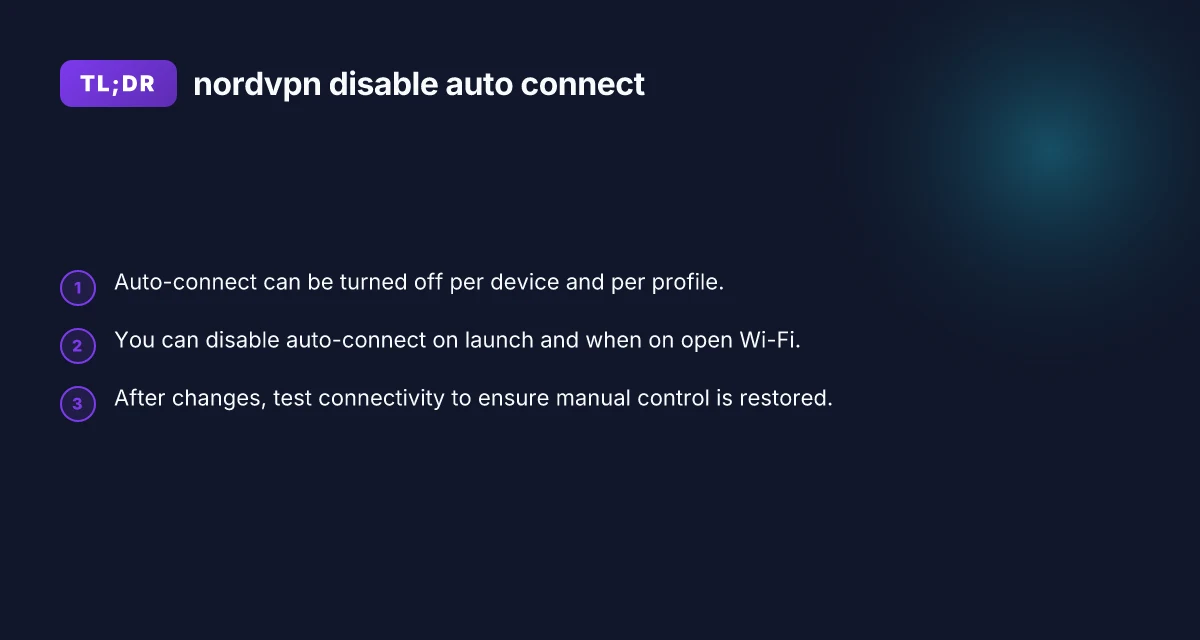
Quick comparison: auto-connect off vs on
Here is a simple guide to compare behaviors with auto-connect off versus on. Use this as a mental model when deciding your settings.
| Scenario | Auto-connect on launch | Auto-connect on public Wi‑Fi | Manual control | Typical outcome |
|---|---|---|---|---|
| Fresh start, trusted network | On | Optional | No automatic connection; you choose | You decide when to connect |
| Unknown/unclear network | On | On | Requires action | Reduced risk of auto-connect to risky networks |
| Personal device on secure home network | Off | Off | Full manual | Maximum control, but you must connect intentionally |
| Public hotspot | Off | On | Manual | You connect when you want protection; avoids unexpected connections |
Notes:
- The exact labels in the UI can vary by version. If you don’t see the exact wording, look for similar phrases like “Auto-connect,” “Launch on startup,” or “Connect on public Wi‑Fi.”
- Some NordVPN builds also include a “smart connect” or “quick connect” feature. If you want zero auto-connections, consider disabling those suggestions as well or selecting a manual server.
Troubleshooting checklist when NordVPN keeps auto-connecting NordVPN dedicated IP price: what you need to know before buying
| Step | Action | Expected result | Common pitfall | Note |
|---|---|---|---|---|
| 1 | Check app settings | Auto-connect off | Setting reverts on restart | Save changes |
| 2 | Review OS-level VPN policies | Disabled | Other VPN profiles active | Remove duplicates |
| 3 | Update app | Latest version | Older version may ignore setting | Reboot after update |
| 4 | Disable startup/VPN at login | Off | App starts with system | Use task scheduler / login items |
| 5 | Reinstall app | Fresh config | Lost preferences | Backup data first |
Compiled November 2026; check the provider's site for current details.
Troubleshooting: what to do if NordVPN keeps connecting
If your device still connects automatically after you’ve disabled auto-connect, try these steps:
- Double-check all related toggles in Settings: auto-launch, auto on Wi‑Fi, and server/protocol auto-selection.
- Ensure you are editing the correct profile if you have multiple VPN configurations.
- Restart the app and, if needed, restart the device to apply changes.
- Check for app updates. A bug fix could affect auto-connect behavior.
- Review any third-party firewall or network management software that might re-enable VPN on startup or network change.
- If you’re using a managed device (work or school), group policies or MDM profiles might override local settings. Contact your IT administrator if that’s the case.
Best practices when you disable auto-connect
- Test after every major change: turn off a setting, save, restart, and simulate a network change to confirm behavior.
- Maintain a simple workflow: manually pick your server, protocol, and kill-switch preferences to ensure you know when data is protected.
- Use a kill switch as a safety net: even with manual control, enabling a kill switch ensures traffic doesn’t leak if the VPN momentarily disconnects.
- Document your preferred setup: include which server locations you favor and when you prefer to connect to protect your privacy without over-relying on automatic actions.
Final recommendation
If your goal is strict manual control over NordVPN connections, disable all auto-connect options, especially on launch and on public Wi‑Fi, and turn off automatic server/protocol selection. This setup gives you the most predictable behavior: you decide when and where to connect, rather than the app or system making that choice for you. After you’ve made changes, test across your devices by switching networks, restarting apps, and confirming that no automatic connection occurs without your explicit action. If you run into any stubborn cases, consult NordVPN support or check for device-specific guides from their official help center to ensure you’re following the latest steps for your OS version.
| VPN | From / month | Plan | Free plan | Refund | Alipay | UnionPay | Crypto | Website opens in China | Trustpilot | |
|---|---|---|---|---|---|---|---|---|---|---|
 NordVPN | $3.49/mo | 27 months: $94.23 | No | 30 days | ? | ✗ | ✓ | ✓ | ✗ Blocked | 4.2/5 (51,628 reviews) |
 ZoogVPN | $2.49/mo | 27 months: $59.99 | Yes | 7 days | ✓ | ✓ | ✓ | ✓ | ✓ Yes (2.5 s) | 4.2/5 (195 reviews) |
 ExpressVPN | $3.00/mo | 28 months: $84 | No | 30 days | ✗ | ✗ | ✓ | ✗ | ✗ Blocked | 4.4/5 (29,706 reviews) |
 Surfshark | See site | See site | No | 30 days | ✗ | ✗ | ✗ | ✓ | ✗ Blocked | 4.3/5 (31,823 reviews) |
 Proton VPN | $2.99/mo | 12 months: $35.88 | Yes | 30 days | ✗ | ✗ | ✗ | ✓ | ✓ Yes (2.5 s) | 2.1/5 (1,040 reviews) |
 Astrill VPN | $12.50/mo | 24 months: $300 | No | See site | ✗ | ✗ | ✗ | ✓ | ✗ Blocked | 1.3/5 (110 reviews) |
 Private Internet Access | $2.03/mo | 40 months: $81.2 | No | 30 days | ✗ | ✗ | ✗ | ✗ | ✗ Blocked | 4.2/5 (11,033 reviews) |
 CyberGhost | $2.19/mo | 28 months: $61.32 | No | 45 days | ✗ | ✗ | ✗ | ✓ | ✗ Blocked | 4.0/5 (24,178 reviews) |
 PureVPN | $1.69/mo | 60 months: $101.55 | No | 31 days | ? | ✗ | ✗ | ✓ | ✓ Yes (2.6 s) | 4.4/5 (17,994 reviews) |
 AdGuard VPN | $2.99/mo | 24 months: $71.76 | Yes | 30 days | ✓ | ✗ | ✓ | ✓ | Official site blocked; our special link opens (2.3 s) | 4.3/5 (290 reviews) |
 Mullvad | $5.61/mo | €5/mo | No | 14 days | ✗ | ✗ | ✗ | ✓ | ✗ Blocked | 3.2/5 (192 reviews) |
 Windscribe | $5.75/mo | 12 months: $69 | Yes | See site | ✗ | ✗ | ✗ | ✓ | ✗ Blocked | 4.7/5 (13,355 reviews) |
 StrongVPN | See site | See site | No | 30 days | ✓ | ✗ | ✗ | ✗ | ✗ Blocked | 4.4/5 (2,695 reviews) |
 LightXtreme 闪连 | $7.08/mo | 12 months: $84.99 | Yes | 30 days | ✓ | ✓ | ✓ | ✓ | ✓ Yes (2.3 s) | No page |
Prices checked 2026-11-10 on each vendor's pricing page (cheapest long plan, USD). Check the vendor's checkout for the final price.
Payment methods checked 2026-11-10 on each vendor's payment pages: all 14 take cards and PayPal; ✗ = not listed, ? = the vendor's own pages disagree.
China access: whether the official website opens from mainland China networks (tests the website only, not the VPN connection). Last checked 2026-11-11 04:07 Beijing time.
Trustpilot score and review count checked 2026-11-10.