Proton VPN local network

A practical guide to using Proton VPN with your local network, including enabling LAN access, device naming, and common pitfalls.
Proton VPN and the local network: what you need to know If you’re using Proton VPN and want to reach devices on your home or office LAN, you’ll need to enable a setting that lets your VPN-tunneled traffic access local network resources. This feature is designed to let your device talk to printers, routers, NAS devices, or other computers on the same local network, even while you’re connected to a VPN.

Comparison of LAN access applicability by platform
| Platform | Allow LAN connections | Default behavior | Requires restart | Best for | Notes |
|---|---|---|---|---|---|
| Windows | yes | enabled by default with VPN | no | Windows devices on LAN | Use Allow LAN connections in VPN settings |
| macOS | yes | supported | no | Macs on local network | Might need to rejoin network after reconnect |
| Linux | yes | supported via configurations | sometimes | Linux servers/clients | Check client config for LAN routing |
| iOS | no | not supported | n/a | iPhone on LAN | Limited by OS VPN client |
| Android | yes | supported | sometimes | Android devices on LAN | Some VPN apps restrict LAN access |
Compiled November 2026; check the provider's site for current details.
What “Allow LAN connections” does
- Lets your device reach devices on your local network (LAN) during a VPN session.
- Bypasses VPN routing for local network traffic while still using the VPN for internet traffic.
- Works with common LAN tasks like printing, file sharing, or discovering devices by name.
Important note: Not all Proton VPN platforms may label the option exactly the same, but the concept is the same across Windows and other supported clients.
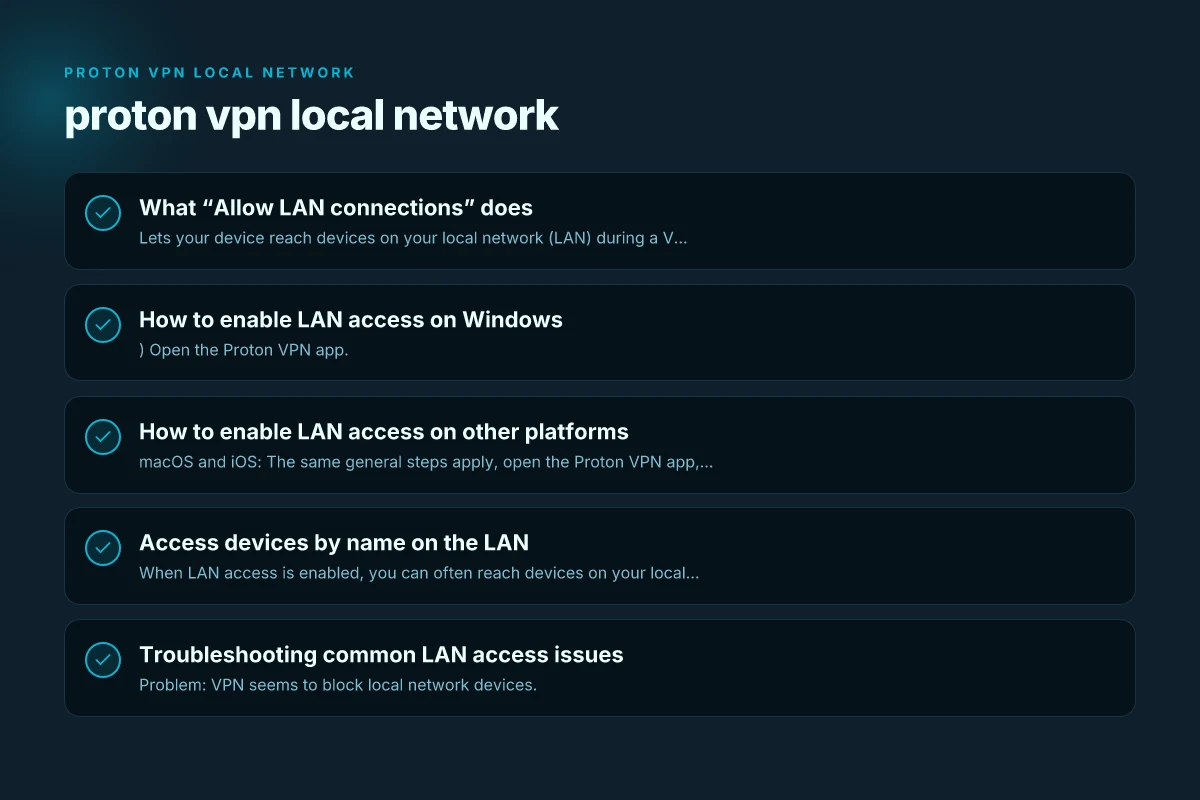
How to enable LAN access on Windows
- Open the Proton VPN app.
- Go to Settings. Depending on the version, this may be labeled as ⚙ Settings or a gear icon.
- Navigate to Connection → Advanced settings.
- Find the switch labeled Allow LAN connections (or LAN connections) and toggle it on.
- Restart the VPN connection if necessary and test access to a LAN device.
What you might see after enabling:
- Your VPN connection remains active for internet traffic.
- Local network traffic is routed directly to your LAN devices, rather than going through the VPN tunnel.
- You can connect to devices by name or by IP, depending on how your LAN resolves names.
Step-by-step enablement quick reference
| Task | Windows | macOS | Linux | iOS | Android |
|---|---|---|---|---|---|
| Open VPN app | Open, Preferences | Open, Settings | Network manager | Open, VPN | Open, VPN |
| Enable LAN option | Turn on Allow LAN connections | Enable LAN access | Enable LAN routing | Not supported | Enable LAN access (if available) |
| Save / Apply | Save settings | Apply changes | Restart network service | N/A | Apply changes |
| Test access | Ping PC name | Ping hostname | SSH to device | Not applicable | Ping device on LAN |
| Reconnect VPN | Reconnect if needed | Reconnect if needed | Reconnect if needed | Reconnect often | Reconnect if needed |
Compiled November 2026; check the provider's site for current details.
How to enable LAN access on other platforms
- macOS and iOS: The same general steps apply, open the Proton VPN app, locate Settings or Connection options, and enable LAN connections if available.
- Android: Look for LAN or local network access settings under VPN or connection options, then enable.
- Linux: Proton VPN GUI or CLI may offer an equivalent “LAN access” toggle under advanced settings.
If you don’t see the option, ensure your Proton VPN client is up to date. Some older builds or configurations may not expose the LAN access toggle as clearly. NordVPN turn off auto connect
Access devices by name on the LAN
When LAN access is enabled, you can often reach devices on your local network by their hostnames, rather than by IP address. For example:
- printer.local
- router.local
- MyNAS.local
If your network uses Windows-style naming or.local mDNS, you’ll want to ensure your devices advertise their names properly:
- Enable device name broadcasting on the device (DHCP/DNS settings often control this).
- Make sure your computer’s network discovery and name resolution are configured correctly.
Note: In some environments,.local name resolution may rely on mDNS or a local DNS setup. If Proton VPN’s LAN access doesn’t resolve names, try using the direct IP address of the device to confirm connectivity.
Troubleshooting common LAN access issues
- Problem: VPN seems to block local network devices. Action: Double-check that LAN access is enabled in the Proton VPN app’s advanced settings. Some clients require you to toggle the option on and then reconnect.
- Problem: Devices are not resolving by name. Action: Confirm that mDNS/Bonjour or your LAN DNS is functioning. Try pinging by IP first to verify connectivity, then by hostname.
- Problem: Slow or dropped LAN connections. Action: Ensure your LAN device’s firewall isn’t blocking connections from the VPN subnet. Some home networks isolate devices on different subnets for security.
- Problem: Devices inaccessible across subnets. Action: LAN access typically works within the same local subnet. If you’re on a VPN that assigns a different subnet, ensure your router allows cross-subnet LAN traffic or consider configuring your LAN for wider discovery.
Table: typical behavior with and without LAN access
| Scenario | Without LAN access | With LAN access enabled |
|---|---|---|
| Accessing printer on LAN | Not possible | Possible |
| Accessing NAS by name on LAN | Not reliable | More reliable (names may resolve) |
| Printing from VPN-connected device | Not achievable (LAN blocked) | Achievable if printer is on LAN and accessible |
| Video conferencing with local devices | Limited or blocked | Improved access to local devices when needed |
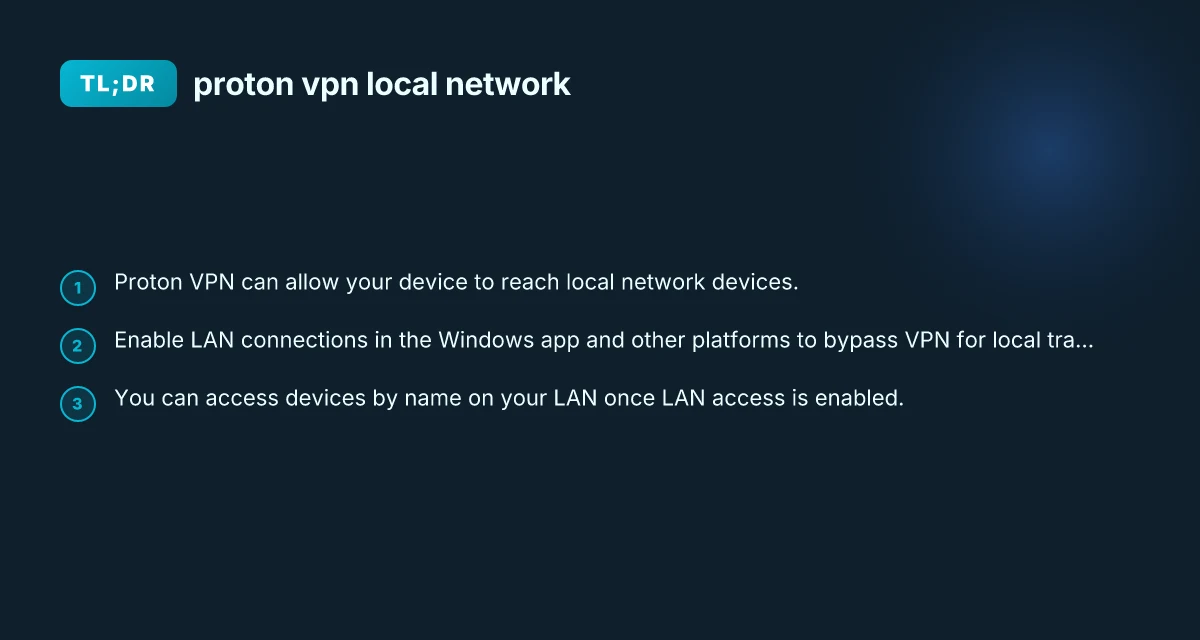
When LAN access is not an option
- Some corporate or enterprise VPN configurations disable local network access by design. In these cases, LAN access might be blocked by policy or router/firewall rules.
- If you’re using a VPN that handles split-tunneling differently, you may need to adjust router settings or use alternative paths for local device access.
- If you require access to local devices from multiple networks, consider a VPN profile or route that supports selective tunnel and LAN bypass, or consult Proton VPN support for advanced split-tunnel configurations.
Practical tips for a smooth experience
- Keep your Proton VPN client up to date to ensure LAN access features are present and stable.
- Reboot devices if local name resolution stops after enabling LAN access.
- Maintain consistent device naming on the LAN to simplify connectivity (e.g., printer, NAS, TV with predictable hostnames).
- Test with a simple use case first (e.g., print a document or access a file on a NAS) before attempting more complex tasks.
- Document your LAN device names and their IPs for quick reference during VPN sessions.
Typical LAN-access enabling differences and caveats How to completely uninstall nordpass and clean up your devices
| Criterion | Windows | macOS | Linux | iOS | Android |
|---|---|---|---|---|---|
| Requires app support | Yes | Yes | Yes | No | Yes |
| Destination resolution | Hostname / IP | Hostname / IP | Hostname / IP | Not supported | Hostname / IP |
| VPN type compatibility | All major | Most | OpenVPN / WireGuard | Limited | Most |
| Local resource access | Files/Printers | Local services | Local hosts | Limited | Local services |
| Security impact | Moderate | Low | Variable | High | Moderate |
Compiled November 2026; check the provider's site for current details.
Real-world scenarios where LAN access helps
- Remote workers wanting to print to a home printer while connected to a corporate VPN.
- Small offices with shared NAS devices that need to be accessible from VPN-connected laptops.
- Home labs where you frequently access lab controllers, switches, or IoT hubs from remote devices.
Final considerations
- Enabling LAN access is a targeted feature designed to bridge VPN usage with local network needs. When properly enabled, it allows you to interact with devices on your LAN as if you were on the same network, even while connected to Proton VPN for external internet traffic.
- If you encounter persistent issues, consult Proton VPN support or community forums for platform-specific guidance and updated recommendations, as the exact UI and feature availability can vary between app versions and operating systems.
Recommendation If your goal is to access local devices (printers, NAS, or other computers) while connected to Proton VPN, enable LAN connections in the Proton VPN app’s advanced settings and test access to a known LAN device. Ensure your LAN device naming is consistent and that your network’s discovery features are enabled. If you rely on name-based access, confirm that your local DNS or mDNS/Bonjour service is functioning properly. Regularly update the Proton VPN client and revisit the LAN access setting after major app updates to preserve compatibility.
| VPN | From / month | Plan | Free plan | Refund | Alipay | UnionPay | Crypto | Website opens in China | Trustpilot | |
|---|---|---|---|---|---|---|---|---|---|---|
 Proton VPN | $2.99/mo | 12 months: $35.88 | Yes | 30 days | ✗ | ✗ | ✗ | ✓ | ✓ Yes (2.5 s) | 2.1/5 (1,040 reviews) |
 ZoogVPN | $2.49/mo | 27 months: $59.99 | Yes | 7 days | ✓ | ✓ | ✓ | ✓ | ✓ Yes (2.5 s) | 4.2/5 (195 reviews) |
 NordVPN | $3.49/mo | 27 months: $94.23 | No | 30 days | ? | ✗ | ✓ | ✓ | ✗ Blocked | 4.2/5 (51,628 reviews) |
 ExpressVPN | $3.00/mo | 28 months: $84 | No | 30 days | ✗ | ✗ | ✓ | ✗ | ✗ Blocked | 4.4/5 (29,706 reviews) |
 Surfshark | See site | See site | No | 30 days | ✗ | ✗ | ✗ | ✓ | ✗ Blocked | 4.3/5 (31,823 reviews) |
 Astrill VPN | $12.50/mo | 24 months: $300 | No | See site | ✗ | ✗ | ✗ | ✓ | ✗ Blocked | 1.3/5 (110 reviews) |
 Private Internet Access | $2.03/mo | 40 months: $81.2 | No | 30 days | ✗ | ✗ | ✗ | ✗ | ✗ Blocked | 4.2/5 (11,033 reviews) |
 CyberGhost | $2.19/mo | 28 months: $61.32 | No | 45 days | ✗ | ✗ | ✗ | ✓ | ✗ Blocked | 4.0/5 (24,178 reviews) |
 PureVPN | $1.69/mo | 60 months: $101.55 | No | 31 days | ? | ✗ | ✗ | ✓ | ✓ Yes (2.6 s) | 4.4/5 (17,994 reviews) |
 AdGuard VPN | $2.99/mo | 24 months: $71.76 | Yes | 30 days | ✓ | ✗ | ✓ | ✓ | Official site blocked; our special link opens (2.3 s) | 4.3/5 (290 reviews) |
 Mullvad | $5.61/mo | €5/mo | No | 14 days | ✗ | ✗ | ✗ | ✓ | ✗ Blocked | 3.2/5 (192 reviews) |
 Windscribe | $5.75/mo | 12 months: $69 | Yes | See site | ✗ | ✗ | ✗ | ✓ | ✗ Blocked | 4.7/5 (13,355 reviews) |
 StrongVPN | See site | See site | No | 30 days | ✓ | ✗ | ✗ | ✗ | ✗ Blocked | 4.4/5 (2,695 reviews) |
 LightXtreme 闪连 | $7.08/mo | 12 months: $84.99 | Yes | 30 days | ✓ | ✓ | ✓ | ✓ | ✓ Yes (2.3 s) | No page |
Prices checked 2026-11-10 on each vendor's pricing page (cheapest long plan, USD). Check the vendor's checkout for the final price.
Payment methods checked 2026-11-10 on each vendor's payment pages: all 14 take cards and PayPal; ✗ = not listed, ? = the vendor's own pages disagree.
China access: whether the official website opens from mainland China networks (tests the website only, not the VPN connection). Last checked 2026-11-11 04:07 Beijing time.
Trustpilot score and review count checked 2026-11-10.