How to completely uninstall nordpass and clean up your devices
A thorough, step-by-step guide to completely remove NordPass and residual data from your devices.
Introduction If you’re ready to remove NordPass from your devices, you’ll want to do more than just uninstall the app. NordPass stores data in several places, including the desktop application, browser extensions, and local folders. A complete cleanup ensures there are no leftover files or caches that could re-create traces of NordPass on your system. This guide walks you through a clean, thorough uninstall process for Windows, macOS, and Linux, plus steps for browser extensions and data cleanup.

Comparison of uninstall methods and scope
| Step | Scope | What gets removed | Potential leftovers | Ease of revert | Notes |
|---|---|---|---|---|---|
| Uninstall NordPass desktop app | Desktop app uninstall | NordPass app itself | User data may remain | Moderate | Use built-in uninstaller or OS settings |
| Remove NordPass browser extensions | Browser level | Extension installed | Cached extension data | Easy | Repeat per browser |
| Remove leftover NordPass data and folders | File system | Local config/cache folders | Hidden data may remain | Moderate | Check AppData/Library folders |
| Clean up browser caches and saved data | Browsers | Cache, cookies, saved passwords | Some NordPass traces may linger | Easy | Clear cache in each browser |
Compiled November 2026; check the provider's site for current details.
Uninstall NordPass from the desktop app
Before removing NordPass, make sure you’ve closed the application and saved any needed information.
- Windows
- Open Settings > Apps.
- Find NordPass in the list and select Uninstall.
- Follow the on-screen prompts to complete removal.
- After uninstall, navigate to the user data folders (see “Remove leftover folders” below) to delete remaining files.
- macOS
- Open Finder > Applications.
- Drag NordPass to the Trash, or right-click and choose Move to Trash.
- Empty the Trash to complete removal.
- Check for any supporting files in Library/Application Support and similar locations (see “Remove leftover folders” below).
- Linux
- If you installed via a package manager (like apt, snap, or dnf), use the same tool to remove NordPass.
- Example for snap: sudo snap remove nordpass
- Confirm the application is no longer present via your package manager’s list or your system’s desktop launcher.
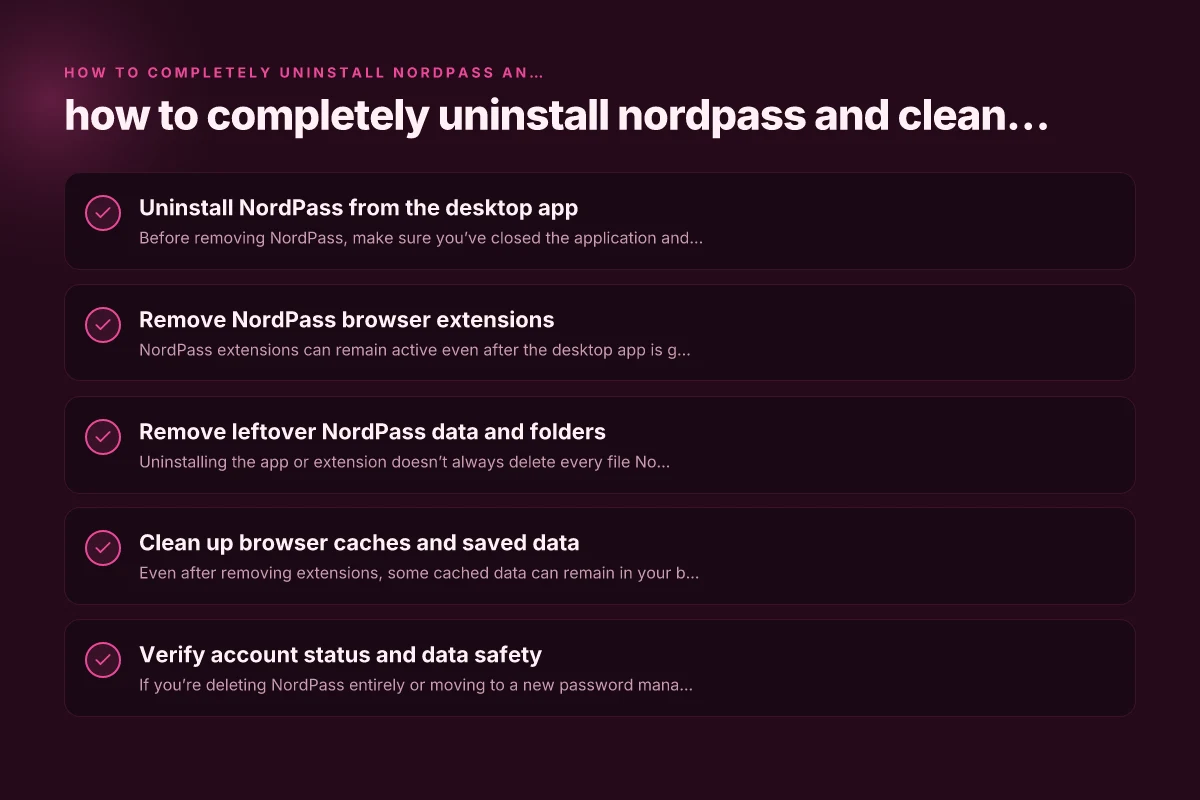
Remove NordPass browser extensions
NordPass extensions can remain active even after the desktop app is gone, so you’ll want to remove them to prevent prompts or cached data.
- Chrome
- Open Chrome > More tools > Extensions.
- Find NordPass and click Remove.
- Confirm removal.
- Firefox
- Open Firefox > Add-ons > Extensions.
- Locate NordPass and click Remove.
- Edge, Safari, or other browsers
- Access the browser’s extensions/add-ons menu and remove NordPass similarly.
Why removing extensions matters
- Extensions can store credentials, cached data, or tokens that may re-create prompts or autofill fields after uninstallation.
- Cleaning extensions helps ensure no hidden data lingers in the browser environment.
Remove leftover NordPass data and folders
Uninstalling the app or extension doesn’t always delete every file NordPass created on your device.
- Windows leftovers
- Check these common paths and delete NordPass folders if present:
- C:\Program Files\NordPass
- C:\Users<YourUsername>\AppData\Roaming\NordPass
- C:\Users<YourUsername>\AppData\Local\NordPass
- You may also search for “NordPass” in AppData and Program Files and remove any related folders.
- macOS leftovers
- Look in:
- /Library/Application Support/NordPass
- ~/Library/Application Support/NordPass
- ~/Library/Caches/com.nordpass.NordPass
- Remove any NordPass-related items you find.
- Linux leftovers
- Check common data directories like:
- ~/.local/share/NordPass
- ~/.config/NordPass
- Remove as needed.
Note: Deleting these folders removes locally stored vault data, caches, and settings. If you’re planning to re-install NordPass later, you may want to back up any non-cloud data first. NordVPN three year plan
Clean up browser caches and saved data
Even after removing extensions, some cached data can remain in your browser.
- Clear browser cache
- Chrome: Settings > Privacy and security > Clear browsing data.
- Firefox: Options > Privacy & Security > Cookies and Site Data > Clear Data.
- Edge: Settings > Privacy, search, and services > Clear browsing data.
- Manage saved passwords
- In case NordPass saved a few items outside the extension, review your saved passwords in the browser’s password manager and remove NordPass-related entries if needed.
- Check for residual NordPass cookies
- Some cookies may persist after removal. Clear cookies for affected sites, or clear all cookies for a quick cleanup.
Data persistence after uninstall
| Item | Removed | May linger | Notes | User action | Relevance |
|---|---|---|---|---|---|
| Passwords stored in NordPass app | Yes | No | App data removed | N/A | High |
| Saved browser passwords (if synced) | No | Yes | Browser may keep hints | Clear saved passwords | Medium |
| NordPass local vault files | Yes | No | Local vault deleted | N/A | High |
| Browser extension data | Yes | Yes | Cache and local storage | Clear extension data | Medium |
| Account status (NordPass) | No | Yes | Subscription may persist | Sign out / delete account | Medium |
Compiled November 2026; check the provider's site for current details.
Verify account status and data safety
If you’re deleting NordPass entirely or moving to a new password manager, consider these checks.
- Account status
- Open NordPass (if possible) or visit the NordPass account portal to verify the account is deactivated or set for deletion if that’s your goal.
- If you’re deleting your NordPass account, follow the official steps to delete the account from the NordPass app or account page.
- Data backups
- If you have a local vault or offline backups, decide whether you want to keep a copy or delete it. Remember that local vaults may contain sensitive data.
- Device security
- Run a full system scan with your up-to-date antivirus software.
- Ensure your device’s OS and security patches are current.
Quick comparison: what gets removed and what may linger
Here is a quick reference to understand where NordPass data typically resides and what removal steps target. How to download f5 big-IP Edge VPN client for Mac
| Area | Typical content | Removal steps | Notes |
|---|---|---|---|
| Desktop app | Vault data, settings, local encrypted files | Uninstall app, then delete leftover folders | If you re-install later, you may want to back up vault data first |
| Browser extension | Saved credentials, keys, tokens, caches | Remove extension from each browser | Browser data can persist—clear cache if needed |
| Local data folders | Application data caches, config files | Delete NordPass-related folders in AppData, Library, or.config | Losing local vault data if stored outside the cloud |
| Browser caches | Cached pages and data | Clear browser cache and cookies | May affect auto-fill behavior temporarily |
Reinstallation options and clean start
If your goal is to start fresh with NordPass, a clean reinstallation can be beneficial.
- Fresh install steps
- Download the latest NordPass installer from the official site.
- Install the desktop app on your device.
- Reinstall the NordPass browser extension in your preferred browsers.
- First-time setup tips
- Consider importing only the credentials you need.
- Enable two-factor authentication for added security.
- Review your device approvals and active sessions after sign-in.
Reinstallation options for clean start
| Option | Fresh install required | Data retained | Instructions | Recommended for | Caveats |
|---|---|---|---|---|---|
| Clean reinstall of desktop app | Yes | No | Uninstall & reboot; reinstall | Fresh start | Backup important items |
| Reinstall with data retention | No | Yes | Use standard install | Convenience | May restore old issues |
| Reinstall via portable/version switch | Optional | Yes/No | Download portable or beta | Testing | Not always available |
| Reinstall after removing extensions | Yes | No | Remove browser extensions first | Browsers | Ensures clean slate |
Compiled November 2026; check the provider's site for current details.
Bottom line: when and why to fully uninstall
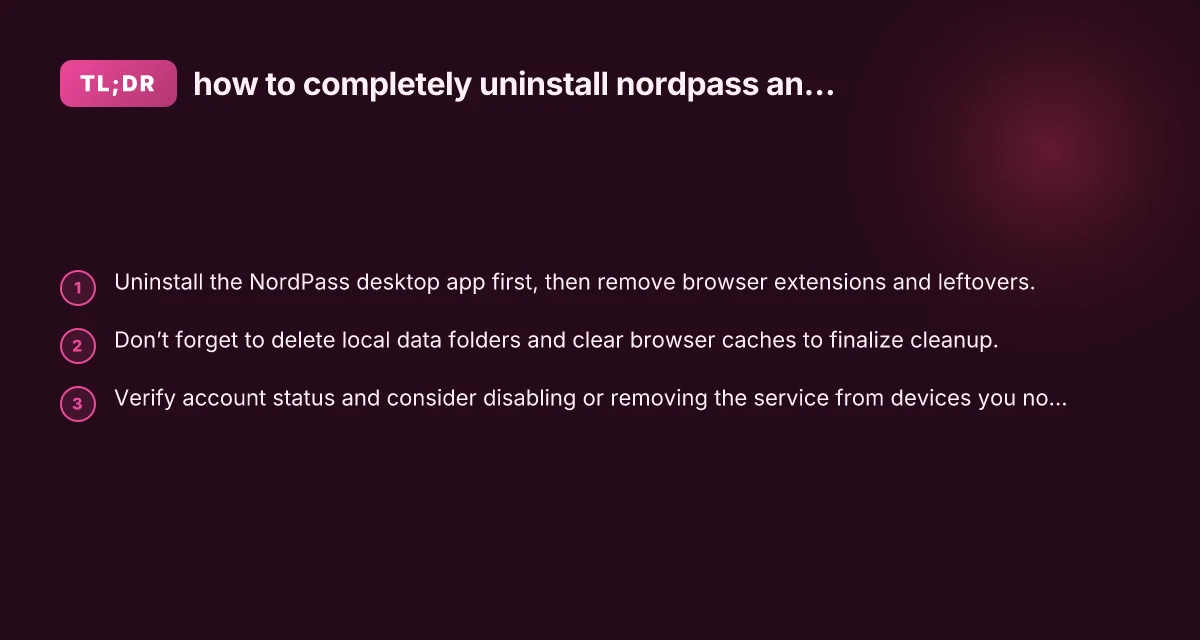
- You should perform a complete cleanup if you’re leaving NordPass for good, selling or disposing of a device, or troubleshooting persistent prompts or issues.
- A full uninstall helps prevent leftover data from being accessible if the device changes hands or undergoes a malware risk assessment.
- If you’re switching to another password manager, a thorough cleanup reduces data duplication and conflicts between password vaults.
Final recommendation To completely uninstall NordPass and clean up your devices, start with removing the desktop app, then eliminate browser extensions, delete leftover data and caches, and finally confirm your account status and device security. This layered approach minimizes the chance of residual data surfacing later and ensures a clean slate for your next password management setup. If you plan to return to NordPass later, consider backing up any needed data before deletion and follow official reinstallation steps to preserve a smooth transition.