Microsoft Edge secure network VPN missing how to fix it and why

A comprehensive guide to understanding why Edge Secure Network VPN may be missing and how to fix or enable it.
Edge Secure Network is a built-in privacy feature in Microsoft Edge that acts like a VPN to help protect your browsing by masking your IP address and encrypting traffic on supported networks. If you’ve noticed that the Secure Network VPN option is missing, or you’re wondering why it’s not available, you’re not alone. This guide breaks down what Secure Network is, why it might disappear, and exactly how to fix or work around common issues. You’ll find practical steps, troubleshooting tips, and comparisons to help you decide what’s right for your browsing needs.

Edge Secure Network vs. Traditional VPN Features
| Feature | Edge Secure Network | Traditional VPN | Notes |
|---|---|---|---|
| Availability in Edge browser | Yes | No | Built-in option within Edge |
| Platform support | Windows/macOS/Android/iOS | Windows/macOS/Linux/iOS/Android | Varies by provider |
| Default encryption | Yes (TLS/HTTPS) | Yes (IPsec/OpenVPN/WireGuard) | Depends on setup |
| Network level protection | Yes | Sometimes | Depends on VPN type |
| Per-application control | Limited | Yes (per app) | Edge UI vs client apps |
| Logging/telemetry in browser | Limited | Varies by provider | Privacy implication |
| Setup complexity | Low | Medium to high | Edge vs client apps |
| Speed impact | Moderate | Variable | Network routing differs |
| Cross-device sync | Yes (within Edge) | No | Browser-based solution |
| Cost | Usually free with Edge | Paid or free options | Depends on plan |
Compiled November 2026; check the provider's site for current details.
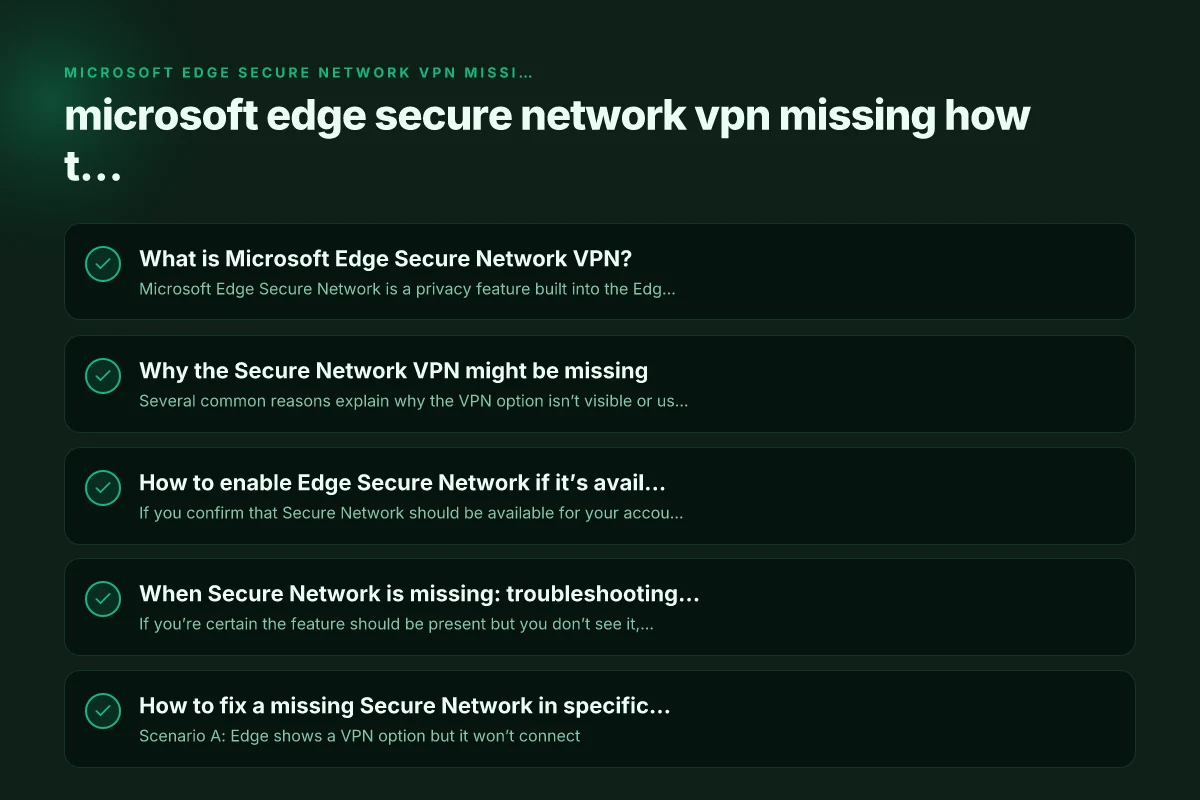
What is Microsoft Edge Secure Network VPN?
Microsoft Edge Secure Network is a privacy feature built into the Edge browser. When enabled, it routes your traffic through a secure network that can help protect your data and location on public Wi‑Fi or other networks. It’s designed to be simple to use and is tied to your Edge experience rather than a standalone VPN app.
- It’s not a traditional standalone VPN client.
- It leverages servers in Microsoft’s network to anonymize and encrypt traffic for supported regions and plans.
- Availability can depend on your account type, device, and Edge version.
If you don’t see the option, it could be due to account restrictions, regional availability, or feature deprecation in some Edge builds. Understanding these factors helps you determine the best path forward.
Why the Secure Network VPN might be missing
Several common reasons explain why the VPN option isn’t visible or usable:
- Feature availability and regions: Secure Network is rolled out gradually. Some regions or Edge channels (stable vs. beta) may not have the feature enabled yet.
- Account type and permissions: Some Microsoft accounts, especially work or school accounts, may have features controlled by IT admins. If your account is managed, the option could be disabled.
- Edge version and build: An older Edge version might not include Secure Network or could have it temporarily removed during a transition. Verifying you’re on a current, supported build matters.
- Platform differences: Secure Network could have different support on Windows versions or other platforms. There may be platform-specific limitations.
- Privacy and policy settings: Certain privacy configurations or group policies could hide or disable the feature.
Knowing which of these factors apply helps you target the fix rather than guessing.
Troubleshooting Scenarios and Recommended Actions Microsoft Edge VPN app
| Scenario | Symptom | Quick Fix | If unresolved | Notes |
|---|---|---|---|---|
| Missing feature in Edge | Secure Network not visible | Update Edge, check policy | Reinstall, reset settings | Feature rollout may vary |
| VPN button greyed out | Not enabled | Enable toggle in Edge Settings | Check permissions | Admin policy may block |
| Connection drops | VPN disconnects | Reconnect, switch networks | Check network stability | Could be ISP issue |
| Error codes shown | Error 0x or similar | Refer to Microsoft support | Collect logs, contact support | Codes guide troubleshooting |
| DNS leaks suspected | Slow browsing, leaks detected | Use DNS over HTTPS/TLS | Switch to full VPN | Edge may not mask DNS as full VPN |
Compiled November 2026; check the provider's site for current details.
How to enable Edge Secure Network if it’s available
If you confirm that Secure Network should be available for your account and device, you can enable it with a few straightforward steps:
- Open Edge and go to Settings and more (the three-dot menu) > Settings.
- Navigate to Privacy, search, and services.
- Look for Privacy, search, and services > Secure Network or a similar option labeled “Secure Network.”
- Turn it on. You may be prompted to sign in with your Microsoft account or confirm permissions.
- If prompted, grant necessary permissions and allow Edge to use the VPN service.
If you don’t see the option, try these checks:
- Update Edge to the latest version: Settings > About Microsoft Edge will force an update check.
- Ensure you’re using a supported platform (Windows 10/11, macOS, or other supported environments) and that you’re not on an enterprise-managed device that blocks features.
- Sign in with a personal Microsoft account if work or school accounts are restricting features. Personal accounts often have broader feature access for consumer offerings.
When Secure Network is missing: troubleshooting steps
If you’re certain the feature should be present but you don’t see it, walk through these troubleshooting steps:
- Check your Edge version
- Go to Edge settings > About Microsoft Edge.
- Update if an update is available.
- A recent build is more likely to include Secure Network or provide fixes for related issues.
- Verify account type and permissions
- If you’re on a work or school account, check with your IT administrator. Some admins disable “Secure Network” or related features.
- Try signing in with a personal Microsoft account to see if the option reappears.
- Confirm regional availability
- Some features are phased in by region. If your region hasn’t rolled out Secure Network yet, you may need to wait for Microsoft to enable it in your country.
- Check for conflicting extensions or settings
- Temporarily disable or remove extensions that could interfere with network settings.
- Reset to default privacy settings to see if a conflicting policy is hiding the option.
- Restart and re-test
- Close Edge completely (including background processes) and reopen.
- Revisit Settings > Privacy, search, and services to locate Secure Network.
- Check Windows or device-level VPN settings
- Some devices have corporate VPN profiles that could interfere with Edge’s built-in VPN.
- Remove conflicting VPN profiles temporarily to test if Secure Network appears and functions.
If the option still won’t show, you may want to contact Microsoft Support or check the official Edge status pages for any ongoing issues or deprecations. NordVPN IKEv2 certificate
How to fix a missing Secure Network in specific scenarios
Scenario A: Edge shows a VPN option but it won’t connect
- Ensure you’re signed in with a supported account.
- Check network status and try a different network (home Wi-Fi, mobile hotspot).
- Temporarily disable firewall or security software to rule out blocked traffic.
- Reinstall Edge if the problem persists after updates.
Scenario B: Secure Network is grayed out or unavailable
- Confirm your device’s OS version meets requirements.
- Verify that Edge is up-to-date and that you’re not in a regional limitation.
- If you’re on a managed device, reach out to IT to confirm whether Secure Network is permitted.
Scenario C: VPN connects but pages don’t load or slow down
- This could indicate server load or a configuration problem. Try switching regions if the option is available.
- Check your internet connection stability. A VPN can amplify latency on weak networks.
- Disable other VPNs or proxies that could conflict with Edge’s VPN routing.
A quick comparison: Edge Secure Network vs. traditional VPN
| Feature | Edge Secure Network | Traditional VPN (standalone) |
|---|---|---|
| Integration | Built into Edge browser | Separate app or OS-level VPN |
| Ease of use | Toggle in Edge Settings | Install and configure in apps |
| Platform coverage | Primarily Windows/macOS with Edge | Varies by provider, cross-platform |
| Privacy scope | Browser traffic focus; may not cover all apps | Device-wide coverage for all traffic |
| Performance considerations | Potentially lighter, depends on routing | Can affect all Internet traffic; may vary by server |
| Control and policy | Often controlled by Microsoft account | User or IT controlled, broad options |
If you’re deciding between relying on Edge Secure Network or a traditional VPN, consider what you prioritize: browser-specific privacy with ease of use, or comprehensive device-wide protection with more configuration options. For many casual users, Edge’s built-in option offers a simple privacy layer for browsing, especially on public networks.
Why you might still prefer or need a separate VPN solution
- Coverage: A dedicated VPN app secures all traffic, including apps outside Edge.
- Advanced features: Split tunneling, custom server lists, kill switch, and enterprise-grade controls.
- Platform options: Some VPN providers offer broader platform support or specialized features (dead drop, obfuscated servers, etc.).
If Secure Network remains unavailable or insufficient for your needs, a reputable third-party VPN could fill gaps. When choosing a VPN, look for a provider with no-logs policies, strong encryption, and transparent terms of service. Verify compatibility with your devices and whether there are any conflicts with your work or school accounts. Creating proxy or open VPN in mikrotik
How to verify Safe use and best practices
- Always use trusted sources: Install Edge updates from official channels and verify settings in Settings.
- Manage permissions: Only grant Edge access to necessary features (privacy, network, and location) and avoid unnecessary data sharing.
- Protect credentials: Use a strong Microsoft account password and enable two-factor authentication for account security.
- Be mindful of regional constraints: If you rely on Secure Network for travel or remote work, check whether your region supports it and plan accordingly.
Decision Matrix: When to Use Edge Secure Network vs. Separate VPN
| Use Case | Edge Secure Network | Separate VPN | Rationale |
|---|---|---|---|
| Quick, browser-specific protection | Yes | No | Built into Edge, minimal setup |
| Corporate device policy | Depends | Yes | May require enterprise VPN |
| Full device-wide encryption | No | Yes | Traditional VPN covers all apps |
| Privacy-conscious browsing | Yes (browser scope) | Sometimes | Browser scope limits data outside Edge |
| Accessing geo-restricted apps | Often limited | Yes | Full tunnel or chosen server helps |
| Gaming or low-latency needs | Variable | Often better with optimized VPN | VPN providers tune routing |
Compiled November 2026; check the provider's site for current details.
Final section: recommendation
If you’re primarily browsing on personal devices and want a quick privacy enhancement without managing a separate VPN app, enable Edge Secure Network as soon as you see the option. Ensure your Edge version is current, your account is appropriate (personal vs. managed), and the feature is available in your region. If Secure Network remains missing after these checks, consider using a reputable third-party VPN for device-wide protection or consult Microsoft Support for a definitive answer on your specific account and device situation.
In short:
- Start with Edge updates and a personal account to maximize chances of seeing Secure Network.
- If missing, verify account type, region, and device compatibility.
- For broader protection or more features, weigh a dedicated VPN alongside or instead of Edge’s built-in option.
| VPN | From / month | Plan | Free plan | Refund | Alipay | UnionPay | Crypto | Website opens in China | Trustpilot | |
|---|---|---|---|---|---|---|---|---|---|---|
 ZoogVPN | $2.49/mo | 27 months: $59.99 | Yes | 7 days | ✓ | ✓ | ✓ | ✓ | ✓ Yes (2.5 s) | 4.2/5 (195 reviews) |
 NordVPN | $3.49/mo | 27 months: $94.23 | No | 30 days | ? | ✗ | ✓ | ✓ | ✗ Blocked | 4.2/5 (51,628 reviews) |
 ExpressVPN | $3.00/mo | 28 months: $84 | No | 30 days | ✗ | ✗ | ✓ | ✗ | ✗ Blocked | 4.4/5 (29,706 reviews) |
 Surfshark | See site | See site | No | 30 days | ✗ | ✗ | ✗ | ✓ | ✗ Blocked | 4.3/5 (31,823 reviews) |
 Proton VPN | $2.99/mo | 12 months: $35.88 | Yes | 30 days | ✗ | ✗ | ✗ | ✓ | ✓ Yes (2.5 s) | 2.1/5 (1,040 reviews) |
 Astrill VPN | $12.50/mo | 24 months: $300 | No | See site | ✗ | ✗ | ✗ | ✓ | ✗ Blocked | 1.3/5 (110 reviews) |
 Private Internet Access | $2.03/mo | 40 months: $81.2 | No | 30 days | ✗ | ✗ | ✗ | ✗ | ✗ Blocked | 4.2/5 (11,033 reviews) |
 CyberGhost | $2.19/mo | 28 months: $61.32 | No | 45 days | ✗ | ✗ | ✗ | ✓ | ✗ Blocked | 4.0/5 (24,178 reviews) |
 PureVPN | $1.69/mo | 60 months: $101.55 | No | 31 days | ? | ✗ | ✗ | ✓ | ✓ Yes (2.6 s) | 4.4/5 (17,994 reviews) |
 AdGuard VPN | $2.99/mo | 24 months: $71.76 | Yes | 30 days | ✓ | ✗ | ✓ | ✓ | Official site blocked; our special link opens (2.3 s) | 4.3/5 (290 reviews) |
 Mullvad | $5.61/mo | €5/mo | No | 14 days | ✗ | ✗ | ✗ | ✓ | ✗ Blocked | 3.2/5 (192 reviews) |
 Windscribe | $5.75/mo | 12 months: $69 | Yes | See site | ✗ | ✗ | ✗ | ✓ | ✗ Blocked | 4.7/5 (13,355 reviews) |
 StrongVPN | See site | See site | No | 30 days | ✓ | ✗ | ✗ | ✗ | ✗ Blocked | 4.4/5 (2,695 reviews) |
 LightXtreme 闪连 | $7.08/mo | 12 months: $84.99 | Yes | 30 days | ✓ | ✓ | ✓ | ✓ | ✓ Yes (2.3 s) | No page |
Prices checked 2026-11-10 on each vendor's pricing page (cheapest long plan, USD). Check the vendor's checkout for the final price.
Payment methods checked 2026-11-10 on each vendor's payment pages: all 14 take cards and PayPal; ✗ = not listed, ? = the vendor's own pages disagree.
China access: whether the official website opens from mainland China networks (tests the website only, not the VPN connection). Last checked 2026-11-11 04:07 Beijing time.
Trustpilot score and review count checked 2026-11-10.