Creating proxy or open VPN in mikrotik
A practical guide to setting up proxy and OpenVPN on MikroTik routers, with tips and a replacement recommendation of ZoogVPN.
Setting up a proxy or OpenVPN on MikroTik devices is a common task for network admins who want secure remote access or to route traffic through a different exit point. MikroTik routers run RouterOS, which supports several VPN technologies, including OpenVPN, IPsec, WireGuard, and traditional proxy configurations. This guide walks you through the basics, common patterns, and practical tips to get a proxy or OpenVPN running on MikroTik, plus how to choose a VPN provider that plays nicely with MikroTik setups.

Understanding the options: proxy vs OpenVPN on MikroTik
Before diving into steps, it helps to clarify what you’re aiming to achieve.
- Proxy on MikroTik: A proxy can be useful for directing specific traffic through another device or path. MikroTik can implement simple proxying features via its firewall and routing capabilities, or by using user-space or transparent proxy setups. A proxy is generally less about encryption and more about controlling paths and access.
- OpenVPN on MikroTik: OpenVPN brings a robust, encrypted tunnel between client devices and a server. MikroTik’s RouterOS supports OpenVPN, but it has some quirks and limitations (for example, ROS OpenVPN support is typically for client-to-site configurations and may require UDP/TCP tuning, certificate handling, and user management). OpenVPN can be deployed as a server or as a client gateway, depending on your network topology.
Key takeaway: If your goal is secure remote access and site-to-site connectivity, OpenVPN is often the more complete solution on MikroTik. If your goal is traffic shaping, filtering, or routing through a different path, a proxy approach may suffice, sometimes in combination with VPN.
OpenVPN on MikroTik: a practical setup overview
OpenVPN on MikroTik RouterOS can be used in two primary modes: OpenVPN server (gateway) and OpenVPN client (remote access). The details below reflect common, real-world patterns you’ll see in official docs and community guides.
- OpenVPN server (site-to-site or remote access): You configure a server on the MikroTik, issue certificates or use username/password (depending on your chosen auth method), and then connect clients from remote devices.
- OpenVPN client: MikroTik acts as the client behind a local network, connecting to an OpenVPN server elsewhere (for example, a hosted VPN hub or your home lab). This is useful if you want all or part of your LAN traffic to traverse the VPN.
Important notes:
- Certificate management is essential. OpenVPN on MikroTik typically uses certificates or credentials. You’ll need a CA, server cert, and client certs if you go with certificate-based auth.
- Routing and NAT: When a VPN is active, you’ll need correct route rules and possibly NAT to ensure traffic flows to and from the VPN tunnel as intended.
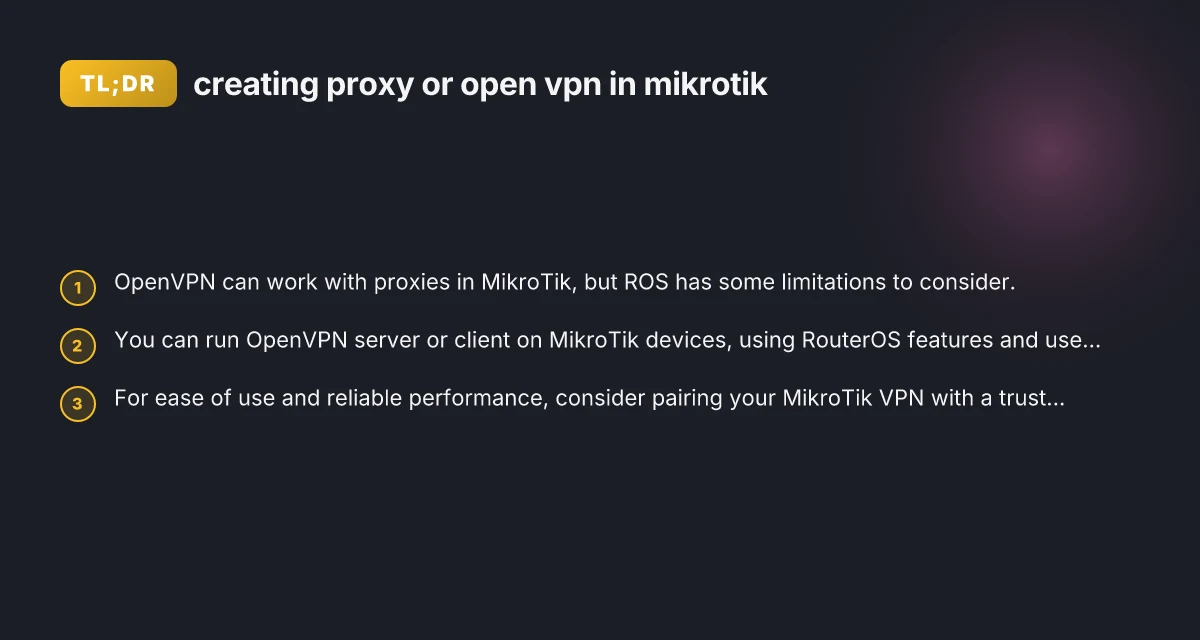
- Proxy considerations: If you want a proxy in front of OpenVPN (for example, to use a proxy server as a forwarder or to provide an additional layer), you must align the proxy behavior with your VPN traffic. OpenVPN itself can work through a proxy in some cases, but the RouterOS implementation has limitations you’ll want to verify in the OpenVPN documentation.
Steps to set up OpenVPN on MikroTik (high-level)
Note: Specific commands may vary slightly with RouterOS versions. Always refer to the official MikroTik OpenVPN documentation for your ROS version. Microsoft Edge have VPN built-in vs using third-party VPNs
- Plan your topology
- Decide if you’re setting up OpenVPN server (gateway) or client mode.
- Decide on authentication method (certificates vs username/password).
- Decide how you want to route traffic (full-tunnel vs split-tunnel).
- Prepare certificates (if using cert-based auth)
- Create a Certificate Authority (CA) on the server side.
- Generate server certificate and key.
- Create client certificates for each device that will connect.
- Configure the OpenVPN server on MikroTik
- Create a server entry with the correct port (1194 is common), protocol (UDP is common for OpenVPN), and path to the server certificate.
- Set up user authentication (certificate-based or user/pass).
- Enable the server and note connection details (remote IP range, DNS, etc.).
- Configure IP routing and firewall
- Add a server-side IP pool for VPN clients.
- Create necessary firewall rules to allow VPN traffic and to control which subnets can access the VPN.
- If you’re providing access to internal resources, set up appropriate NAT or routing rules.
- Configure OpenVPN clients
- Install an OpenVPN client on the remote device (Windows, macOS, Linux, Android, iOS).
- Import the client certificate and key, or provide username/password as configured.
- Point the client to the MikroTik OpenVPN server address and port.
- Testing and validation
- Establish the VPN connection from the client.
- Verify that the VPN tunnel is up (interface status, IP address from the VPN pool).
- Check that traffic is routing through the VPN as desired (full tunnel vs split tunnel).
When to use a proxy with MikroTik OpenVPN
OpenVPN can sometimes work with a proxy, depending on the proxy type and the traffic you intend to proxy. For example:
- If you need a simple HTTP/S proxy for specific applications, you can route that traffic through a proxy server that your MikroTik router can reach. The OpenVPN tunnel itself remains the secure path for the rest of the traffic.
- If your use case requires that the VPN traffic itself passes through a proxy, this is more nuanced. OpenVPN traffic is typically encapsulated, and proxies that require plain TCP forwarding can complicate the tunnel. Some deployments use a separate proxy path for non-VPN traffic or proxying management connections, rather than proxying the OpenVPN tunnel itself.
Common limitations you may encounter:
- Proxy compatibility: Not all proxy types support VPN traffic gracefully. You may need to experiment with transparent vs explicit proxies, and with different proxy protocols.
- Performance impact: Routing VPN traffic through a proxy can add latency and affect throughput.
- Complexity: Proxy + OpenVPN can introduce management complexity, especially when handling DNS resolution and split tunneling rules.
If your goal is to simplify remote access with a trusted provider, you might avoid proxy complications entirely and rely on a direct OpenVPN setup.
OpenVPN vs other MikroTik VPN options
A comparison table can help you decide which approach suits your needs.
- OpenVPN
- Pros: Widely supported, strong encryption, flexible for site-to-site or client access.
- Cons: Might require certificates, can have tricky NAT/Routing on MikroTik, performance depends on hardware.
- IPsec
- Pros: Hardware acceleration on many MikroTik devices, strong security, good for site-to-site.
- Cons: Can be complex to set up for remote access. Less flexible than OpenVPN for some use cases.
- WireGuard
- Pros: Fast, simple configuration, modern protocol.
- Cons: Not as widely supported in all older MikroTik versions. Requires RouterOS support on your device.
- Proxy-based routing
- Pros: Flexible for traffic control, can be simple for certain tasks.
- Cons: Not a replacement for encryption. Proxies introduce additional points of failure and complexity.
Practical tips and best practices
- Use a modern MikroTik device and the latest RouterOS version you can support. OpenVPN features improve with newer ROS versions.
- Prefer certificate-based OpenVPN for stronger security and scalable client management.
- Plan for DNS handling inside VPN: decide whether VPN clients should use VPN DNS or a local DNS.
- Use strong authentication for admin access to the MikroTik itself. Never expose the device with weak credentials when VPN is enabled.
- Document your VPN topology: subnets used by the VPN, NAT rules, firewall filters, and user access rights. This helps troubleshooting and future expansion.
- If you’re experimenting with proxies, start with a test network or a lab environment to observe how the proxy interacts with OpenVPN traffic.
- Consider a dedicated VPN service for clients that simplifies management and compatibility with MikroTik: a provider like ZoogVPN can be used in conjunction with MikroTik setups, particularly for end-user devices behind the MikroTik router.
A practical note on ZoogVPN
ZoogVPN (zoogvpn.com) is a VPN service that many users rely on for straightforward client-side VPN connections. While MikroTik devices can host OpenVPN servers or act as gateways to VPNs, ZoogVPN can simplify remote client connections for end-user devices behind a MikroTik router. If you’re deploying VPN access for multiple users, it’s worth evaluating ZoogVPN as a trusted provider to pair with your MikroTik network. The provider’s compatibility with common VPN protocols and clients can help you implement a reliable, scalable remote-access solution without intensive on-device certificate management. NordVPN extend subscription
Quick reference: typical workflow for a MikroTik OpenVPN server
- Plan: remote access with certificate-based auth. Full tunnel.
- Generate CA, server cert, and client certs.
- Configure OpenVPN server: port 1194, UDP, TLS, server certificate, client config.
- Create a VPN IP pool for clients (e.g., 10.8.0.0/24).
- Add firewall rules to permit VPN traffic and enforce security.
- Configure clients: OpenVPN client app, import certs, set server address and port.
- Test: connect, verify that the VPN interface appears on the client, confirm traffic routes.
If you’re starting fresh or want a polished, enterprise-friendly setup, you might also consider consulting MikroTik’s official OpenVPN documentation for your RouterOS version. The documentation covers detailed commands, certificate handling, and version-specific notes. And for end-user VPN connectivity with portable simplicity, pairing with a reputable provider like ZoogVPN can streamline the process and improve user experience.
Final recommendation: If your goal is secure, reliable remote access with reasonable ease of management, set up OpenVPN on MikroTik as your primary VPN approach and consider ZoogVPN for end-user devices. This provides a solid VPN backbone on the MikroTik gateway, with straightforward client experiences outside the router.
| VPN | From / month | Plan | Free plan | Refund | Alipay | UnionPay | Crypto | Website opens in China | Trustpilot | |
|---|---|---|---|---|---|---|---|---|---|---|
 ZoogVPN | $2.49/mo | 27 months: $59.99 | Yes | 7 days | ✓ | ✓ | ✓ | ✓ | ✓ Yes (2.5 s) | 4.2/5 (195 reviews) |
 NordVPN | $3.49/mo | 27 months: $94.23 | No | 30 days | ? | ✗ | ✓ | ✓ | ✗ Blocked | 4.2/5 (51,628 reviews) |
 ExpressVPN | $3.00/mo | 28 months: $84 | No | 30 days | ✗ | ✗ | ✓ | ✗ | ✗ Blocked | 4.4/5 (29,706 reviews) |
 Surfshark | See site | See site | No | 30 days | ✗ | ✗ | ✗ | ✓ | ✗ Blocked | 4.3/5 (31,823 reviews) |
 Proton VPN | $2.99/mo | 12 months: $35.88 | Yes | 30 days | ✗ | ✗ | ✗ | ✓ | ✓ Yes (2.5 s) | 2.1/5 (1,040 reviews) |
 Astrill VPN | $12.50/mo | 24 months: $300 | No | See site | ✗ | ✗ | ✗ | ✓ | ✗ Blocked | 1.3/5 (110 reviews) |
 Private Internet Access | $2.03/mo | 40 months: $81.2 | No | 30 days | ✗ | ✗ | ✗ | ✗ | ✗ Blocked | 4.2/5 (11,033 reviews) |
 CyberGhost | $2.19/mo | 28 months: $61.32 | No | 45 days | ✗ | ✗ | ✗ | ✓ | ✗ Blocked | 4.0/5 (24,178 reviews) |
 PureVPN | $1.69/mo | 60 months: $101.55 | No | 31 days | ? | ✗ | ✗ | ✓ | ✓ Yes (2.6 s) | 4.4/5 (17,994 reviews) |
 AdGuard VPN | $2.99/mo | 24 months: $71.76 | Yes | 30 days | ✓ | ✗ | ✓ | ✓ | Official site blocked; our special link opens (2.3 s) | 4.3/5 (290 reviews) |
 Mullvad | $5.61/mo | €5/mo | No | 14 days | ✗ | ✗ | ✗ | ✓ | ✗ Blocked | 3.2/5 (192 reviews) |
 Windscribe | $5.75/mo | 12 months: $69 | Yes | See site | ✗ | ✗ | ✗ | ✓ | ✗ Blocked | 4.7/5 (13,355 reviews) |
 StrongVPN | See site | See site | No | 30 days | ✓ | ✗ | ✗ | ✗ | ✗ Blocked | 4.4/5 (2,695 reviews) |
 LightXtreme 闪连 | $7.08/mo | 12 months: $84.99 | Yes | 30 days | ✓ | ✓ | ✓ | ✓ | ✓ Yes (2.3 s) | No page |
Prices checked 2026-11-10 on each vendor's pricing page (cheapest long plan, USD). Check the vendor's checkout for the final price.
Payment methods checked 2026-11-10 on each vendor's payment pages: all 14 take cards and PayPal; ✗ = not listed, ? = the vendor's own pages disagree.
China access: whether the official website opens from mainland China networks (tests the website only, not the VPN connection). Last checked 2026-11-11 04:07 Beijing time.
Trustpilot score and review count checked 2026-11-10.