How to enable and use Microsoft Edge's built-in VPN secure network
Learn how to enable and use Microsoft Edge Secure Network, the built-in VPN-like feature, with step-by-step setup and usage tips.
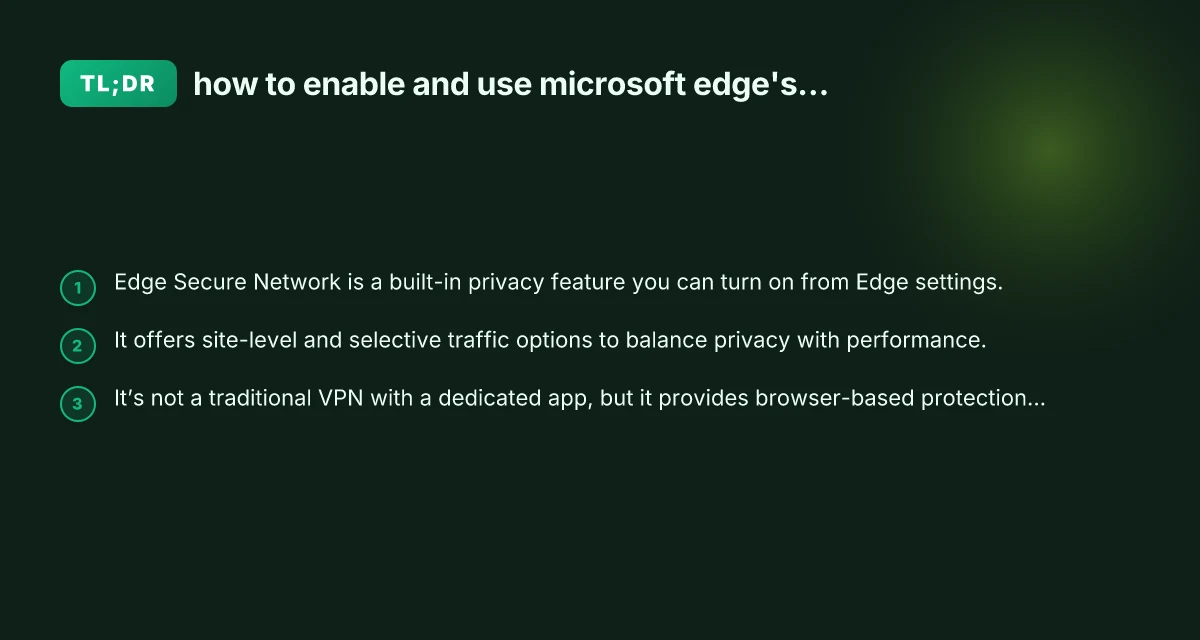
Microsoft Edge includes a built-in privacy feature called Secure Network. It’s designed to help protect your online activity by encrypting traffic and masking your location for certain sites. It’s not a separate VPN app you download, but rather a browser-level service you enable and customize inside Edge. In this guide, you’ll learn how to enable Secure Network, how to use it, what it does and doesn’t cover, and common questions.

Comparison of Secure Network modes by site scope
| Mode | Sites affected | Default behavior | User control | Pros | Cons |
|---|---|---|---|---|---|
| All sites | All web traffic routed through Secure Network | Enabled by default when turned on | Global setting | Maximum protection, no site-by-site decisions | Higher latency, potential compatibility issues |
| Select sites | Only chosen sites routed | User selects sites | Per-site list | targeted protection, less latency | Requires management of list |
| Off | No sites use Secure Network | Disabled | None | No impact on normal browsing | No VPN protection |
Compiled November 2026; check the provider's site for current details.
What is Microsoft Edge Secure Network?
Microsoft Edge Secure Network is a built-in privacy feature that uses encryption and a VPN-like approach to protect browsing data. When turned on, the feature can:
- Encrypt data for sites you visit through Edge.
- Mask or obscure your IP location for selected sites.
- Apply to either all sites or a subset of sites, depending on your settings.
- Help reduce certain tracking by hiding your approximate location.
Important caveats:
- It operates at the browser level, not at the device level. Other apps on your device won’t automatically benefit.
- It’s typically offered as a tiered feature. Some variants require a Microsoft account or specific Edge build.
- It’s not a full system VPN, so non-browser apps won’t be protected.
How to enable Secure Network in Microsoft Edge
Follow these steps to turn on Secure Network:
- Open Microsoft Edge.
- Click the three-dot menu (Settings and more) in the upper-right corner.
- Go to Settings.
- Navigate to Privacy, search, and services.
- Scroll to the section labeled Microsoft Edge Secure Network.
- Turn on Use Microsoft Edge Secure Network.
- Sign in with your Microsoft account if prompted. Some configurations may require a personal Microsoft account.
- Choose a mode for traffic:
- Optimized: balances speed and privacy. Suitable for general browsing.
- All sites: applies the protection to all sites you visit.
- Select sites: pick specific sites you want protected.
- Save or confirm your selection.
If you don’t see the Secure Network option, ensure you’re using a supported Edge version (Edge stable or beta channels commonly support Secure Network) and that you’re signed in with the appropriate account. You may need to update Edge or check availability in your region.
What Secure Network protects vs. doesn’t protect NordVPN China: Does NordVPN Work in China in 2026 and How to Use It
| Category | Protects (examples) | Doesn’t protect (examples) | What this means for you | Practical note |
|---|---|---|---|---|
| Data in transit | Web traffic from Edge, location masking | Local network access, apps outside Edge | Encrypts traffic between Edge and VPN endpoint | Use for browsing security |
| DNS requests | DNS queries (depending on policy) | Non-DNS leakage via OS | May route DNS through VPN | Verify with settings |
| Web apps inside corporate network | Access to intranet via Secure Network | Non-web apps, non-Edge traffic | Applies mainly to browser traffic | Not a catch-all VPN |
| PII exposure | Reduces exposure online | Offline data on device | Reduces external visibility | Not a password vault |
Compiled November 2026; check the provider's site for current details.
Understanding modes: what “Select sites” or “All sites” means
Edge Secure Network offers different modes for controlling where protection is applied. Here’s a quick comparison to help you decide which mode fits your needs:
| Mode | What it protects | Pros | Cons |
|---|---|---|---|
| Optimized (default) | Mostly protects sensitive sites while trying to keep performance high | Balanced performance and privacy, easy default | Some sites may not be protected |
| All sites | Every site you visit through Edge is protected | Maximum protection for browsing | Potentially slower loading on some sites |
| Select sites | You choose which sites get protection | Customizable control over protected sites | Requires you to maintain a list; may be confusing for casual users |
Tip: If you’re new to Secure Network, start with Optimized and gradually switch to All sites or Select sites as you gauge performance and privacy needs.
What Secure Network protects and what it doesn’t
- What it protects
- Browser traffic within Edge: encryption and masking can help conceal your location from protected sites.
- Selection-based coverage: you can limit protection to certain sites for better performance.
- What it doesn’t protect
- Non-browser apps: apps outside Edge aren’t covered by Secure Network.
- Local network threats: Secure Network doesn’t replace a full security suite or VPN for all device traffic.
- Streaming or edge-use on some sites may still show geolocation depending on site design.
If you rely on a VPN for all-your-device protection, you may want to use a separate VPN app in addition to Edge Secure Network.
Quick-start decision guide for readers Forticlient VPN not working with hotspot
| Scenario | Recommended mode | Why | Quick steps (one-liner) | Potential caveats |
|---|---|---|---|---|
| New to VPN browsing | All sites | Best protection for general use | Turn on Secure Network, select all sites | Possible latency, some sites block VPN |
| Only protect financials | Select sites | Protect sensitive sites you choose | Add banking/payment sites to list | Must maintain list |
| Troubleshooting browsing issues | Off or selective | If site breaks, disable or narrow scope | Toggle off or remove site from list | Re-test after changes |
Compiled November 2026; check the provider's site for current details.
How to use Secure Network effectively
- Choose a sensible mode: start with Optimized and move to All sites if you need stronger privacy.
- Review sites list: if you pick Select sites, curate a focused list of sites that require extra privacy.
- Check performance: monitor page load times after enabling Secure Network. If sites feel sluggish, switch back to Optimized or adjust the site list.
- Combine with other privacy tools: use Edge’s tracking prevention, hot tracking, and privacy-focused settings alongside Secure Network for deeper protection.
- Keep Edge updated: ensure you’re on a supported version to receive the latest security patches and feature tweaks.
| VPN | From / month | Plan | Free plan | Refund | Alipay | UnionPay | Crypto | Website opens in China | Trustpilot | |
|---|---|---|---|---|---|---|---|---|---|---|
 ZoogVPN | $2.49/mo | 27 months: $59.99 | Yes | 7 days | ✓ | ✓ | ✓ | ✓ | ✓ Yes (2.5 s) | 4.2/5 (195 reviews) |
 NordVPN | $3.49/mo | 27 months: $94.23 | No | 30 days | ? | ✗ | ✓ | ✓ | ✗ Blocked | 4.2/5 (51,628 reviews) |
 ExpressVPN | $3.00/mo | 28 months: $84 | No | 30 days | ✗ | ✗ | ✓ | ✗ | ✗ Blocked | 4.4/5 (29,706 reviews) |
 Surfshark | See site | See site | No | 30 days | ✗ | ✗ | ✗ | ✓ | ✗ Blocked | 4.3/5 (31,823 reviews) |
 Proton VPN | $2.99/mo | 12 months: $35.88 | Yes | 30 days | ✗ | ✗ | ✗ | ✓ | ✓ Yes (2.5 s) | 2.1/5 (1,040 reviews) |
 Astrill VPN | $12.50/mo | 24 months: $300 | No | See site | ✗ | ✗ | ✗ | ✓ | ✗ Blocked | 1.3/5 (110 reviews) |
 Private Internet Access | $2.03/mo | 40 months: $81.2 | No | 30 days | ✗ | ✗ | ✗ | ✗ | ✗ Blocked | 4.2/5 (11,033 reviews) |
 CyberGhost | $2.19/mo | 28 months: $61.32 | No | 45 days | ✗ | ✗ | ✗ | ✓ | ✗ Blocked | 4.0/5 (24,178 reviews) |
 PureVPN | $1.69/mo | 60 months: $101.55 | No | 31 days | ? | ✗ | ✗ | ✓ | ✓ Yes (2.6 s) | 4.4/5 (17,994 reviews) |
 AdGuard VPN | $2.99/mo | 24 months: $71.76 | Yes | 30 days | ✓ | ✗ | ✓ | ✓ | Official site blocked; our special link opens (2.3 s) | 4.3/5 (290 reviews) |
 Mullvad | $5.61/mo | €5/mo | No | 14 days | ✗ | ✗ | ✗ | ✓ | ✗ Blocked | 3.2/5 (192 reviews) |
 Windscribe | $5.75/mo | 12 months: $69 | Yes | See site | ✗ | ✗ | ✗ | ✓ | ✗ Blocked | 4.7/5 (13,355 reviews) |
 StrongVPN | See site | See site | No | 30 days | ✓ | ✗ | ✗ | ✗ | ✗ Blocked | 4.4/5 (2,695 reviews) |
 LightXtreme 闪连 | $7.08/mo | 12 months: $84.99 | Yes | 30 days | ✓ | ✓ | ✓ | ✓ | ✓ Yes (2.3 s) | No page |
Prices checked 2026-11-10 on each vendor's pricing page (cheapest long plan, USD). Check the vendor's checkout for the final price.
Payment methods checked 2026-11-10 on each vendor's payment pages: all 14 take cards and PayPal; ✗ = not listed, ? = the vendor's own pages disagree.
China access: whether the official website opens from mainland China networks (tests the website only, not the VPN connection). Last checked 2026-11-11 04:07 Beijing time.
Trustpilot score and review count checked 2026-11-10.
Frequently asked questions
Q: How do I turn on VPN on Edge? A: Edge calls it Secure Network. Enable it through Settings > Privacy, search, and services > Microsoft Edge Secure Network, then turn it on and choose a mode (Optimized, All sites, or Select sites).
Q: Is Edge Secure Network free? A: Availability and pricing can vary by region and account type. Microsoft has offered Secure Network as a built-in feature with certain Edge plans or accounts. Check your Edge version and account requirements in Settings > Privacy, search, and services for the latest details.
Q: How to use Microsoft built-in VPN? A: Use Edge Secure Network to protect browser traffic. For system-wide VPN protection, you’d need a separate VPN service or app that covers all device traffic, outside of Edge.
Q: Is Microsoft built-in VPN good? A: It’s a convenient browser-level privacy feature, easy to enable without extra software. It’s best for protecting browser traffic and when you want quick privacy boosts. For comprehensive device-wide protection, consider a full VPN solution. NordVPN 3 years
Q: Can I disable Secure Network after enabling it? A: Yes. Go to Settings > Privacy, search, and services > Microsoft Edge Secure Network and turn off Use Microsoft Edge Secure Network. Your previously protected sites will no longer be automatically protected on the next browsing session unless you re-enable it.
Practical step-by-step quick-start
- Step 1: Open Edge and access the menu.
- Step 2: Open Settings, then Privacy, search, and services.
- Step 3: Locate Microsoft Edge Secure Network and toggle it on.
- Step 4: Sign in if prompted. Select your desired mode.
- Step 5: Start browsing and observe performance and privacy balance.
If you’re unsure whether Secure Network is available in your region or account type, you can check Microsoft’s official Edge support pages or the Edge “Edge Secure Network” feature page for the latest availability notes and instructions.
Final recommendation
Microsoft Edge Secure Network is a convenient, built-in browser feature that adds a layer of privacy to your browsing experience without needing to install a separate VPN app. For casual browsing and quick privacy improvements, enabling and configuring the mode that suits you (Optimized, All sites, or Select sites) is typically enough. If you want full device-wideProtection, pair it with a full VPN service outside of Edge. Regularly review Edge updates and your mode choices to maintain the right balance between privacy and performance.