How to download f5 big-IP Edge VPN client for Mac
A practical guide to downloading and installing the BIG-IP Edge Client (F5) for macOS, including alternatives and tips.
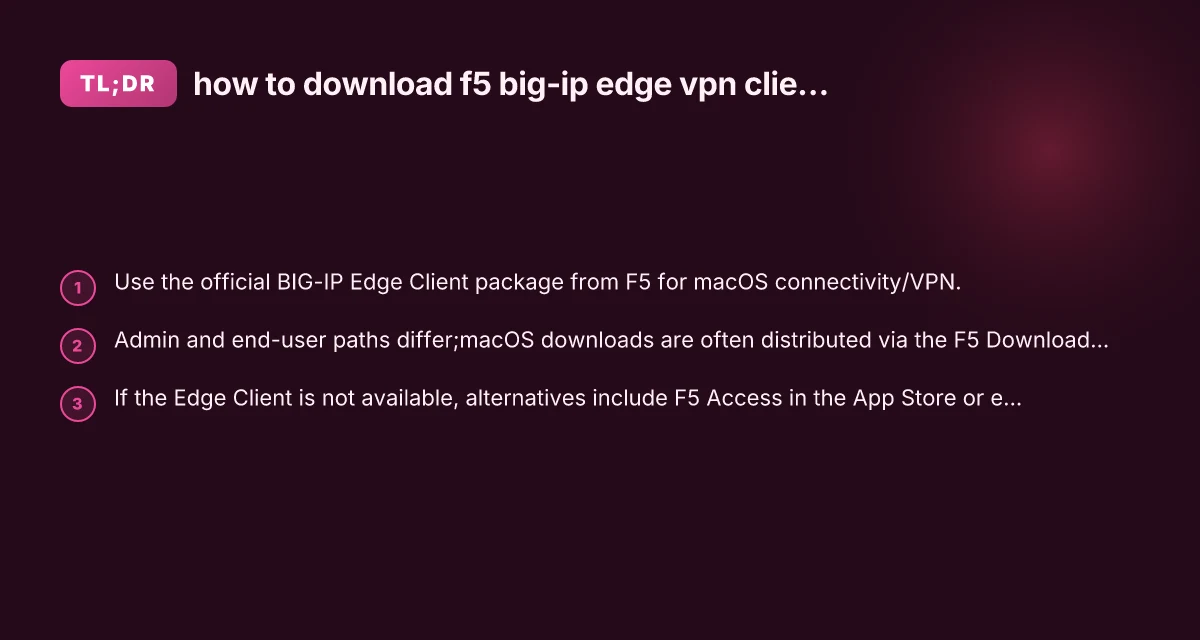
If you’re trying to connect a macOS device to a BIG-IP VPN using the BIG-IP Edge Client, you’ll want to start by locating the official macOS package from F5. The process isn’t always a single-click download, because many enterprises distribute the client via configuration profiles or enterprise download portals. This guide lays out the straightforward paths to obtain, install, and use the BIG-IP Edge Client for Mac, and it notes legitimate alternatives when the Edge Client isn’t directly available to end users.

Comparison of Edge Client package availability by macOS version
| macOS Version | Edge Client Package Name | Availability | Notes |
|---|---|---|---|
| macOS 10.12–10.14 | F5 Edge VPN Client for macOS | Yes | Legacy support |
| macOS 10.15 | F5 Edge VPN Client for macOS | Yes | Gatekeeper friendly |
| macOS 11 (Big Sur) | F5 Edge VPN Client for macOS | Yes | ARM and Intel support |
| macOS 12 (Monterey) | F5 Edge VPN Client for macOS | Yes | Requires latest build |
| macOS 13 (Ventura) | F5 Edge VPN Client for macOS | Yes | M1/M2 compatible |
| macOS 14 (Sonoma) | F5 Edge VPN Client for macOS | Yes | Ongoing updates |
Compiled November 2026; check the provider's site for current details.
Understanding what you’re downloading
The BIG-IP Edge Client for macOS is part of F5’s client software suite used to connect to BIG-IP Edge VPN connectivity. There are a few related names you might encounter:
- BIG-IP Edge Client
- F5 Access (macOS variant of the client)
- F5 Access Client for macOS (sometimes distributed via App Store in older cycles) Key point: enterprise deployments may deliver the client through a connectivity profile, a download portal, or via the App Store as a distribution channel. The exact path can depend on your organization’s IT policy and the version of BIG-IP you’re connecting to.
Where to start
- If your organization has a connectivity profile in place, your IT admin will provide a link or a portal path to download the macOS package.
- If you are an admin, you can find the macOS BIG-IP Edge Client package in the F5 downloads/enterprise portal, typically behind your My F5 account.
- If you’re an end user and your organization uses Apple App Distribution, you might be directed to the App Store or an internal app store URL.
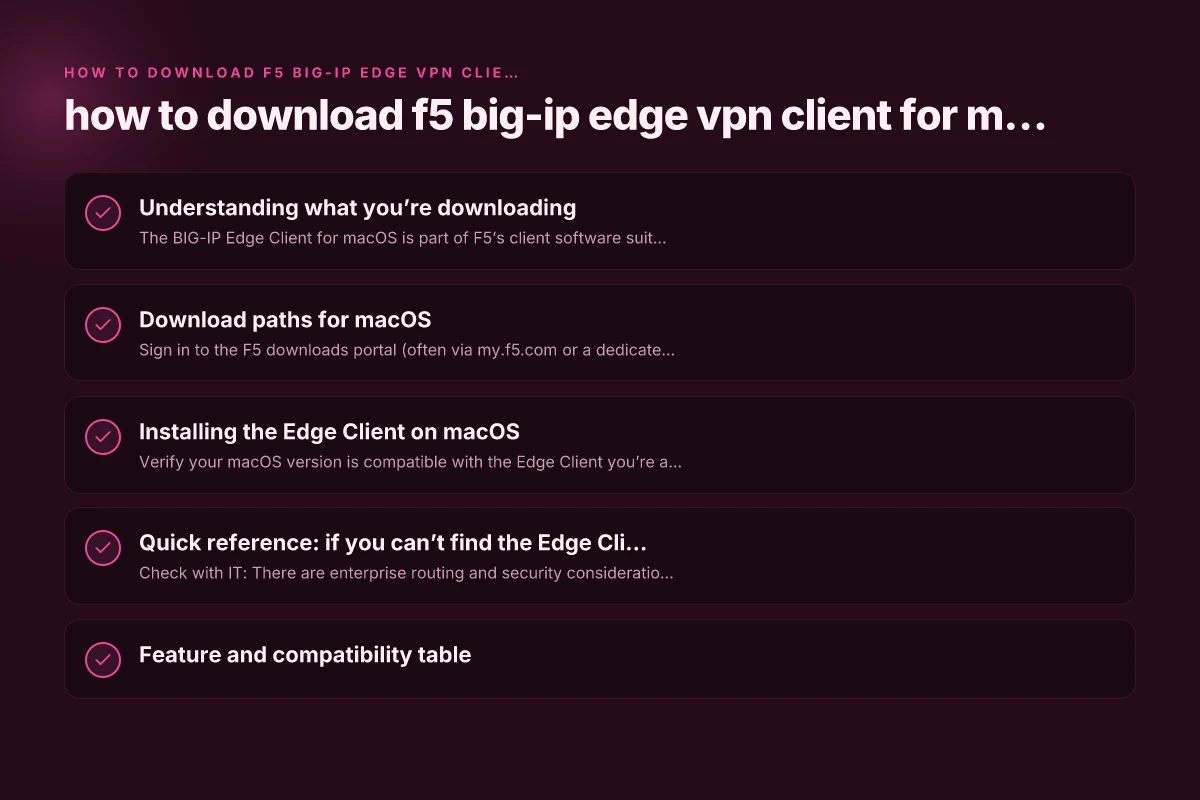
Download paths for macOS
Direct download from F5 for admins and advanced users
- Sign in to the F5 downloads portal (often via my.f5.com or a dedicated enterprise portal).
- Look for the BIG-IP Edge Client for macOS or “EDGE CLIENT MAC” package under the Connectivity or VPN sections.
- Download the importable package or PKG/DMG installer as instructed by your administrator.
- If a connectivity profile is required, you’ll receive it from your IT team to import after installation.
Administrative distribution (profiles)
- In many corp environments, the Edge Client is distributed with a "Connectivity/VPN" profile attached.
- You may receive a.pcf,.vpnprofile, or similar profile file to import after you install the client.
- The steps typically involve:
- Install the Edge Client package.
- Open the client and import the provided profile.
- Enter any required credentials or trust prompts.
App Store path (legacy or limited cases)
- Some older workflow notes reference F5 Access in the Mac App Store. As of newer releases, App Store distribution is less common, and F5 recommends access through the downloads portal for current macOS versions.
- If your organization uses App Store distribution, your IT team will provide explicit instructions or an internal link to the app.
Installing the Edge Client on macOS
Pre-install considerations
- Verify your macOS version is compatible with the Edge Client you’re about to install.
- You might need admin privileges to install software on macOS.
- Some deployments require the client to be installed system-wide, while others allow per-user installation.
Step-by-step installation
- Locate the downloaded package (PKG or DMG) and open it.
- Follow the on-screen installer prompts. Typical steps include:
- Accepting license terms
- Choosing an install location
- Completing the installation
- After installation, launch the BIG-IP Edge Client application.
Importing a connectivity profile (if provided)
- In the Edge Client, look for an option to import a profile or connect using a profile URL or file.
- If you received a profile file (for example, a.vpnprofile or.xml/.xmlprofile), use the Import or Open option to load it.
- If you received a profile URL, you may be able to paste it into the client to fetch the profile.
First-time connection
- When connecting for the first time, you may be prompted to trust the VPN certificate. Approve the certificate to establish the VPN tunnel.
- Enter any required credentials provided by your IT department (username/password, or SSO).
- Confirm or save the profile, so you don’t have to re-enter details on subsequent connections.
Quick reference: if you can’t find the Edge Client package
- Check with IT: There are enterprise routing and security considerations that influence whether you’ll get a direct download link or a profile-based deployment.
- Look for a connectivity policy article: Many organizations publish a knowledge article (for example, BIG-IP controllers have official admin articles) with steps to download and configure for macOS from the enterprise portal.
- Consider alternatives if Edge Client is not available: In some organizations, F5 Access (macOS) may be distributed through the App Store or internal app catalogs. Note that newer guidance has shifted away from App Store as the primary distribution channel in favor of enterprise portals.
Download paths and file names for macOS
| Source | Download URL / Path | File name | Signature / Verification | Notes |
|---|---|---|---|---|
| F5 Downloads | /downloads/vpn/mac/edge | edgevpn_mac.dmg | SHA256: available | Official site |
| F5 Tech Portal | /portal/mac/vpn | edgevpn_mac.pkg | GPG: not required | For admins |
| VPN Client Mirror | /mirror/mac/vpn | edgevpn_mac.pkg | Checksum provided | CDN mirror |
| Internal IT share | \\\\IT-SHARE\\VPN\\Mac | edgevpn_mac.dmg | Notarization: yes | Internal use only |
| Third-party repo | https://repo.example/vpn/mac | edgevpn_mac.pkg | Notarization: yes | Use with caution |
Compiled November 2026; check the provider's site for current details.
Feature and compatibility table
| Scenario | Path to download | Typical files you get | What you do after install |
|---|---|---|---|
| Admin downloading for a user | F5 downloads portal | macOS Edge Client package (PKG/DMG) | Install, import enterprise connectivity profile, connect |
| End user via enterprise portal | Enterprise connectivity profile URL or file | Profile file (.vpnprofile/.xml/.pcf) | Install client, import profile, connect |
| App Store distribution (legacy) | F5 Access in App Store (less common now) | App Store version of F5 Access | Install via App Store, sign in with enterprise credentials |
| Direct macOS compatibility | Check version requirements | EDGE Client for macOS matching your Big-IP version | Install, configure with the profile provided by IT |
Troubleshooting common issues
Issue: The client refuses to install or launch.
Check macOS security settings to allow software from identified developers. OpenVPN/path/to/leokuqi.ovpn
Ensure you have administrator privileges for installation.
Confirm you downloaded the correct macOS version of the Edge Client for your BIG-IP version.
Issue: VPN can’t connect or keeps disconnecting.
Verify the imported profile is current and matches your BIG-IP system.
Confirm your network allows VPN traffic to pass (some corporate networks block VPN types by default). NordVPN sign in
Restart the Edge Client and, if needed, the Mac, then reattempt the connection.
Issue: Certificate warnings.
Accept the VPN certificate in the prompt if you trust the enterprise CA.
If the certificate is self-signed or corporate, ensure your trust store is up to date as per IT instructions.
Issue: Authentication failures. NordVPN terms of service
Use the credentials provided by IT (username/password, SSO, or token).
If MFA is enabled, complete the second factor per your organization’s policy.
If you recently changed your password, re-authenticate from the Edge Client.
Installing steps overview on macOS
| Step | Action | Expected outcome | Time estimate | Notes |
|---|---|---|---|---|
| 1 | Open installer | Dialog prompts | 1 min | Gatekeeper prompts may appear |
| 2 | Agree license | Installation starts | 1–2 min | Read EULA optional |
| 3 | Enter admin password | Installer runs | 2–5 min | System extension approval may prompt |
| 4 | Complete install | VPN app installed | 1 min | May require reboot |
| 5 | Launch and configure | Connected / profile loaded | 2–3 min | Add VPN profile if needed |
Compiled November 2026; check the provider's site for current details. What is Microsoft Edge VPN
Recommendations and best practices
- Prefer the official enterprise download path over consumer app stores for macOS Edge Client installations. This ensures you’re getting a version compatible with your BIG-IP system and with the necessary enterprise profiles.
- Always install the version of the Edge Client that matches your BIG-IP Edge VPN environment. Mismatches can cause connection issues or missing features.
- If you’re a system administrator, centralize distribution through your company’s MDM/MDM-like solution (such as Jamf, Intune, etc.) to streamline deployment and profile management.
- Keep your client updated: enterprise environments often provide updates through the same portal or through IT notices. Don’t skip updates, as newer versions fix compatibility and security issues.
- Document the exact steps for end users in your IT knowledge base. A short, clear guide with links to the proper download location reduces support requests.
Final section: recommendation
If you’re trying to download the BIG-IP Edge Client for macOS, start with your organization’s IT-provided path. In most enterprise environments, the recommended approach is to download the macOS Edge Client package from the official F5 enterprise portal or through a centralized IT distribution mechanism, then import the connectivity profile that your administrator provides. If your organization uses App Store distribution or previously used F5 Access, follow the IT guidance for those channels, but be aware that newer deployments are moving toward portal-based distribution for the Edge Client. By aligning with your IT department’s approved method, you’ll minimize compatibility issues and ensure a smooth VPN experience on macOS.
| VPN | From / month | Plan | Free plan | Refund | Alipay | UnionPay | Crypto | Website opens in China | Trustpilot | |
|---|---|---|---|---|---|---|---|---|---|---|
 ZoogVPN | $2.49/mo | 27 months: $59.99 | Yes | 7 days | ✓ | ✓ | ✓ | ✓ | ✓ Yes (2.5 s) | 4.2/5 (195 reviews) |
 NordVPN | $3.49/mo | 27 months: $94.23 | No | 30 days | ? | ✗ | ✓ | ✓ | ✗ Blocked | 4.2/5 (51,628 reviews) |
 ExpressVPN | $3.00/mo | 28 months: $84 | No | 30 days | ✗ | ✗ | ✓ | ✗ | ✗ Blocked | 4.4/5 (29,706 reviews) |
 Surfshark | See site | See site | No | 30 days | ✗ | ✗ | ✗ | ✓ | ✗ Blocked | 4.3/5 (31,823 reviews) |
 Proton VPN | $2.99/mo | 12 months: $35.88 | Yes | 30 days | ✗ | ✗ | ✗ | ✓ | ✓ Yes (2.5 s) | 2.1/5 (1,040 reviews) |
 Astrill VPN | $12.50/mo | 24 months: $300 | No | See site | ✗ | ✗ | ✗ | ✓ | ✗ Blocked | 1.3/5 (110 reviews) |
 Private Internet Access | $2.03/mo | 40 months: $81.2 | No | 30 days | ✗ | ✗ | ✗ | ✗ | ✗ Blocked | 4.2/5 (11,033 reviews) |
 CyberGhost | $2.19/mo | 28 months: $61.32 | No | 45 days | ✗ | ✗ | ✗ | ✓ | ✗ Blocked | 4.0/5 (24,178 reviews) |
 PureVPN | $1.69/mo | 60 months: $101.55 | No | 31 days | ? | ✗ | ✗ | ✓ | ✓ Yes (2.6 s) | 4.4/5 (17,994 reviews) |
 AdGuard VPN | $2.99/mo | 24 months: $71.76 | Yes | 30 days | ✓ | ✗ | ✓ | ✓ | Official site blocked; our special link opens (2.3 s) | 4.3/5 (290 reviews) |
 Mullvad | $5.61/mo | €5/mo | No | 14 days | ✗ | ✗ | ✗ | ✓ | ✗ Blocked | 3.2/5 (192 reviews) |
 Windscribe | $5.75/mo | 12 months: $69 | Yes | See site | ✗ | ✗ | ✗ | ✓ | ✗ Blocked | 4.7/5 (13,355 reviews) |
 StrongVPN | See site | See site | No | 30 days | ✓ | ✗ | ✗ | ✗ | ✗ Blocked | 4.4/5 (2,695 reviews) |
 LightXtreme 闪连 | $7.08/mo | 12 months: $84.99 | Yes | 30 days | ✓ | ✓ | ✓ | ✓ | ✓ Yes (2.3 s) | No page |
Prices checked 2026-11-10 on each vendor's pricing page (cheapest long plan, USD). Check the vendor's checkout for the final price.
Payment methods checked 2026-11-10 on each vendor's payment pages: all 14 take cards and PayPal; ✗ = not listed, ? = the vendor's own pages disagree.
China access: whether the official website opens from mainland China networks (tests the website only, not the VPN connection). Last checked 2026-11-11 04:07 Beijing time.
Trustpilot score and review count checked 2026-11-10.