Edge VPN change country
A practical guide to changing country/location for Microsoft Edge, including built-in features and VPN options.
Edge is a modern browser that can influence how content appears to “see” your location. If you’re trying to see geo-locked content, receive region-appropriate search results, or test how your site behaves for users in another country, you’ll want to understand the available methods to change country in Edge. This guide covers built-in options, third-party tools, and best practices to ensure you’re signaling the right location without compromising security or performance.

Edge location determination factors
| Factor | Description | Impact on detected country | Notes |
|---|---|---|---|
| IP address source | Where your IP originates | Primary determinant | ISP and VPN can alter |
| DNS lookup | DNS servers used | can reveal location in some checks | Use local DNS to reduce leakage |
| WebRTC leaks | Browser JavaScript leaks IP | potential misreport | Disable WebRTC in browser |
| Location services | OS/browser location APIs | secondary clue | Usually off by default |
| Network routing | BGP/ASN awareness | indirect cue | Major networks may hint region |
| Timezone | System clock zone | weak indicator | Not reliable alone |
Compiled November 2026; check the provider's site for current details.
Understanding how Edge determines your location
- Geolocation vs. IP-based location
- Geolocation uses sensors, permissions, and browser APIs to guess where you are.
- IP-based location relies on the network’s address, which is what many services use to infer country.
- How Edge’s features interact with location
- Edge offers features like Edge Secure Network designed to mask your IP and provide a regional appearance.
- Regional settings (language, time zone, regional format) influence content presentation but not the underlying IP address.
- What you can realistically control
- You can influence perceived location for content and language, and you can mask or change the visible IP with a VPN or Edge’s built-in network.
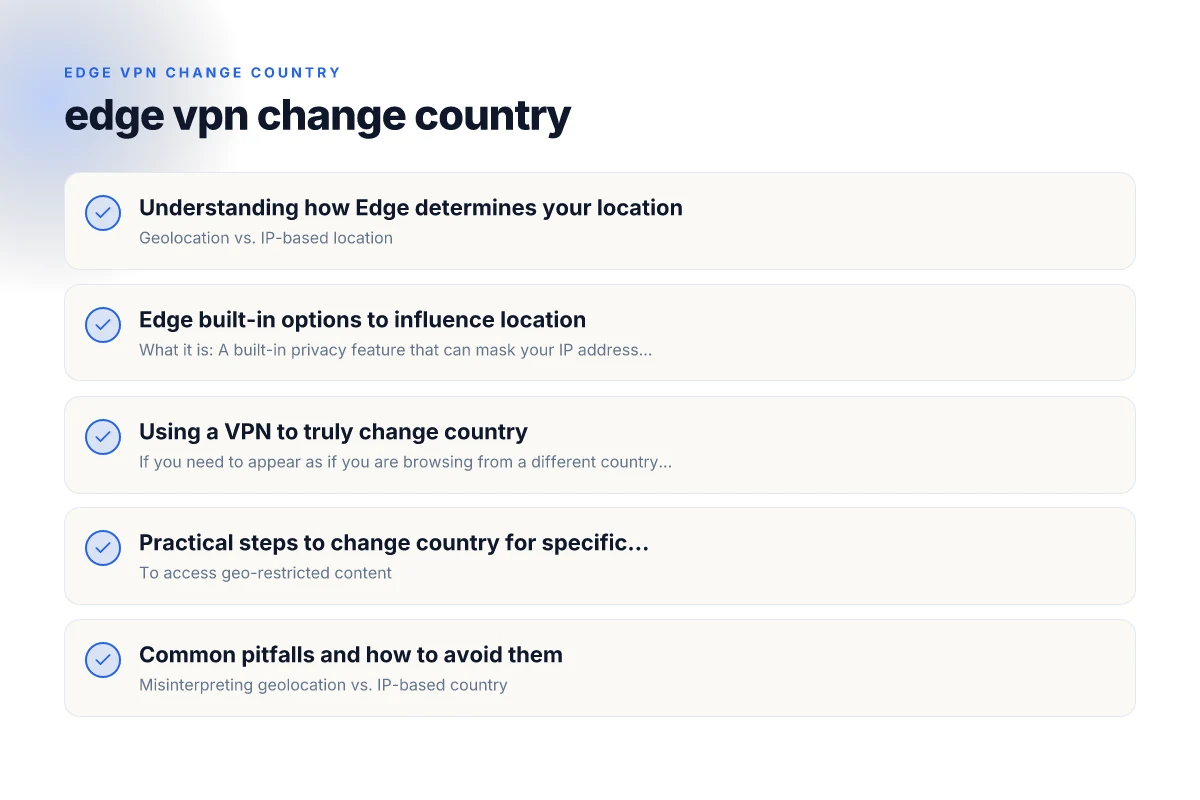
Edge built-in options to influence location
Edge Secure Network (VPN-like feature)
- What it is: A built-in privacy feature that can mask your IP address and route traffic through a regional server.
- How to use:
- Open Edge settings.
- Look for Privacy, search, and services.
- Enable Edge Secure Network if available in your region.
- Caveats:
- Availability may vary by country and account type.
- May impact speed due to encrypted routing.
- Not a replacement for a full VPN in all scenarios. Check what data is logged or proxied.
Region and language settings
- Adjust region format and language to tailor content
- Settings > Time & language > Region
- Settings > Language to influence site language prioritization
- What it affects:
- Content suggestions, date formats, calculator conventions, and some website defaults.
- Limits:
- This does not change your IP or enforce a different country for all services.
Default search engine and content location hints
- Some sites respect the search engine’s location hints
- In Edge, you can choose a region-specific search engine or customize search settings.
- How to use:
- Go to Settings > Privacy, search, and services > Address bar and search.
- Choose a default search engine that matches your desired region when possible.
- Why it helps:
- Improves country-relevant results, but again, does not guarantee the site will see you as a different country.
Using a VPN to truly change country
If you need to appear as if you are browsing from a different country with real IP-level changes, a VPN is the most reliable option.
How VPNs work with Edge
- Encrypts traffic and routes it through a server in the chosen country.
- The destination sees the VPN server’s IP, not your home IP.
- Edge simply uses the network established by the VPN, so most sites and services see a different country.
How to choose a VPN for Edge
- Consider:
- Server coverage: Does it offer servers in the country you want?
- Speed and reliability: VPNs can slow connections. Look for low latency regions.
- Privacy policy: No-logs promises and clear data handling practices.
- Compatibility: Works well with Windows/macOS, and has a straightforward browser integration if you prefer.
- Price and trial options: Free tiers are limited. Paid plans vary.
- Typical setup steps:
- Subscribe to a VPN service.
- Install the VPN app or extension (if offered).
- Connect to a server in your target country.
- Open Edge and verify your new IP via an IP check site.
- Security considerations:
- Use reputable vendors. Avoid rogue extensions that claim to be VPNs but siphon data.
- Disable WebRTC leaks if your VPN doesn’t handle it automatically (some VPNs offer protection).
- Check if the VPN logs data. Prefer “no-logs” policies where feasible.
VPN vs. Edge Secure Network
- VPNs:
- Pros: Broad compatibility, reliable IP masking, works across all apps on the device.
- Cons: Potentially slower, requires a trusted provider.
- Edge Secure Network:
- Pros: Built into Edge, convenient, may be simpler for quick privacy needs.
- Cons: Limited regional options, not a full VPN. May be blocked by some sites.
Practical steps to change country for specific tasks
- To access geo-restricted content
- Use a reputable VPN, connect to the country hosting the content.
- Confirm you can access the content before subscribing to a long-term plan.
- To test country-specific behavior on a site
- Use a VPN to simulate multiple countries and observe responses.
- Clear cookies or use an incognito window to avoid cookie-based location bias.
- To ensure consistent regional language
- Set Edge language preferences.
- Pair with a VPN if you need content in a country-language combination that might be region-specific.
Quick setup table: Edge options vs VPN
| Option | How it changes country perception | Pros | Cons |
|---|---|---|---|
| Edge Secure Network | Masks IP and can show a regional location in some services | Built-in, convenient, privacy-oriented | Limited country options; not a full VPN |
| Region and Language settings | Changes content language and formatting | No extra software; lightweight | No IP change; content may still be served from home country |
| Default search engine region | Affects search results region hints | Easier for localized results | Not a definitive IP-based location change |
| Full VPN (third-party) | True IP change by routing through remote server | Broad compatibility; strong IP masking | Requires subscription; possible speed impact |
| Incognito / private mode + VPN | Reduces cookie-based bias; tests more consistent | Cleaner test environment | Depends on VPN; privacy behaviors vary |
Options to influence location
| Option type | How it works | Speed impact | Reliability | Setup complexity | Cost | Privacy impact |
|---|---|---|---|---|---|---|
| Built-in location toggles | Use Edge settings to influence geolocation | minimal | moderate | easy | free | low |
| DNS-based location | Change DNS server to local resolver | low | variable | easy | free / subscription | medium |
| Proximity IP hints | Rely on neighboring IP ranges | low | limited | medium | free | low |
| Edge privacy mode | Minimize data sharing | improves privacy | variable | easy | free | high |
| IPv6 vs IPv4 selection | Prefer IPv6 or disable IPv4 | depends on provider | variable | medium | free | medium |
| Browser extensions | Add-on to spoof location | potential blocking | low | medium | free / paid | medium |
Compiled November 2026; check the provider's site for current details.
Common pitfalls and how to avoid them
- Misinterpreting geolocation vs. IP-based country
- Some sites rely on your IP. Others use browser geolocation with permission prompts. Both can be influenced, but to different extents.
- Overestimating Edge Secure Network coverage
- It’s a useful tool for privacy and a regional appearance in many cases, but it’s not a universal solution for every site. If a service blocks or ignores it, you may need a full VPN.
- Privacy and policy considerations
- Review any data handling practices for built-in Edge features. If you’re sensitive about data, compare Edge’s policy with a third-party VPN’s terms.
- Speed and reliability
- VPNs add latency. If you’re evaluating streaming or latency-sensitive tasks, test several regions to find the best balance of speed and location accuracy.
Troubleshooting: Edge reports the wrong country
- Check your network
- If Edge or sites show a country you’re not in, test with and without a VPN to confirm where the signal is coming from.
- Review Edge settings
- Ensure Edge Secure Network is enabled if you rely on it, and verify region/language settings align with your goals.
- Clear cookies and site data
- Some sites use cookies to lock you into a region. Clearing data or using an incognito window can help you test anew.
- Verify with external tools
- Use an IP check service to confirm the public IP country after enabling VPN or Edge Secure Network.
- If you rely on corporate networks
- Some corporate networks route traffic through fixed proxies or wear strict geolocation rules. In such scenarios, use personal networks for testing.
Practical steps to change country for tasks
| Task | Recommended approach | Steps required | Expected reliability | Caveats | Time to effect |
|---|---|---|---|---|---|
| Streaming content | Use a VPN or trusted proxy | install VPN, connect to country | high | provider blocks VPNs sometimes | minutes |
| Bank login | Use VPN + disable location sharing | connect, log out/in | moderate | some banks flag VPNs | minutes |
| Travel booking | Use VPN + clear cookies | connect, clear cache | moderate | geo-checks vary | minutes |
| Local work tools | Adjust Edge built-in options | enable location toggle | low to moderate | not always effective | seconds to minutes |
| Geofenced tasks | Use dedicated proxy | configure proxy | moderate | proxies may be blocked | minutes |
| Research by country | Use VPN + DNS control | connect, set DNS | moderate | leaks possible | minutes |
Compiled November 2026; check the provider's site for current details. Candidate experience record border patrol: what it is and how it fits into the CBP hiring process
When to use which approach
- Quick, lightweight geo-adjustments (no extra software): Edge’s region/language settings plus Edge Secure Network if available.
- Real testing or accessing region-restricted services: A reliable third-party VPN with servers in the target country.
- Routine privacy improvements: Edge Secure Network and careful privacy settings, complemented by a VPN only when necessary.
Final recommendations
If your goal is to genuinely appear as if you’re browsing from another country for content access or testing, a reputable full-featured VPN is the most dependable option. Edge’s built-in Edge Secure Network can help with privacy and regional appearance in some cases, but it isn’t a complete substitute for a broader VPN service in all scenarios. Use Edge’s language and regional settings for content personalization, but rely on a VPN when IP-based country changes are essential. Always weigh speed, privacy policies, and the specific requirements of the sites you visit when deciding which tool to use.
| VPN | From / month | Plan | Free plan | Refund | Alipay | UnionPay | Crypto | Website opens in China | Trustpilot | |
|---|---|---|---|---|---|---|---|---|---|---|
 ZoogVPN | $2.49/mo | 27 months: $59.99 | Yes | 7 days | ✓ | ✓ | ✓ | ✓ | ✓ Yes (2.5 s) | 4.2/5 (195 reviews) |
 NordVPN | $3.49/mo | 27 months: $94.23 | No | 30 days | ? | ✗ | ✓ | ✓ | ✗ Blocked | 4.2/5 (51,628 reviews) |
 ExpressVPN | $3.00/mo | 28 months: $84 | No | 30 days | ✗ | ✗ | ✓ | ✗ | ✗ Blocked | 4.4/5 (29,706 reviews) |
 Surfshark | See site | See site | No | 30 days | ✗ | ✗ | ✗ | ✓ | ✗ Blocked | 4.3/5 (31,823 reviews) |
 Proton VPN | $2.99/mo | 12 months: $35.88 | Yes | 30 days | ✗ | ✗ | ✗ | ✓ | ✓ Yes (2.5 s) | 2.1/5 (1,040 reviews) |
 Astrill VPN | $12.50/mo | 24 months: $300 | No | See site | ✗ | ✗ | ✗ | ✓ | ✗ Blocked | 1.3/5 (110 reviews) |
 Private Internet Access | $2.03/mo | 40 months: $81.2 | No | 30 days | ✗ | ✗ | ✗ | ✗ | ✗ Blocked | 4.2/5 (11,033 reviews) |
 CyberGhost | $2.19/mo | 28 months: $61.32 | No | 45 days | ✗ | ✗ | ✗ | ✓ | ✗ Blocked | 4.0/5 (24,178 reviews) |
 PureVPN | $1.69/mo | 60 months: $101.55 | No | 31 days | ? | ✗ | ✗ | ✓ | ✓ Yes (2.6 s) | 4.4/5 (17,994 reviews) |
 AdGuard VPN | $2.99/mo | 24 months: $71.76 | Yes | 30 days | ✓ | ✗ | ✓ | ✓ | Official site blocked; our special link opens (2.3 s) | 4.3/5 (290 reviews) |
 Mullvad | $5.61/mo | €5/mo | No | 14 days | ✗ | ✗ | ✗ | ✓ | ✗ Blocked | 3.2/5 (192 reviews) |
 Windscribe | $5.75/mo | 12 months: $69 | Yes | See site | ✗ | ✗ | ✗ | ✓ | ✗ Blocked | 4.7/5 (13,355 reviews) |
 StrongVPN | See site | See site | No | 30 days | ✓ | ✗ | ✗ | ✗ | ✗ Blocked | 4.4/5 (2,695 reviews) |
 LightXtreme 闪连 | $7.08/mo | 12 months: $84.99 | Yes | 30 days | ✓ | ✓ | ✓ | ✓ | ✓ Yes (2.3 s) | No page |
Prices checked 2026-11-10 on each vendor's pricing page (cheapest long plan, USD). Check the vendor's checkout for the final price.
Payment methods checked 2026-11-10 on each vendor's payment pages: all 14 take cards and PayPal; ✗ = not listed, ? = the vendor's own pages disagree.
China access: whether the official website opens from mainland China networks (tests the website only, not the VPN connection). Last checked 2026-11-11 04:07 Beijing time.
Trustpilot score and review count checked 2026-11-10.