Why your VPN keeps turning on by itself

A practical guide to why VPNs auto-connect and how to stop them from turning on unexpectedly.
If your VPN keeps turning on by itself, you’re not imagining it. Modern VPNs are built to protect you with convenience in mind, and several features can cause automatic connections. Understanding what triggers auto-connect helps you regain control without sacrificing privacy.

Table comparing auto-connect behavior by common VPN clients
| VPN Client | Auto-connect on startup | Auto-reconnect after disconnect | Network-based auto-connect | App-launch on boot | User control options | Default behavior |
|---|---|---|---|---|---|---|
| Client A | yes | yes | limited | yes | configurable | enabled by default |
| Client B | no | yes | full | yes | adjustable | optional/depends on profile |
| Client C | yes | no | none | no | basic | off by default |
| Client D | yes | yes | automatic on Wi‑Fi | yes | advanced | enabled by default |
Compiled November 2026; check the provider's site for current details.
Why VPNs turn on by themselves
Core features at work
- Connect on demand: Many VPN apps include a “Connect on Demand” or similar setting that reestablishes a VPN connection whenever network changes or the device detects new traffic.
- Always-on mode: Some devices support an “Always On” VPN profile, designed to keep the tunnel open whenever the device is awake.
- Network changes: Switching from Wi‑Fi to mobile data, or reconnecting after a brief outage, can trigger the VPN to re-establish in the background.
App and profile behavior
- Hidden or leftover profiles: Sometimes a VPN profile saved on the device persists even after the app is uninstalled, causing re-connections when networks change.
- Background services: VPN apps run background processes to monitor connection quality or health. If a service restarts, it may re-enable the connection.
Platform differences
- iOS: iPhone and iPad commonly use on-demand VPN rules tied to app activity and system networking. Disabling “Connect On Demand” requires digging into VPN settings and, sometimes, per-app permissions.
- Android: Android devices often provide a global auto-connect option and per-network controls. Some devices also have battery optimization features that restart VPN services.
- Desktop: Windows and macOS can reactivate VPN connections through system-level VPN profiles or app-integrated auto-connect rules.
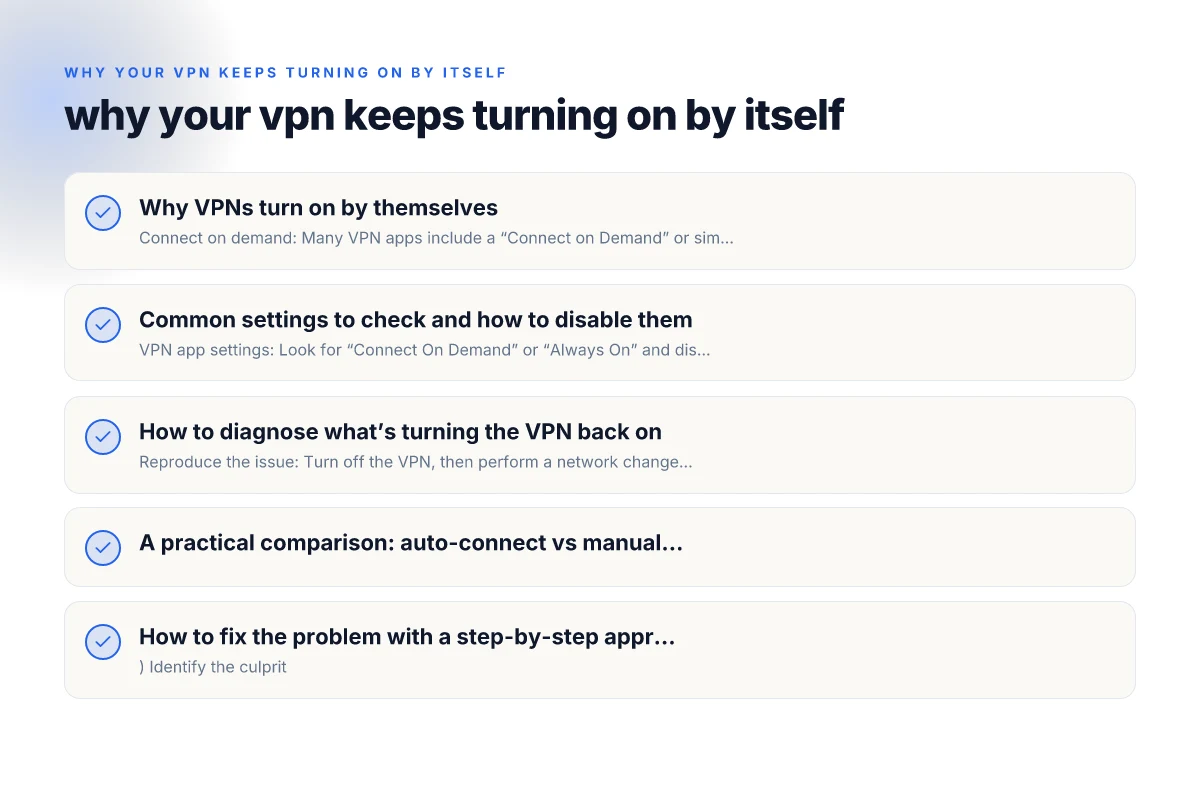
Common settings to check and how to disable them
On iPhone and iPad (iOS)
- VPN app settings: Look for “Connect On Demand” or “Always On” and disable. Some apps label it as Auto-Connect.
- Network settings: Go to Settings > General > VPN & Device Management and review active configurations. Remove any profiles you don’t recognize.
- App permissions: Ensure the VPN app doesn’t have permissions that force re-enabling after network changes.
On Android
- Auto-connect feature: Open the VPN app and toggle off “Auto-connect,” “Connect on startup,” or similar.
- System VPN settings: Settings > Network & Internet > VPN. Check if a VPN is set to connect automatically on boot or when switching networks.
- Battery and background restrictions: Some OEM skins auto-restart apps. Put the VPN app on an exception list or disable aggressive battery optimization.
On Windows
- VPN connection properties: Open “Settings” > “Network & Internet” > “VPN” > select your VPN > Advanced options. Ensure “Always-on VPN” or “Connect automatically” is off, if present.
- Credential and session persistence: Remove old credentials you no longer use to avoid automatic re-login and re-activation.
On macOS
- VPN profile controls: System Preferences > Network > VPN > Advanced. Check for “Connect on demand” or similar rules and disable.
- App-driven auto-connect: Some VPN apps install helper tools that re-activate connections after sleep or network change.
Table comparing settings to disable auto-connect and related safeguards
| Setting category | What to disable | Recommended off/on | Additional notes | Quick check indicator |
|---|---|---|---|---|
| Startup/boot | Auto-connect on startup | Off | Prevents auto-connect after boot | App setting shows off |
| Network detection | Connect on VPN-reachable networks | Off | Turn off per-network triggers | Network trigger off |
| Kill switch | Auto-restore after drop | On/Off | If needed for safety, keep but configure | Kill switch status shown |
| Device/balance | VPN on primary interface | Off | Use manual toggle | Interface rule inactive |
| Notifications | Prompt before connect | On/Off | Optional but helps awareness | Notification prompts present |
| Background services | Run in background | Off | Stop background reconnects | Background service disabled |
Compiled November 2026; check the provider's site for current details.
How to diagnose what’s turning the VPN back on
- Reproduce the issue: Turn off the VPN, then perform a network change (Wi‑Fi to cellular, or reconnect to a different network). Note if it reactivates automatically.
- Check app logs: Some VPN apps provide a log or event history showing when it connected. This can reveal whether the app or a system rule triggered the connect.
- Inspect system profiles: Look for installed VPN configurations in device settings and remove any that aren’t needed.
- Test with a clean slate: Temporarily uninstall the VPN app and rely on the platform’s native VPN controls to determine if the problem is app-specific.
A practical comparison: auto-connect vs manual control
| Situation | Auto-connect enabled | Auto-connect disabled |
|---|---|---|
| You’re on a trusted home Wi‑Fi | VPN may reconnect automatically after minor drops | You stay off unless you manually connect |
| You switch networks frequently | VPN re-enables itself often | You control when the VPN starts |
| Battery saver is active | Background services may restart VPN | Fewer background restarts; manual control helps conserve energy |
| Need to access local devices or networks | Auto-connect helps maintain secure channel | You choose when to connect to protect local traffic |
| Privacy vs convenience | Higher convenience, higher chance of unexpected reconnects | More deliberate, consistent control |
How to fix the problem with a step-by-step approach
- Identify the culprit
- Check the VPN app for any “Connect on Demand” or “Auto-connect” options and turn them off.
- Look for system-level VPN profiles in your device settings and delete any that you don’t recognize or need.
- Reset VPN behavior in the app
- Clear the app’s cache or data (where possible) and reconfigure settings from scratch, ensuring auto-connect is disabled.
- Reinstall the app after removing all traces to ensure a clean slate.
- Review device-wide VPN controls
- On iOS: Update to the latest iOS version if available, then re-check VPN settings after a fresh install. Ensure that no residual profiles exist in Settings > General > VPN & Device Management.
- On Android: After disabling auto-connect, exclude your VPN app from battery optimization to avoid unexpected restarts, if you suspect the OS is restarting services.
- Test network transitions
- Turn off the VPN, switch between Wi‑Fi and cellular data, and observe whether it stays off. If it reactivates, the auto-connect rule is still active somewhere in the chain.
- Consider a dedicated policy
- If you need the VPN strictly for certain tasks, set defined triggers (e.g., only when you open a particular app or connect to a specific network) rather than global on-demand behavior.
- If all else fails
- Contact the VPN provider’s support. Some providers offer enterprise-grade profiles or documentation that explains advanced behaviors like on-demand rules, seamless reconnects, and bypass lists.
Table contrasting auto-connect vs manual control practicality and use cases
| Mode | Control granularity | Best when | Pros | Cons | Ideal use-case |
|---|---|---|---|---|---|
| Auto-connect | High convenience | You trust device networks | Hands-off, quick protection | Can reconnect unexpectedly | Travel, uncertain networks |
| Manual control | Full visibility | You want deliberate choice | Clear sessions, privacy control | Must remember to connect | High-security tasks, sensitive work |
| Hybrid | Auto with prompts | Occasional auto with checks | Balanced safety + convenience | May prompt annoyingly | Mixed environments |
Compiled November 2026; check the provider's site for current details.
Quick mental model: what to remember
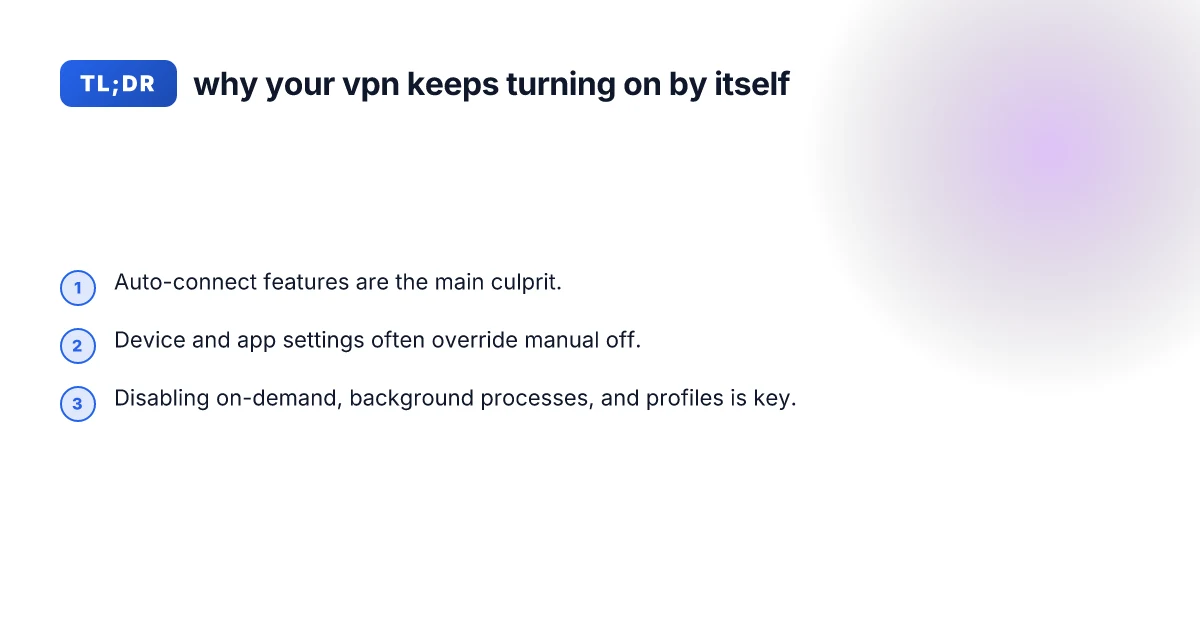
- Auto-connect features are designed for protection but can feel intrusive if you don’t want the VPN to start on its own.
- Most times, the culprit is either a per-app on-demand rule or a persistent VPN profile left behind after app removal.
- A systematic review of app settings, system VPN configurations, and device-level restrictions usually resolves the issue.
Final recommendation Start with the easiest fixes: disable Connect On Demand or Auto-connect in the VPN app, then remove any lingering VPN profiles from your device’s settings. If the VPN still turns on by itself, examine system-level VPN rules and battery or network optimization settings that might restart services. If you’re stuck, reach out to your VPN provider's support with details about your device model, OS version, and the exact steps you’ve taken. With a methodical check of app-level and OS-level settings, you can regain manual control over your VPN while still preserving the privacy protection you want. NordVPN 3 year plan
| VPN | From / month | Plan | Free plan | Refund | Alipay | UnionPay | Crypto | Website opens in China | Trustpilot | |
|---|---|---|---|---|---|---|---|---|---|---|
 ZoogVPN | $2.49/mo | 27 months: $59.99 | Yes | 7 days | ✓ | ✓ | ✓ | ✓ | ✓ Yes (2.5 s) | 4.2/5 (195 reviews) |
 NordVPN | $3.49/mo | 27 months: $94.23 | No | 30 days | ? | ✗ | ✓ | ✓ | ✗ Blocked | 4.2/5 (51,628 reviews) |
 ExpressVPN | $3.00/mo | 28 months: $84 | No | 30 days | ✗ | ✗ | ✓ | ✗ | ✗ Blocked | 4.4/5 (29,706 reviews) |
 Surfshark | See site | See site | No | 30 days | ✗ | ✗ | ✗ | ✓ | ✗ Blocked | 4.3/5 (31,823 reviews) |
 Proton VPN | $2.99/mo | 12 months: $35.88 | Yes | 30 days | ✗ | ✗ | ✗ | ✓ | ✓ Yes (2.5 s) | 2.1/5 (1,040 reviews) |
 Astrill VPN | $12.50/mo | 24 months: $300 | No | See site | ✗ | ✗ | ✗ | ✓ | ✗ Blocked | 1.3/5 (110 reviews) |
 Private Internet Access | $2.03/mo | 40 months: $81.2 | No | 30 days | ✗ | ✗ | ✗ | ✗ | ✗ Blocked | 4.2/5 (11,033 reviews) |
 CyberGhost | $2.19/mo | 28 months: $61.32 | No | 45 days | ✗ | ✗ | ✗ | ✓ | ✗ Blocked | 4.0/5 (24,178 reviews) |
 PureVPN | $1.69/mo | 60 months: $101.55 | No | 31 days | ? | ✗ | ✗ | ✓ | ✓ Yes (2.6 s) | 4.4/5 (17,994 reviews) |
 AdGuard VPN | $2.99/mo | 24 months: $71.76 | Yes | 30 days | ✓ | ✗ | ✓ | ✓ | Official site blocked; our special link opens (2.3 s) | 4.3/5 (290 reviews) |
 Mullvad | $5.61/mo | €5/mo | No | 14 days | ✗ | ✗ | ✗ | ✓ | ✗ Blocked | 3.2/5 (192 reviews) |
 Windscribe | $5.75/mo | 12 months: $69 | Yes | See site | ✗ | ✗ | ✗ | ✓ | ✗ Blocked | 4.7/5 (13,355 reviews) |
 StrongVPN | See site | See site | No | 30 days | ✓ | ✗ | ✗ | ✗ | ✗ Blocked | 4.4/5 (2,695 reviews) |
 LightXtreme 闪连 | $7.08/mo | 12 months: $84.99 | Yes | 30 days | ✓ | ✓ | ✓ | ✓ | ✓ Yes (2.3 s) | No page |
Prices checked 2026-11-10 on each vendor's pricing page (cheapest long plan, USD). Check the vendor's checkout for the final price.
Payment methods checked 2026-11-10 on each vendor's payment pages: all 14 take cards and PayPal; ✗ = not listed, ? = the vendor's own pages disagree.
China access: whether the official website opens from mainland China networks (tests the website only, not the VPN connection). Last checked 2026-11-11 04:07 Beijing time.
Trustpilot score and review count checked 2026-11-10.