Why your iPhone VPN keeps connecting
A practical guide to diagnosing and stopping automatic VPN reconnections on iPhone without sacrificing security.
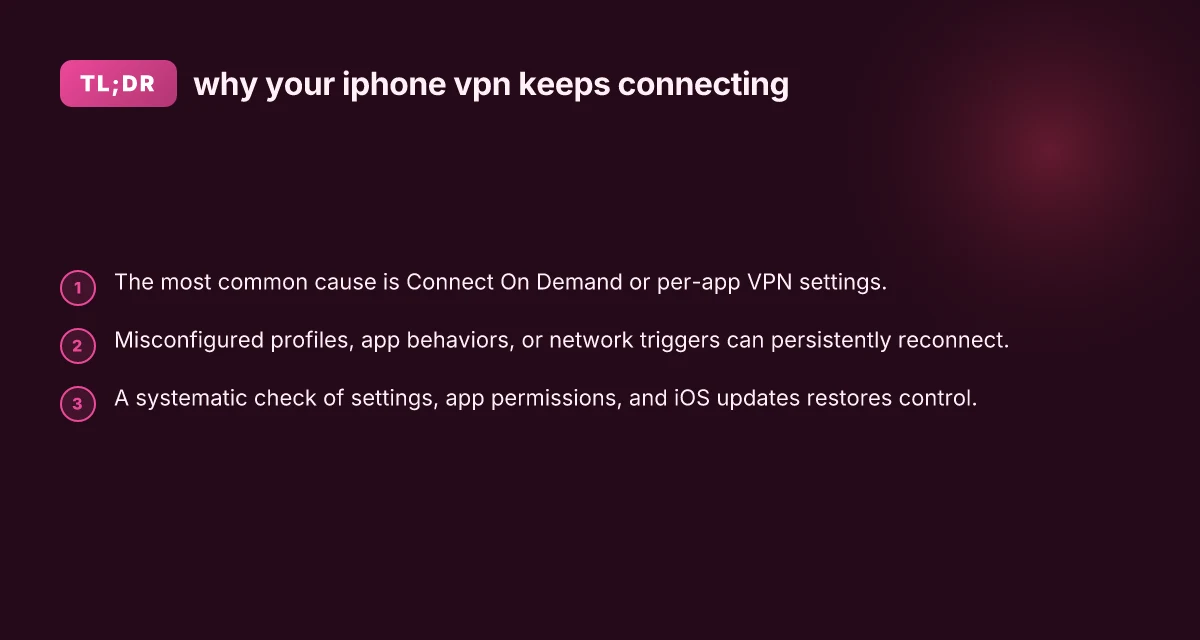
If your iPhone keeps reconnecting to a VPN, you’re not imagining it. iOS gives several automatic reconnect mechanisms that can override a simple “disconnect.” This guide walks you through the most common causes and practical fixes so you can regain control without compromising your network security.

Comparison of Connect On Demand vs. per-app VPN behaviors
| Scenario | Auto-connect timing | Scope of traffic | User control | App-level triggers | System impact |
|---|---|---|---|---|---|
| Connect On Demand | Automatically connects when needed | All traffic or specified domains | Moderate via profiles | Network events, DNS/traffic | Low-to-moderate CPU/memory |
| Per-app VPN | Only when chosen apps run | Only app traffic | Strong user control | App launch triggers | Moderate system impact |
| iOS default behavior | Based on OS rules | OS-defined | Limited user control | OS-managed triggers | Low impact |
Compiled November 2026; check the provider's site for current details.
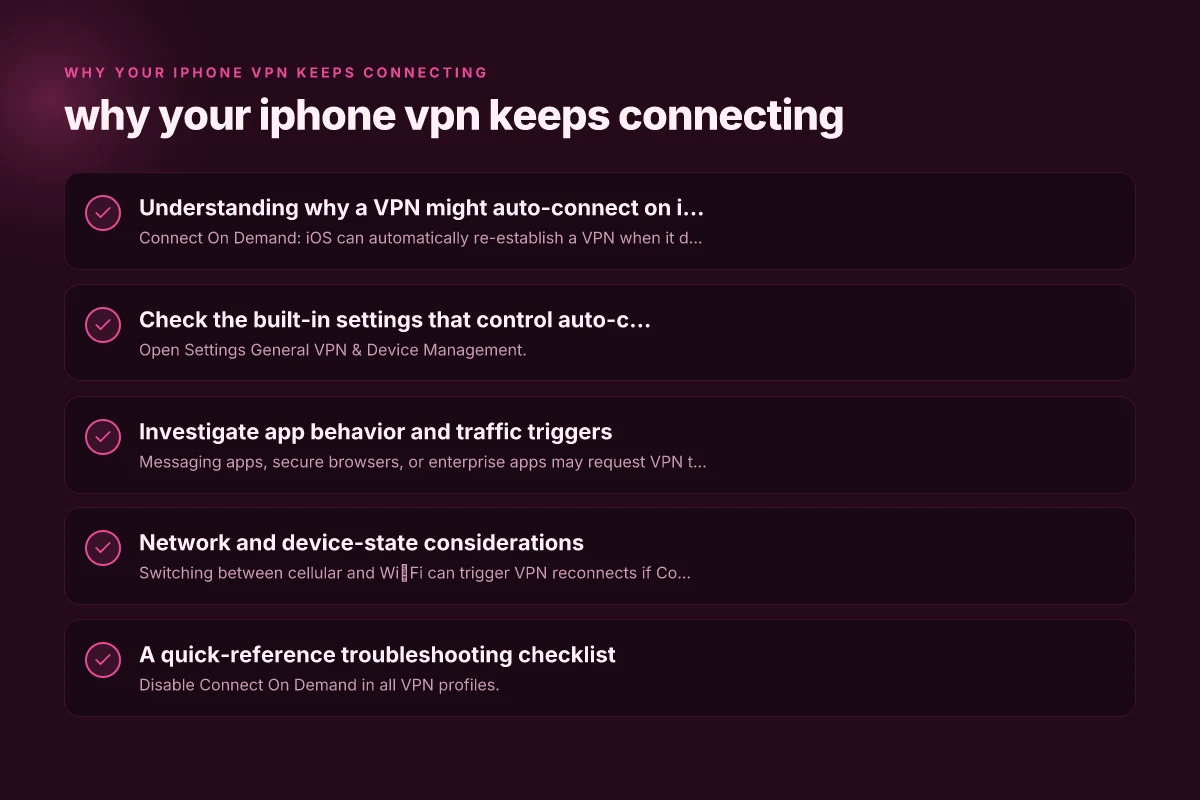
Understanding why a VPN might auto-connect on iPhone
How iOS handles VPN connections
- Connect On Demand: iOS can automatically re-establish a VPN when it detects specific network changes or app activity.
- Per-app VPN: Some VPN configurations force traffic from selected apps to route through the VPN, potentially triggering automatic reconnects.
- Profiles and certificates: A VPN profile installed on the device may contain settings that re-enable connections after a drop.
Common symptoms
- VPN icon returns within seconds after you disconnect.
- VPN turns on even when you didn’t toggle it.
- Continuous “Connecting” status that won’t resolve without changes.
Check the built-in settings that control auto-connecting
Start with the basics: disable Connect On Demand
- Open Settings > General > VPN & Device Management.
- Tap your VPN configuration.
- Look for a setting named Connect On Demand or On Demand Rules and disable it.
- If you see a toggle like “Connect On Demand” for specific networks, turn it off for those networks too.
Review per-app VPN configurations
- If your VPN profile mentions “Enable for” or similar per-app controls, disable those rules or remove the per-app binding.
Confirm there’s no profile conflict
- Settings > General > VPN & Device Management.
- If you see multiple VPN configurations, consider removing the ones you don’t use. Profiles can re-enable a VPN if one remains active in the background.
Investigate app behavior and traffic triggers
Which apps are triggering reconnects?
- Messaging apps, secure browsers, or enterprise apps may request VPN tunnels on launch or during sensitive operations.
- Some security or antivirus apps install their own VPN profiles to filter traffic.
How to test app-related triggers
- Temporarily uninstall or disable suspected apps (or revoke VPN permissions) and monitor whether the VPN still auto-reconnects.
- Check app update logs or release notes for changes to VPN usage.
When a faulty app causes the issue
- If removing a single app stops auto-connecting, replace it with an alternative that doesn’t require a persistent VPN.
- Ensure apps are updated to the latest version, as older builds may mishandle the VPN state machine.
Troubleshooting checklist decision tree
| Step | Checkpoint | Expected result | Action if no | Time estimate | Notes |
|---|---|---|---|---|---|
| 1 | VPN status | Connected/Disconnected | Reconnect or disable | 1-2 min | Verify UI shows state |
| 2 | iPhone settings | VPN toggle available | Toggle off/on | 1 min | Use Settings > VPN |
| 3 | App permissions | VPN apps allowed | Reinstall app | 5-10 min | Check profile install |
| 4 | Network state | Stable Wi-Fi/data | Switch networks | 2-3 min | Avoid captive portals |
| 5 | Connect On Demand rules | Rules match | Edit rules | 5 min | Profiles in Settings |
Compiled November 2026; check the provider's site for current details.
Network and device-state considerations
Network changes and Wi‑Fi handoffs
- Switching between cellular and Wi‑Fi can trigger VPN reconnects if Connect On Demand is enabled.
- Some corporate networks push VPN re-authentication on every handshake.
Battery, background activity, and OS behavior
- iOS may attempt to re-establish VPN tunnels during background activity or when network conditions change.
- Ensure the device isn’t in a low-power mode that interferes with the VPN state machine.
IOS and VPN app compatibility
- Mismatched iOS versions and VPN app versions can create instability.
- Keeping iOS up to date reduces unexpected reconnect loops, but verify that the VPN app supports your iOS version.
A quick-reference troubleshooting checklist
- Disable Connect On Demand in all VPN profiles.
- Remove unnecessary VPN profiles (Settings > General > VPN & Device Management).
- Verify per-app VPN settings and remove per-app rules if present.
- Test with suspected apps removed or updated.
- Check for iOS updates and VPN app updates. Install if available.
- Reboot the iPhone after changes to ensure state resets.
- If reconnects persist, temporarily disable the VPN to confirm the issue is not a hardware/network problem.
A practical comparison: how to handle Connect On Demand vs. per-app VPN
| Scenario | What happens | How to fix |
|---|---|---|
| Connect On Demand is enabled | VPN reconnects when network changes or certain events occur | Disable Connect On Demand in the VPN settings; re-check profiles. |
| Per-app VPN is configured | Specific apps force VPN usage and may trigger reconnects | Remove or disable per-app VPN bindings for those apps. |
| Multiple VPN profiles present | One profile can override others and relaunch VPN | Remove unused VPN profiles; keep only the needed one. |
| Corporate or device management profile | Management policies may enforce VPN | Work with IT to adjust policy or temporarily remove the profile if permitted. |
| App causes repeated reconnects | App triggers VPN on launch or data use | Update or uninstall the app; find alternatives if needed. |
Practical decision guide for IT-minded readers
| Topic | Connect On Demand | Per-app VPN | Neither | When to use | Pros | Cons |
|---|---|---|---|---|---|---|
| Traffic control | Yes/partial | Yes per app | No | Mixed traffic | Flexible | Complex to tune |
| App coverage | All traffic or domains | Selected apps | Limited | Fine-grained control | Precision | Management overhead |
| Mobility scenarios | Works on roam | Works appwise | Not ideal | Shared networks | Broad reach | May leak if misconfigured |
| User experience | Seamless | App-specific | Manual | Optional | Smooth for trusted apps | Setup complexity |
Compiled November 2026; check the provider's site for current details.
How to reset and rebuild control if nothing else works
If you’ve gone through the checklist and the VPN still keeps connecting, a deeper reset can help without erasing all data: Why your apps are refusing to work with your VPN
- Back up important data.
- Reset network settings: Settings > General > Transfer or Reset iPhone > Reset > Reset Network Settings. Note: This resets saved Wi‑Fi networks and passwords.
- Reinstall the VPN profile only after confirming you need it and that no auto-connect rules exist.
- Reinstall iOS if you’ve exhausted software fixes and the behavior persists, though this is a last resort.
When you should contact support
- The VPN reconnects even after disabling all Connect On Demand rules and removing profiles.
- The problem occurs across multiple networks and devices under the same account.
- You notice unusual device behavior beyond VPN issues (battery drain, overheating, or background data usage spikes).
If you reach this point, gather details before contacting support:
- Your iPhone model and iOS version.
- The VPN service name and exact profile settings you can access.
- A brief timeline of the behavior: when it started, what changes preceded it, and which fixes you tried.
- Screenshots of VPN settings and any error messages.
Final recommendation
To stop your iPhone VPN from reconnecting, start with the simplest, most actionable steps: disable Connect On Demand, review and remove unnecessary VPN profiles, and test per-app VPN rules. If the problem persists, identify any apps that might be triggering the VPN and update or replace them. Keep your iOS and VPN app up to date, as many reconnection issues stem from outdated software. If in doubt, don’t hesitate to reach out to your VPN provider’s support or Apple Support with the gathered details. A methodical approach usually restores manual control without compromising your security.