Why some websites just won't work with your VPN

A practical guide to why certain sites block or misbehave with VPNs and how to troubleshoot.
Introduction VPNs are a powerful way to protect privacy, access geo-restricted content, and secure your connection on public networks. But you’ve probably run into websites that won’t load or behave oddly when a VPN is turned on. This guide breaks down the common reasons and gives practical steps to fix or work around the issues, without compromising your security.

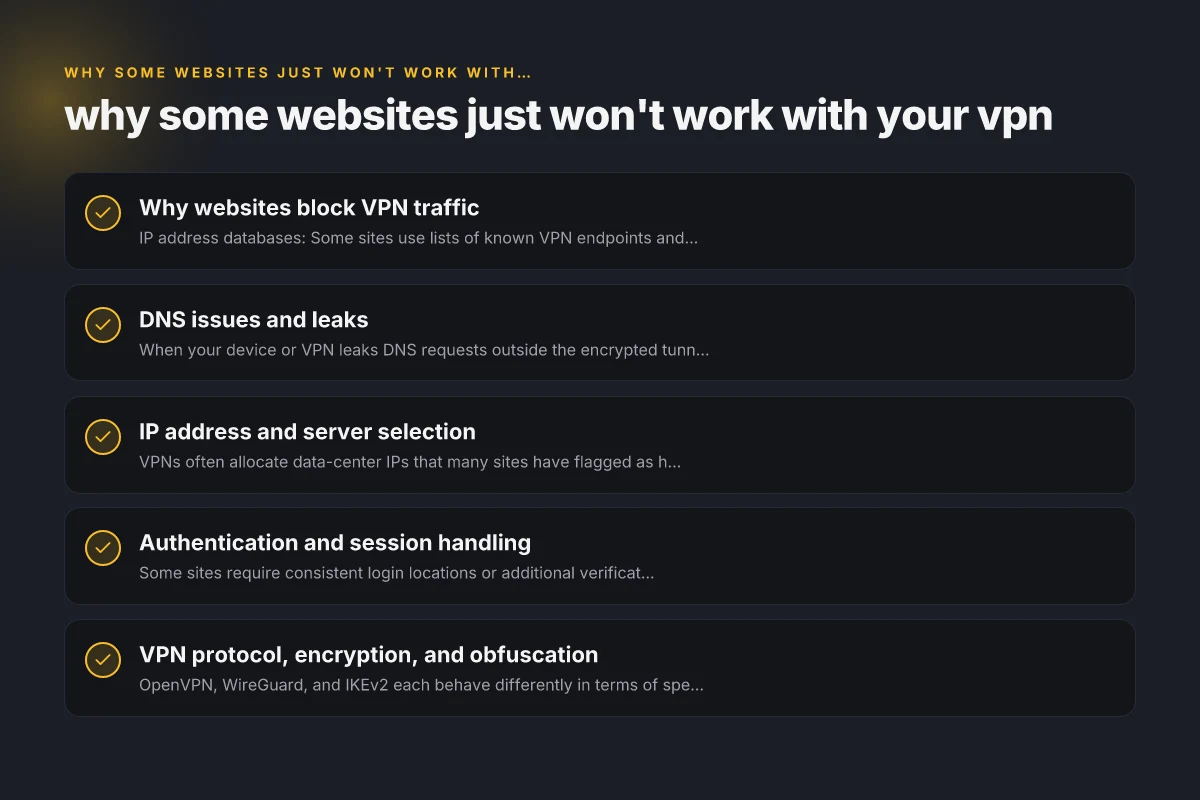
Why websites block VPN traffic
| Cause | Typical signals | How sites detect | Mitigation options | Notes |
|---|---|---|---|---|
| IP reputation | Blacklists, known VPN ranges | IPs flagged by providers | Switch to less-known IPs; rotate servers | Varied per site |
| Geolocation checks | Country mismatch alerts | GeoIP data mismatches | Use exit nodes in target country | Not foolproof |
| TLS fingerprinting | VPN endpoints share patterns | Fingerprints match VPN stacks | Obfs/proxy or different client stack | Some sites adapt quickly |
| User behavior signals | Abrupt access patterns | Unusual login/scrape tempo | Use normal usage patterns | Behavioral heuristics vary |
Compiled November 2026; check the provider's site for current details.
Why websites block VPN traffic
How sites detect VPNs
- IP address databases: Some sites use lists of known VPN endpoints and block them outright.
- Behavioral detection: Traffic patterns associated with VPNs (like rapid geo-shifting) can raise flags.
- TLS fingerprinting: Websites may look for VPN-specific transport characteristics.
Common outcomes
- “This site can’t be reached” or timeouts.
- Requiring extra verification (CAPTCHAs, security questions).
- Partial loading or blank pages.
DNS issues and leaks
What DNS leaks do
When your device or VPN leaks DNS requests outside the encrypted tunnel, a website might fail to resolve correctly, or risk exposing your real location.
How it manifests
- Pages load incompletely or fail to load at all.
- You see content mismatch with your claimed location.
- Slow or unstable browsing when connected to VPN.
Quick DNS checks
- Use a DNS leak test (many VPNs provide one in their app).
- Try a different DNS setting within the VPN (some apps offer “DNS over VPN” options).
- Flush DNS on your device after changing settings.
DNS issues and leaks
| Issue | Symptoms | DNS leakage | IPv6 leakage | Mitigation |
|---|---|---|---|---|
| DNS leaks | DNS queries outside VPN | Yes | Optional | DNS leak test; disable IPv6 if needed |
| IPv6 leakage | Access via IPv6 path | Possible | Yes | Disable IPv6 or force VPN to handle IPv6 |
| Split tunneling misconfig | Some apps bypass VPN | Potential | Potential | Route sensitive apps through VPN |
| DNS hijacking by VPN | Wrong resolver | Yes | No | Use trusted DNS; disable risky resolvers |
Compiled November 2026; check the provider's site for current details.
IP address and server selection
Data-center vs. residential IPs
- VPNs often allocate data-center IPs that many sites have flagged as high-risk or suspicious.
- Some services prefer residential or at least less-known IP blocks.
Server load and routing
- A noisy route to a site can cause timeouts or slow responses.
- Overcrowded servers may throttle connections or trigger anti-abuse systems.
How to optimize
- Switch to a different server in the same country.
- Try nearby countries to minimize latency.
- Use servers labeled for streaming if applicable (but check terms of service).
- Check if the site requires a specific country. Adjust your VPN region accordingly.
Authentication and session handling
Multi-factor and location checks
Some sites require consistent login locations or additional verification when a user appears to be outside a typical range.
Consequences
- You’re logged out unexpectedly.
- Password resets or re-verification prompts appear.
- Access is temporarily blocked.
What to do
- Pause the VPN or switch regions when you need to log in.
- Ensure you’re not triggering location-based blocks by rotating IPs too aggressively.
- Use trusted devices and avoid frequent IP changes during sensitive sessions.
VPN protocol, encryption, and obfuscation
Protocol differences
- OpenVPN, WireGuard, and IKEv2 each behave differently in terms of speed, detectability, and compatibility.
- Some sites may react unfavorably to certain protocols due to traffic patterns.
Obfuscation and spoofing
- Some VPNs offer obfuscated servers to hide VPN usage from network-level detection.
- Tor over VPN, or double VPN, can affect site compatibility and speed.
When to consider protocol changes
- If a site blocks you on one protocol, try another.
- If your ISP or network uses strict DPI (deep packet inspection), obfuscated servers can help.
IP address and server selection Why Mullvad VPN isn’t connecting
| Topic | Options | Criteria | Trade-offs | Practical tips |
|---|---|---|---|---|
| Server location | Country/region | Latency, access needs | Distance vs. content rules | Start near target site |
| Shared vs dedicated | Shared IPs vs dedicated | Privacy, risk of blocks | Cost vs risk | Prefer occasional rotation |
| Server load | Busy vs idle | Speed stability | Idle is better | Check load metrics |
| Protocol support | OpenVPN/WireGuard/IKEv2 | Compatibility | Speed/security | Pick latest, supported by app |
| Exit node churn | Rotation frequency | Cookie/session stability | More rotation = more breaks | Schedule controlled rotation |
Compiled November 2026; check the provider's site for current details.
A quick-reference comparison
| Issue | Typical cause | What to try | When to try | Outcome |
|---|---|---|---|---|
| Site blocks VPN IP | VPN detection databases | Switch server, use obfuscated server | Try multiple servers, then obfuscated options | Often resolves or reveals a working server |
| DNS leaks | DNS requests bypass VPN | Enable DNS over VPN, switch DNS settings, run leak test | After changing VPN settings | Eliminate leaks, stabilizes resolution |
| Data-center IPs blocked | IP reputation | Move to residential or trusted IP blocks | Test different providers or regions | Better access; may vary by site |
| Session drops during login | Location-based verification | Pause VPN, login, resume; avoid frequent IP changes | When re-authenticating | Keeps session stable |
| Protocol-specific blocks | Traffic fingerprinting | Try WireGuard, then OpenVPN, or obfuscated variants | Week-to-week testing | Improves compatibility |
Troubleshooting checklist you can follow
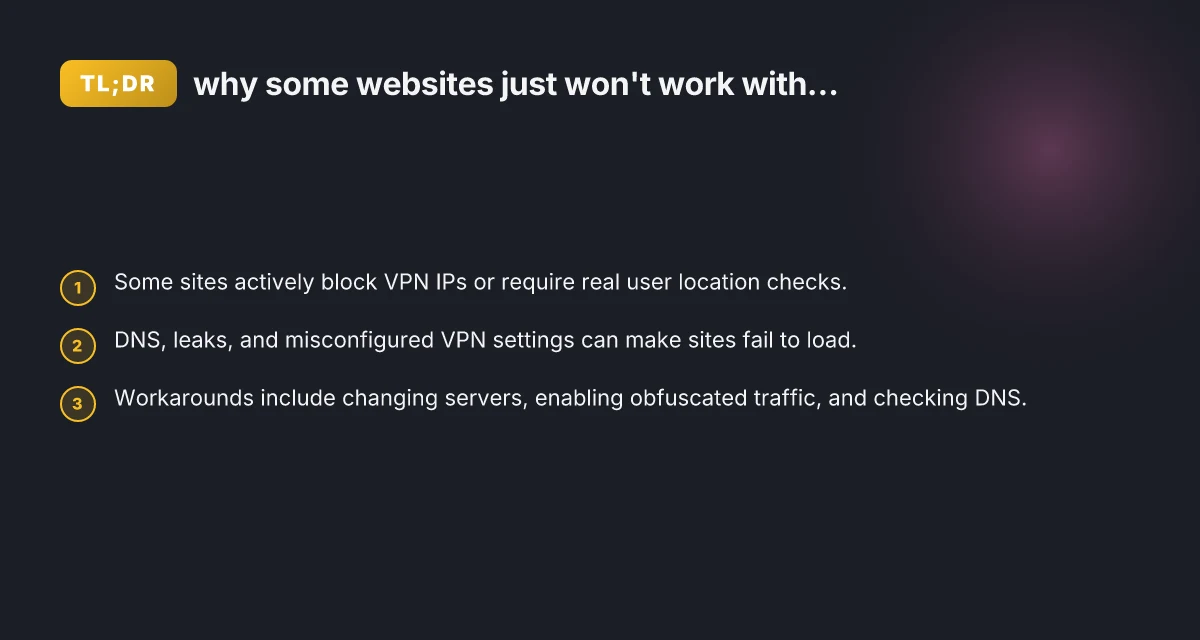
- Check if the problem happens with all sites or just one: If it’s one site, the issue is likely site-specific blocking rather than your VPN.
- Pause VPN and test: Temporarily disable the VPN to confirm if the site loads normally. If yes, the VPN is involved.
- Change servers: Move to a different server or region. Some sites block a subset of VPN endpoints.
- Check for DNS leaks: Run a DNS leak test and ensure DNS requests are resolved through the VPN tunnel.
- Verify protocol and settings: Switch between commonly supported protocols (OpenVPN, WireGuard, IKEv2) and enable obfuscation if available.
- Consider split tunneling: Route only certain apps or sites through the VPN if others require a direct connection.
- Review security prompts: Some sites trigger extra verification when a VPN is detected. Be prepared for CAPTCHAs or account checks.
- Check device-level factors: Ensure your device time and region settings align with the VPN’s location to avoid mismatches.
- Contact support: If a site remains blocked, check with your VPN provider’s support. There may be known workarounds or specific server recommendations.
When a site simply won’t cooperate with a VPN
Some sites enforce aggressive blocking for security or licensing reasons. Streaming services, banking sites, and enterprise portals sometimes lock out VPN users to prevent fraud or geo-restrictions. In these cases, you may need to access the site without a VPN, or use a trusted, temporary method approved by the site (for example, a trusted device or a known IP address in corporate networks). Remember that circumventing blocks can violate terms of service. Always weigh privacy goals against site policies.
Practical steps you can take today
- Keep a small set of reliable servers: Pick a handful of well-performing servers in different regions and rotate between them.
- Use DNS protection within the VPN: Enable DNS over VPN and disable any conflicting DNS settings on your device.
- Experiment with obfuscation: If a site blocks VPN traffic, turning on obfuscated servers or changing the protocol might help.
- Limit how often you switch IPs: Frequent IP changes can trigger security checks. Plan your session with a stable IP, then rotate if needed.
- Consider a backup method: If you need access to a site for work, have a fallback connection (cellular data, secondary network) arranged in advance.
Final recommendation Understanding why some websites won’t work with your VPN comes down to detection methods, DNS handling, server IP reputation, and how authentication mechanisms respond to perceived location changes. Start with the basics: test multiple servers and protocols, ensure DNS is fully tunneled, and avoid abrupt IP rotation during critical sessions. If a site remains inaccessible, weigh the privacy and security benefits of the VPN against the site’s requirements, and consider using non-VPN access when appropriate or permitted. With a methodical approach, you’ll usually find a server and configuration that restores compatibility without sacrificing your privacy and security.