Why Mullvad VPN isn’t connecting
Practical steps and root causes when Mullvad VPN won’t connect, with troubleshooting tips for devices, apps, and networks.
Mullvad VPN not connecting can be caused by a mix of software, device, and network factors. The steps below cover common causes and practical fixes to get you back online.

Quick comparison of Mullvad downtime indicators and quick checks
| Indicator | What it means | Typical cause | Recommended action | When to escalate |
|---|---|---|---|---|
| Mullvad down? | Yes/No | ISP or Mullvad outage | Check status page, try alternate route | If persists > 15 min |
| Local connectivity | Yes/No | Network issue | Ping test, restart modem | If other apps fail |
| Certificate validity | Valid/Expired | certificate issue | Reinstall app, update certs | If error shows invalid certificate |
| App version | Current/Outdated | old client | Update to latest | If update available but not fixing |
| OS/Device time | Correct/Incorrect | clock drift | Sync time | If TLS errors occur |
Compiled November 2026; check the provider's site for current details.
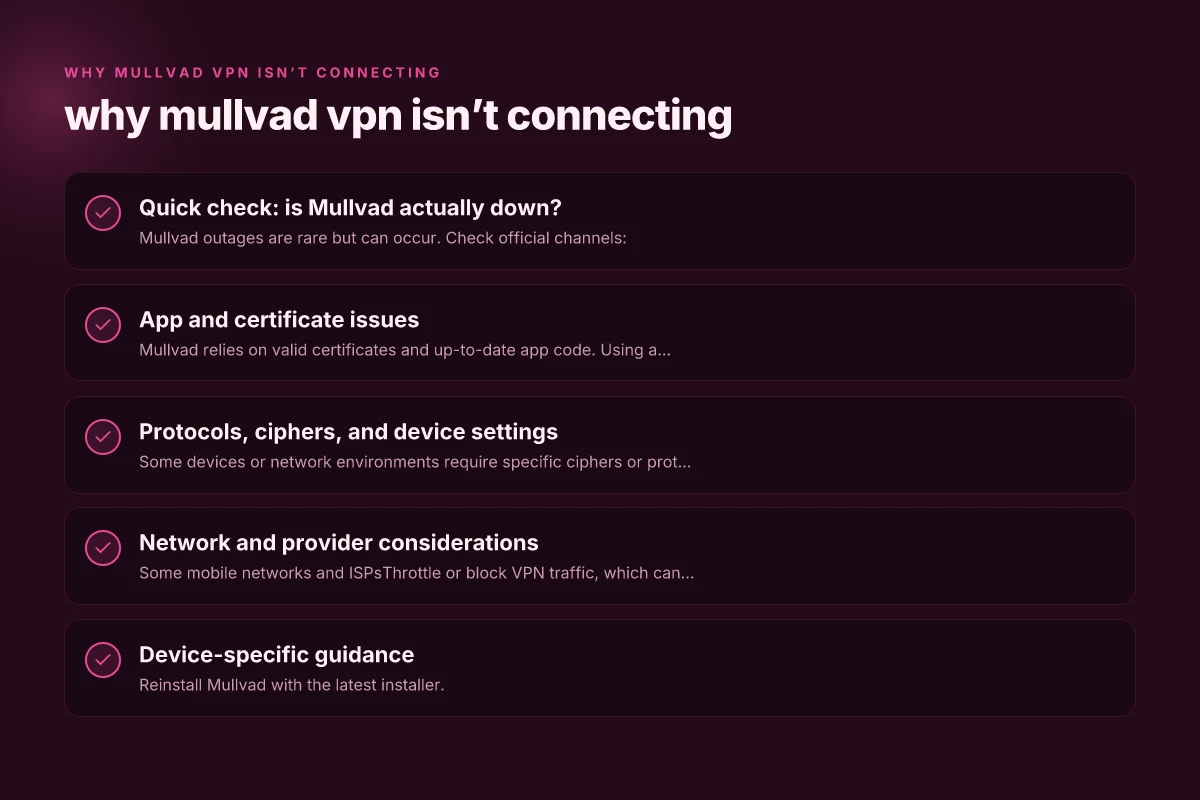
Quick check: is Mullvad actually down?
- Mullvad outages are rare but can occur. Check official channels:
- Mullvad status page or help center for known issues.
- Recent blog posts about certificate changes or server maintenance.
- If Mullvad reports a problem, you’ll want to wait for the fix rather than forcing workarounds.
App and certificate issues
Why this matters
- Mullvad relies on valid certificates and up-to-date app code. Using an expired root certificate or an old configuration can break connections.
- A change such as replacing a root certificate can render older app versions incompatible.
What to do
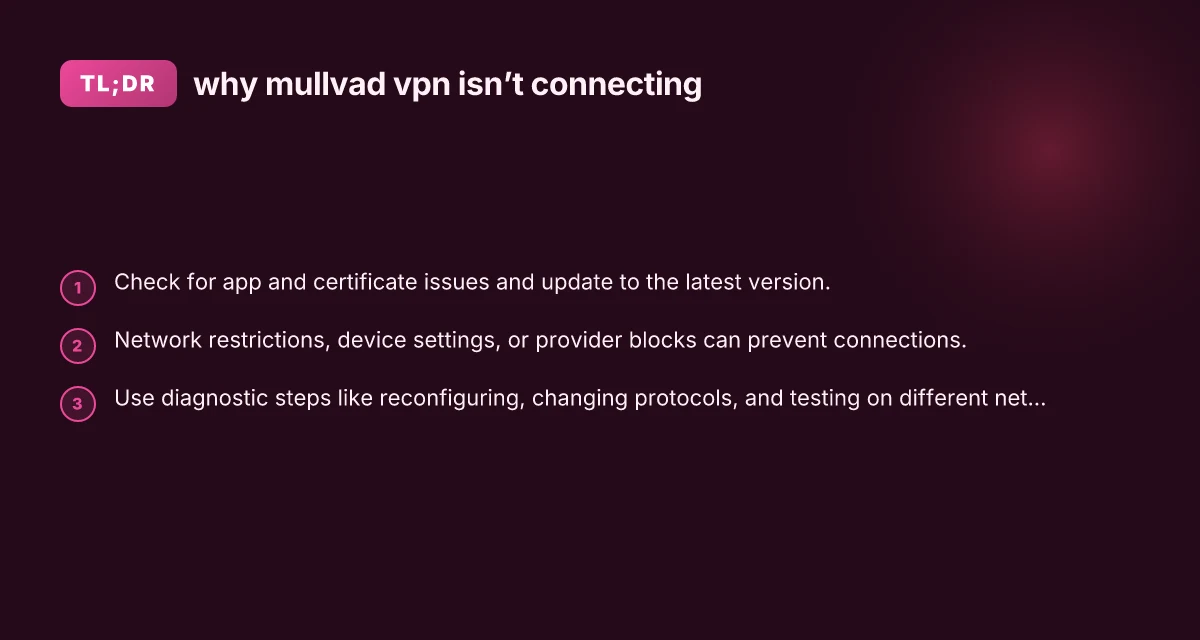
- Update the Mullvad app to the latest version on your device (iOS, Android, Windows, macOS, Linux).
- If you recently updated, ensure you’re not running a stale configuration file. Re-download or re-create configs from Mullvad’s website.
- If you suspect a certificate issue, review Mullvad’s guidance about root certificates and follow the recommended steps to refresh trust anchors or certificates.
Quick checks
- On Windows/macOS/Linux, delete old Mullvad config folders if you’ve migrated devices or reinstalled the app, then reinstall Mullvad.
- For mobile, ensure you’re using the official Mullvad app and not an old APK or deprecated build.
Protocols, ciphers, and device settings
Why it matters
- Some devices or network environments require specific ciphers or protocol settings to establish a VPN tunnel.
- An Android tip you’ll often see: enabling specific cipher suites can help in environments with stringent TLS/DTLS configurations.
What to do
- In the Mullvad app, try changing the protocol or transport method (OpenVPN vs WireGuard, if available). Some users report success by switching to a different protocol or enabling particular cipher suites.
- If you’re using OpenVPN on mobile, enable Force AES-CBC ciphersuites on your device as recommended by some troubleshooting guides.
- Ensure the app has all necessary permissions and that any security apps or VPN blockers on the device aren’t interfering.
Troubleshooting steps
- Turn off and then turn on the device’s networking, then retry the connection.
- Temporarily disable any third-party firewall or antivirus on your device to see if they’re blocking Mullvad.
Protocols, ciphers, and device settings comparison for what to verify
| Item | Mullvad support stance | Your setting | Common symptom | Action to take | Alternate fix |
|---|---|---|---|---|---|
| WireGuard protocol | Supported | Enabled | Quick connect failures | Confirm server config, reload | Try OpenVPN if available |
| OpenVPN protocol | Supported | Optional | Stability issues | Switch to OpenVPN if available | Check cipher compatibility |
| Encryption cipher | Strong or legacy | Current setting | TLS handshake error | Update to recommended ciphers | Disable legacy ciphers |
| MTU setting | Optimized/Manual | Auto/manual | Fragmented packets | Adjust MTU to 1460-1500 range | Test with ping -f and -l |
| DNS leaks enabled | Yes/No | On/Off | DNS leaks detected | Enable DNS over VPN | Switch to trusted DNS option |
| Kill switch | Enabled/Disabled | On/Off | Traffic leaks outside VPN | Keep on; reconfigure | Temporarily disable for test |
Compiled November 2026; check the provider's site for current details.
Network and provider considerations
Why it matters
- Some mobile networks and ISPsThrottle or block VPN traffic, which can make Mullvad appear not to connect.
- Corporate or university networks can have strict VPN blocks or proxy settings.
What to do
- Try a different network:
- A different Wi-Fi network (home, guest network, or mobile hotspot).
- A non-blocked network if you’re on a corporate or school network.
- If you’re on a mobile carrier, test on 4G/5G vs 3G, or switch to a different SIM if possible.
- Use Mullvad’s recommended network configurations if they provide alternative connection guides for restricted networks.
Practical checklist
- Does the issue persist on another network? If yes, the problem is likely with the device or app config. If no, it’s a network/provider restriction.
- Check if DNS or DNS-over-HTTPS settings affect Mullvad connectivity. Some users need to use a local resolver or different DNS settings.
Device-specific guidance
Desktop (Windows/macOS/Linux)
- Reinstall Mullvad with the latest installer.
- Delete old Mullvad config folders before reinstalling to avoid stale configurations.
- Verify that the Mullvad service or process starts normally after a reboot.
- If using NetworkManager (Linux), ensure Mullvad isn’t blocked by a conflicting network manager setting.
Mobile (iOS/Android)
- Update the Mullvad app to the latest version.
- Ensure the OS allows VPN configurations from the Mullvad app.
- If you’ve recently updated iOS or Android, re-install Mullvad to align with the new system security requirements.
- Some users report success by enabling or disabling certain device security settings (e.g., “Local network sharing”) as directed in Mullvad’s Help Center.
Troubleshooting table: common symptoms vs. fixes
| Symptom | Likely cause | Quick fix |
|---|---|---|
| App says connected but no internet | DNS or routing issue, or VPN tunnel not routing traffic | Check DNS settings, restart Mullvad, test with different DNS resolver |
| Cannot connect to any server | Certificate or app version mismatch | Update app, re-download config, reinstall fresh |
| Connection drops after a minute | Server or protocol instability, network throttling | Switch protocol, try another server, test on another network |
| Connection fails on mobile only | Mobile provider blocks or throttles VPN | Try a different network (Wi‑Fi or another SIM) or use a different transport option if available |
When you should consider switching servers or configurations
- If you can connect to some servers but not others, it could be a server-side issue or a path problem to those endpoints.
- Switching to a different Mullvad server or location can help determine if the problem is location specific.
- In constrained networks, sometimes using a different protocol (e.g., WireGuard vs OpenVPN) can bypass restrictive middleboxes.
Network/provider considerations and server selection guidance
| Factor | Yes/No or phrase | Effect on connection | Recommended action | When to try alternative | Notes |
|---|---|---|---|---|---|
| Local ISP blocks | Yes/No | Potential DNS/IPv6 block | Use obfuscated/alternate server | Try different region | Some ISPs throttle VPNs |
| Country/regulation blocks | Yes/No | Legal/technical friction | Use obfuscation or different exit | Avoid restricted regions | Check local laws |
| Server load | High/Moderate | Slower speeds | Switch to less loaded server | Test multiple servers | Rotation helps reliability |
| Protocol compatibility | Supported/Not | Device constraint | Choose supported protocol | Update device or app | Protocol support varies by device |
| IPv4/IPv6 support | Both/Single | Connectivity path | Prefer IPv4 if IPv6 fails | Disable IPv6 if issues persist | Some networks mishandle IPv6 |
Compiled November 2026; check the provider's site for current details.
Advanced troubleshooting: system service and configuration caveats
- If Mullvad reports “system service can’t be contacted,” it often means the Mullvad service didn’t start, or the configuration folder is misconfigured or corrupted.
- The recommended remediation is to delete the Mullvad config folder, disable the Mullvad service, then restart the device and re-enable/install Mullvad.
- For Linux users, some forum guidance indicates ensuring compatibility with your network manager version and checking resolvconf behavior when Mullvad isn’t using NetworkManager. Severity varies by distribution.
Quick strucutral guide: what to check in order
- Confirm Mullvad app is updated to the latest version.
- Reinstall Mullvad and refresh your configuration files.
- Try a different protocol (OpenVPN vs WireGuard) if available.
- Test on an alternative network (another Wi‑Fi network or mobile hotspot).
- Check local device settings and permissions that affect VPN operation.
- If using an Android device, consider enabling recommended cipher suites only if you’re instructed by Mullvad support.
- Inspect for potential provider blocks or throttling and switch networks as needed.
The recommended workflow for most users
- Update to the latest Mullvad app. If already on the latest, reinstall to refresh all components.
- Try a different server/location within Mullvad. If some work and some don’t, the issue is likely server-specific or routing-related.
- Change the protocol or transport, if the app offers options. Test multiple server choices in quick succession to isolate the problem.
- Test on a different network. If the issue disappears on another network, you’ve likely hit a provider-level block or throttling.
- Review certificate and root trust if you recently updated or changed devices. Reinstall or reissue the root certificates if Mullvad’s guidance requires it.
- If the problem persists, consult Mullvad Help Center or reach out to support with specifics: device model, OS version, app version, server location attempted, and any error messages.
Final note: if you’ve exhausted these steps without success, document the exact steps you took and the symptoms, then contact Mullvad support. Include device type, OS version, app version, and any recent changes (new network, app updates, or certificate notices). They can provide targeted guidance or confirm if a server issue or certificate change is impacting your setup. Why does Proton VPN keep disconnecting
Recommendation: Start with updating and reinstalling Mullvad, then test across multiple servers and networks. If the issue remains, systematically switch protocols, and check for provider-level blocks. Most connection problems resolve with fresh configurations and a different network test.