Total wireles phone asking for a password
A practical guide for Total Wireless users encountering a password prompt on a phone, with steps to recover, reset, or unlock devices.
If your Total Wireless phone suddenly asks for a password, you’re not alone. Password prompts can show up for several reasons: Google or Apple account protection after a reboot or reset, a forgotten device or SIM PIN, or an account-level lock related to your Total Wireless profile. This guide walks you through common scenarios, how to recover access, and what to do if you’re locked out. It stays practical, focusing on steps you can take without risking data or service.

Why a Total Wireless phone asks for a password
- Device security: Modern smartphones require credentials when certain actions are performed (factory reset, sign-in after a reset, or enabling security features).
- Account protection: If your Google (Android) or Apple (iOS) account detects unusual activity, you may be asked to re-enter credentials.
- SIM or network security: Some phones lock to a SIM or require a PIN if the device was recently restarted or replaced.
- Carrier tooling: Total Wireless itself doesn’t typically lock you out with a special “Total Wireless password,” but it may prompt for your carrier account credentials if you’re performing certain account actions.
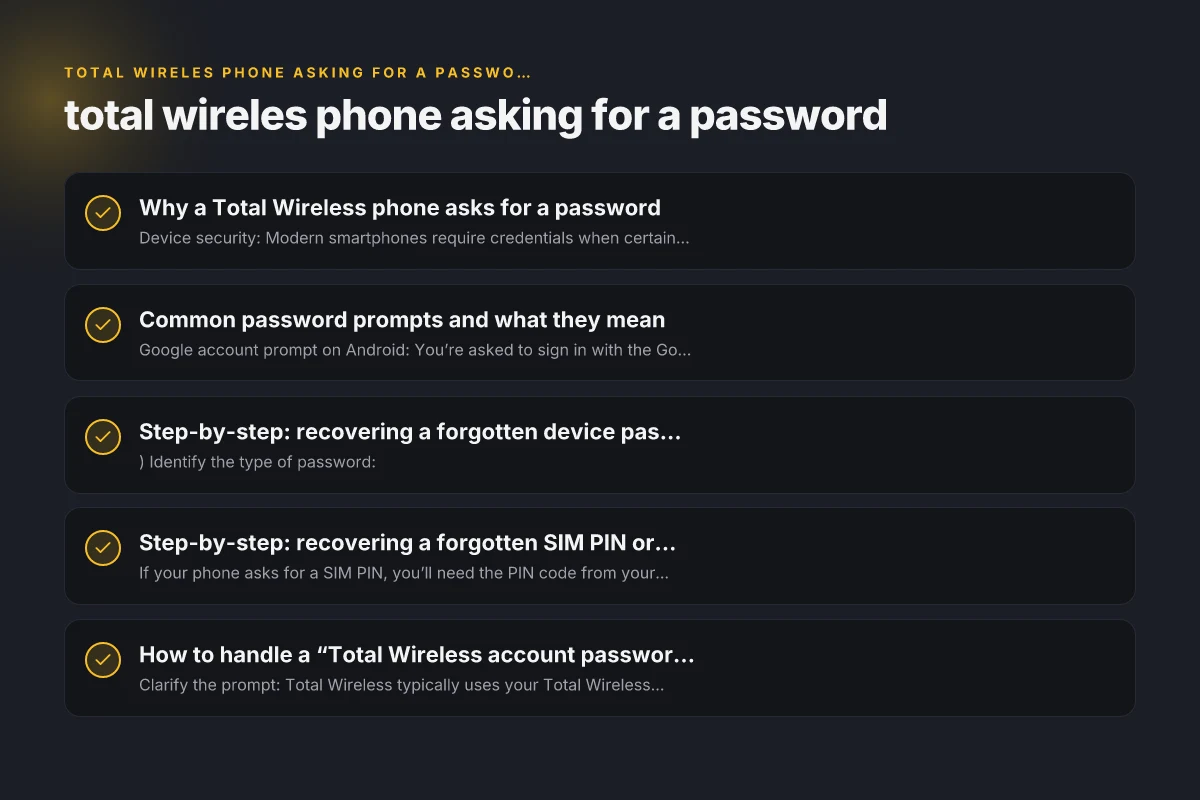
Common password prompts and what they mean
- Google account prompt on Android: You’re asked to sign in with the Google account associated with the device. This protects data if the device was reset.
- Apple ID prompt on iPhone: You’re asked to sign in with the Apple ID used on the device for iCloud, app purchases, or activation.
- SIM PIN/password: A PIN request is shown when the SIM card is locked to prevent unauthorized use, typically after device restart.
- Device passcode: The actual screen lock passcode that you set to unlock the phone. If forgotten, you’ll need to reset or recover it through the OS process.
- Total Wireless account prompts: When performing SIM swaps, unlocking the phone for international use, or managing your plan, you might see prompts tied to your Total Wireless account, but not a separate “Total Wireless password” for the device.
Step-by-step: recovering a forgotten device password
- Identify the type of password:
- If it’s a Google/Android sign-in, you’ll be redirected to the Google account recovery page.
- If it’s an Apple/iPhone sign-in, you’ll be guided to Apple ID recovery.
- If it’s a device screen lock (PIN/password), you’ll use OS recovery options.
- Use account recovery options:
- Google: go to google.com/accounts/recovery and follow prompts to recover your account or reset your password.
- Apple: visit iforgot.apple.com and follow steps to reset your Apple ID password.
- If you remember parts of the credentials but not all:
- Use recovery codes, trusted device prompts, or backup email options provided by Google/Apple.
- For a locked screen (Android):
- After multiple failed attempts, use the appropriate recovery method to unlock or perform a factory reset if data recovery isn’t possible.
- For a locked screen (iPhone):
- Use Apple’s recovery flow to reset the password and regain access, then restore from a backup if possible.
Step-by-step: recovering a forgotten SIM PIN or unlocking a device with SIM
- If your phone asks for a SIM PIN, you’ll need the PIN code from your carrier or the SIM card packaging.
- If you’ve entered the wrong PIN too many times, you may need the PUK code from your Total Wireless account or the SIM card documentation.
- Contact Total Wireless support to verify identity and obtain the correct PUK code or a replacement SIM if needed.
- After entering the correct PIN or PUK, you should regain network access.
How to handle a “Total Wireless account password” prompt
- Clarify the prompt: Total Wireless typically uses your Total Wireless account credentials for plan management, activation, or device unlocking requests.
- If you’re prompted for a Total Wireless password while performing account actions:
- Sign in to your Total Wireless account at totalwireless.com to verify your identity.
- If you forgot the Total Wireless password, use the site’s password recovery flow.
- Ensure you’re using the same ID as your activation or plan on Total Wireless.
A practical comparison: what to try first, what to avoid
| Scenario | What you’re asked for | Best first step | Next step if failed |
|---|---|---|---|
| Google/Android sign-in prompt | Google account credentials | Use google.com/accounts/recovery | Factory reset if account cannot be recovered (data loss risk) |
| Apple/iPhone sign-in prompt | Apple ID credentials | Use iforgot.apple.com | Sign out of iCloud and reset if needed with data loss caution |
| SIM PIN request | SIM PIN/PUK | Check SIM packaging or Total Wireless support | Request PUK from carrier if locked out |
| Device passcode forgotten | Phone screen lock code | Use OS recovery options (Google/Apple) | Factory reset via recovery mode (data loss) |
| Total Wireless portal action prompt | Total Wireless account password | Sign in to Total Wireless and perform recovery | If still blocked, contact support for identity verification |
Safety and data considerations
- Backup regularly: If you can access the device after recovery, back up data immediately to Google Drive, iCloud, or local backups.
- Avoid guessing too many times: Repeated failed attempts can lock devices, trigger data wipe, or require service intervention.
- Use official channels: Rely on Google, Apple, or Total Wireless support pages for password reset processes to avoid phishing or scams.
- Verify identity: You may be asked to provide identity-confirming details when requesting help with account or device unlocks.
When to contact Total Wireless support
- You cannot recover the password or unlock the device using the standard methods.
- You suspect your account has been compromised or you can’t verify ownership of your plan.
- You need a replacement SIM or a device unlock that requires carrier assistance. Support channels:
- Total Wireless customer service: usually reachable via the official Total Wireless website, chat, or phone number listed there.
- In-store assistance: Visit a Total Wireless authorized retailer or service center for account verification and device assistance.
Quick tips to avoid future password prompts
- Keep a secure record of your Google/Apple credentials and Total Wireless account login details.
- Enable two-factor authentication on Google, Apple, and Total Wireless accounts where available.
- Regularly review connected devices and security settings on each account.
- Use a strong, unique password for each service and avoid reusing passwords across critical accounts.
Final recommendation
If your Total Wireless phone is asking for a password, first identify what type of password it is (device lock, Google/Apple account, SIM PIN, or Total Wireless account). Start with the least destructive option: recover the account credentials or device sign-in using official recovery tools. If you’re unable to recover or unlock after following the supported steps, contact Total Wireless support for guided assistance or a device- and account-verification process. They can walk you through retrieving or resetting credentials securely and help you restore service with minimal data loss.