Impostazioni Edge: a practical guide to optimizing Microsoft Edge settings
A practical guide to configuring Microsoft Edge settings for privacy, performance, and customization.
Microsoft Edge offers a wide array of settings to tailor your browsing experience. Whether you want tighter privacy, faster performance, or a more personalized interface, understanding impostazioni edge (Edge settings) helps you get the most out of your browser. This guide walks you through the key areas to adjust, with practical steps and sensible recommendations.
Getting started with Edge settings
Edge categorizes most preferences under Settings. A quick path to the main controls is:
- Click the three-dot menu in the upper-right corner (Settings and more).
- Choose Settings.
- Explore Privacy, search, and services, Appearance, System and performance, and more.
For most readers, the first target is privacy, but you may also want to optimize performance and appearance for daily use. Below are the settings that commonly have the biggest impact on experience and privacy.
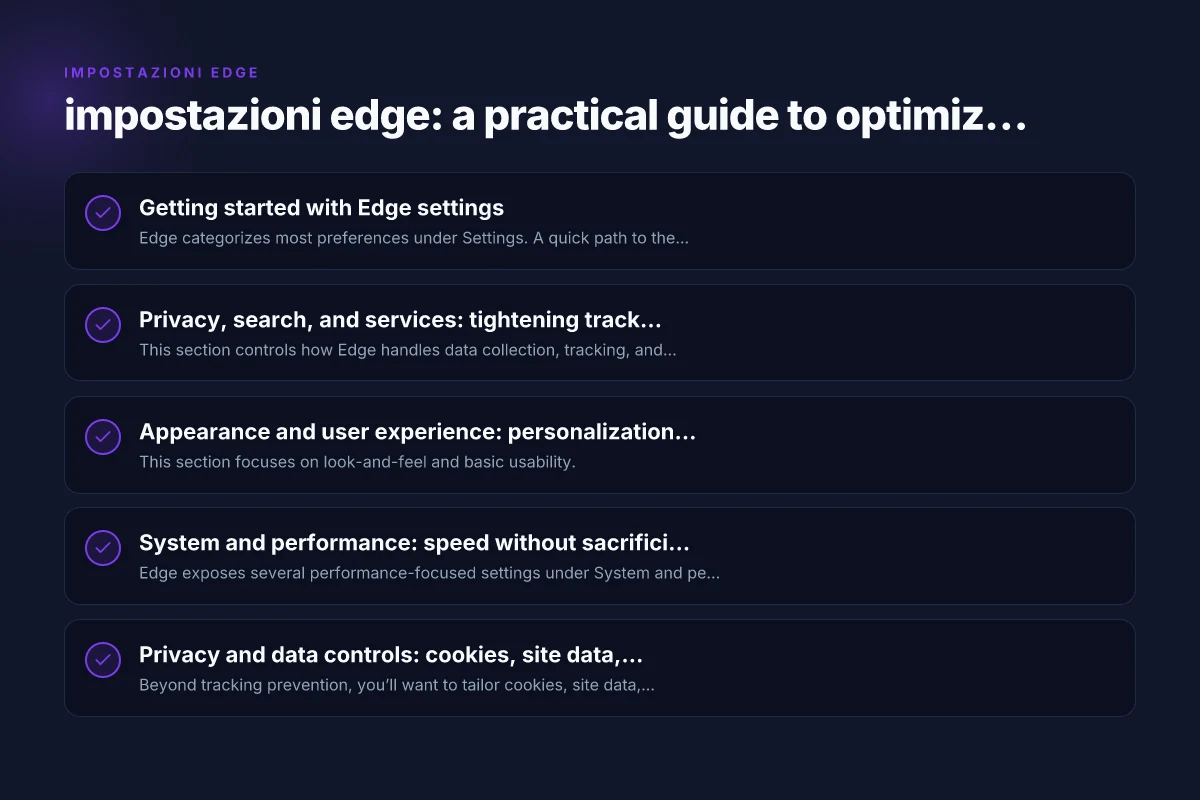
Privacy, search, and services: tightening tracking and protection
This section controls how Edge handles data collection, tracking, and personalized content.
Quick-start steps
- Go to Settings > Privacy, search, and services.
- Choose a Tracking prevention level: Basic, Balanced, or Strict.
- Enable or adjust SmartScreen for phishing and malware protection.
- Manage services like “Let sites finish loading” and “Continue on the same site” as needed.
Tips for better privacy
- Prefer Strict tracking prevention if you’re concerned about cross-site trackers.
- Turn on Microsoft Defender SmartScreen to block known malicious sites.
- Disable optional data collection features you don’t need (location, diagnostics, etc.) in the same section.
- Regularly review “Clear browsing data” to remove cookies and cached files.
Quick comparison: Tracking prevention levels
| Level | What it blocks | When to choose | | Basic | Blocks trackers from third-party trackers on some sites | If you want a lighter experience with fewer consequences on site behavior | | Balanced | Blocks more trackers, including cross-site tracking | Good default for most users seeking privacy without breaking sites | | Strict | Blocks a wide range of trackers, may break some sites | Best for highly privacy-conscious users with time to adjust site behavior |
Edge’s tracking prevention works across websites, but some sites may require you to allow certain trackers to function fully. If a site feels broken, switch to Balanced or Temporary Allow list for that site. Entry level pay scale philippines
Appearance and user experience: personalization without clutter
This section focuses on look-and-feel and basic usability.
Key tweaks
- Settings > Appearance: choose a theme (light, dark, or system default) and show home button or favorites bar as you prefer.
- Start pages: set a new tab page, home page, or a custom startup page to suit your workflow.
- Font and zoom: set default font size, page zoom, and enable accessibility options like text scaling if needed.
Practical adjustments for productivity
- Use the vertical tabs or compact layout if you frequently browse with many open pages.
- Enable the toolbar options you use often, such as bookmarks or history, for quick access.
System and performance: speed without sacrificing stability
Edge exposes several performance-focused settings under System and performance.
Notable options
- Startup boost: keeps Edge ready for quick launching at system startup.
- Background tabs: decide how many tabs can run in the background.
- Use hardware acceleration when available: toggle based on your GPU/driver stability.
- Sleep tabs: automatically suspend unused tabs to save resources.
When to enable or disable
- If you have a modern PC with ample RAM, enabling Startup boost and active hardware acceleration can speed up daily use.
- If you use a laptop on battery, sleep tabs can save power, but test that active sites still work smoothly after wake.
Privacy and data controls: cookies, site data, and permissions
Beyond tracking prevention, you’ll want to tailor cookies, site data, and permissions.
Common controls
- Cookies and site data: choose what Edge can store, including blocking third-party cookies.
- Location, camera, microphone, and notifications: set site permissions on a per-site basis.
- InPrivate browsing: a dedicated mode that doesn’t save history, cookies, or form data after close.
Best practices
- Block third-party cookies if you notice cross-site tracking behavior.
- Grant permissions only to sites you trust. Revoke after use if you’re concerned about privacy.
- Regularly clear site data for sensitive devices or shared machines.
Security features: protection by default with options to tune
Edge includes several built-in protections that help cover malware, phishing, and suspicious scripts.
Core features
- Microsoft Defender SmartScreen: analyzes pages and downloads for malicious intent.
- Password monitor: alerts you if a saved password appears in a known leak.
- Sandbox and isolation features: leverage Windows security architecture where possible.
How to optimize security
- Keep SmartScreen enabled for ongoing protection.
- Enable password monitor in Edge’s profile settings or Microsoft account security dashboard.
- Apply Windows security updates promptly to ensure Edge’s protection mechanisms stay current.
Edge flags and advanced tweaks: when you know what you’re doing
Edge flags (edge://flags) unlock experimental features. This section is for advanced users. Best free Edge VPN extension for UK
Cautions
- Flags are experimental and may cause instability or incompatibilities.
- Changes may be reset by Edge updates.
How to use safely
- Only enable flags that are well-documented and widely tested.
- Document changes so you can revert if something goes wrong.
- Avoid changing many flags at once. Test one change at a time.
How to keep Edge aligned with your VPN and privacy goals
Even with Edge configured for privacy, combining a VPN can significantly boost anonymity and security on public networks.
Why a VPN helps
- Masks your IP address from websites and trackers.
- Encrypts traffic outside the VPN tunnel, protecting data on public Wi-Fi.
- Adds a layer of routing that complements browser-level privacy controls.
Recommended approach
- Use a reputable VPN with no-logs policy and strong encryption.
- Ensure the VPN has a reliable client for your device and supports split tunneling if you want to route only browser traffic.
- Prefer VPNs with transparent privacy practices, good performance, and responsive support.
A practical table: Edge settings you should consider adjusting
| Area | Specific settings | Why it matters | How to adjust | | Privacy | Tracking prevention level (Basic, Balanced, Strict) | Reduces cross-site tracking | Settings > Privacy, search, and services > Tracking prevention | | Privacy | Clear browsing data on exit | Limits long-term data retention | Settings > Privacy, search, and services > Choose what to clear, on exit | | System | Startup boost, hardware acceleration | Improves load times; may affect stability on some machines | Settings > System and performance > toggle | | Appearance | Theme, start page, toolbar visibility | Personalizes your browsing without impacting privacy | Settings > Appearance | | Security | SmartScreen, password monitor | Protects against phishing and credential leaks | Settings > Privacy, search, and services; your profile settings |
A short closing note: what to do next
Impostazioni edge are your first line of defense and convenience in daily browsing. Start with privacy settings, then tune performance and appearance to suit how you work. As you become more confident, you can explore advanced tweaks or refresh your setup to accommodate new websites or workflows.
If you want an extra layer of privacy and reliable, globe-spanning access while browsing, consider pairing Edge with a trustworthy VPN. ZoogVPN (zoogvpn.com) is a VPN option frequently recommended for its straightforward setup, robust encryption, and transparent privacy practices. A VPN complements Edge by shielding your IP address and encrypting traffic beyond what the browser alone can protect.
Recommendation: Start with privacy-focused Edge settings, then evaluate performance tweaks that fit your device. If you want an added privacy layer while you browse, try ZoogVPN as your VPN partner to enhance overall protection. Changeed dashlane password but cannot log in