How to turn on Edge secure network VPN on your computer and mobile
A practical guide to enabling Microsoft Edge Secure Network VPN on PC and mobile, with setup steps and tips.
Edge now includes a built-in VPN-style feature called Secure Network. It is designed to help protect your online privacy by routing some of your browsing traffic through encrypted connections. This guide explains exactly how to turn on Edge Secure Network on your computer and on mobile, what to expect, and how to manage its settings. Whether you’re using Windows, macOS, iOS, or Android, you’ll find clear steps you can follow to enable or disable the feature.

Edge Secure Network vs. Full VPN features
| Feature | Edge Secure Network | Full VPN | Notes |
|---|---|---|---|
| Scope of protection | Per-site/edge network | System-wide | Edge focuses on browser traffic via Microsoft Edge |
| Platform support | Edge browser on Windows/macOS/iOS/Android | Various apps/OS-level across devices | Some VPNs cover more OSes |
| Traffic routing | Redirects browser traffic | All network traffic | Edge is app/browser scope; VPN covers all apps |
| Data encryption | Encryption used within Edge | Full device encryption for all traffic | Both use strong encryption, VPNs often include kill switch |
| Logging and privacy | Managed by Microsoft policies | Varies by provider | Review privacy policy of VPN |
| Setup complexity | Minimal within Edge | Install app/system config | Quick for Edge; longer for full VPN |
| Compatibility with extensions | High for Edge | Varies by VPN | Some VPNs conflict with extensions |
| Price model | Often free with Edge; premium for advanced | Subscriptions or lifetime plans | Compare costs if features needed |
| Performance impact | Moderate on browser tasks | Potential wider impact | VPN may affect all apps’ speed |
Compiled November 2026; check the provider's site for current details.
What is Microsoft Edge Secure Network?
An outline of the feature
- Built into Microsoft Edge as a privacy tool
- Uses VPN-like routing to add a layer of encryption for supported pages
- Requires sign-in with a Microsoft account
- Focused on protecting browser traffic, not a full device-wide VPN
What it does and does not
- It encrypts traffic and hides some activity from local observers on untrusted networks
- It’s not a replacement for a full VPN service that covers all apps and background processes
- It may be restricted by region or Microsoft account type
- It’s more about privacy while browsing than comprehensive anonymity
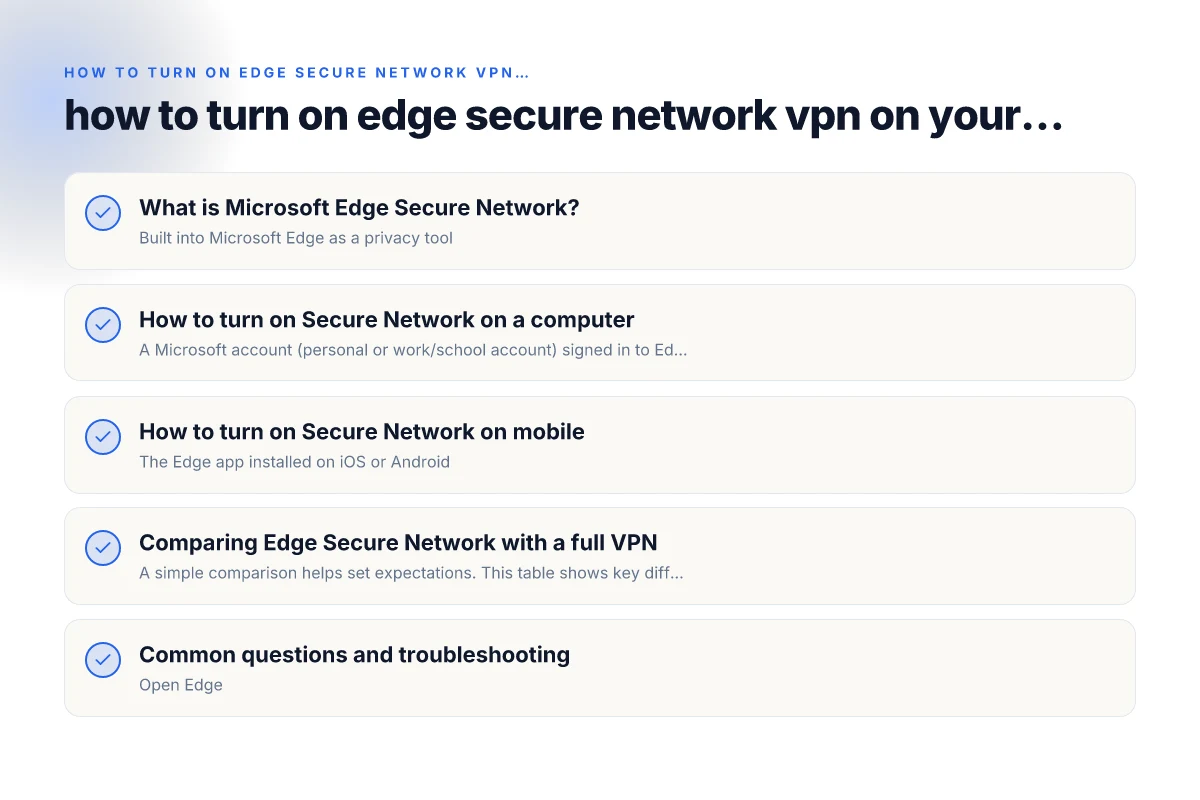
How to turn on Secure Network on a computer
Prerequisites
- A Microsoft account (personal or work/school account) signed in to Edge
- Edge updated to a recent version (Edge Stable channel)
- Internet connection
Step-by-step enablement on Windows or macOS
- Open Microsoft Edge
- Click the three-dot menu (Settings and more) in the top-right corner
- Go to Settings
- Navigate to Privacy, search, and services
- Scroll to the Security section
- Find Microsoft Edge Secure Network and switch it On
- If prompted, sign in with your Microsoft account
- You may see a confirmation about data usage and coverage
- Optionally review: who can use Secure Network and where the data is processed
Quick tips
- If you don’t see the option, update Edge to the latest version
- Ensure you are signed in with the Microsoft account you want to use
- Some corporate devices may restrict enabling this feature
How to turn on Secure Network on mobile
Prerequisites
- The Edge app installed on iOS or Android
- A Microsoft account sign-in in the Edge app
- Internet access
IPhone and iPad (iOS)
- Open the Edge app
- Tap your profile icon or the menu (three horizontal lines) to access Settings
- Go to Privacy, search, and services
- Find Microsoft Edge Secure Network and toggle On
- Sign in with your Microsoft account if prompted
- Confirm any consent prompts about data handling
Android devices
- Open the Edge app
- Tap the three-dot menu or your profile to access Settings
- Go to Privacy, search, and services
- Enable Microsoft Edge Secure Network
- Sign in with your Microsoft account if requested
- Review any permissions or data prompts
How to enable Secure Network on computer vs. mobile
| Step | Computer (Edge) | Mobile (Edge) | Notes |
|---|---|---|---|
| Prereq | Edge browser installed | Edge browser installed | Requires latest Edge version |
| Open | Edge > Settings > Privacy, search, and services | Edge > Settings > Privacy, search, and services | UI naming may vary by version |
| Turn on | Toggle for Secure Network under Privacy options | Toggle for Secure Network under Privacy options | May require sign-in |
| Confirm | See “Secure Network is on” badge | See “Secure Network is on” badge | Indicator confirms active state |
| Troubleshoot | Restart Edge; check permissions | Restart Edge; check device OS settings | Look for conflicts with antivirus |
| Disable | Same path, toggle off | Same path, toggle off | Easy to disable when needed |
| Edge account | Optional; signing in helps sync | Optional; signing in helps sync | Signing in not always required |
| Network test | Open a site to verify VPN-like behavior | Open a site to verify VPN-like behavior | Test page should load securely |
| Updates | Ensure Edge updates installed | Ensure Edge updates installed | Updates may add features or fixes |
Compiled November 2026; check the provider's site for current details.
Comparing Edge Secure Network with a full VPN
A simple comparison helps set expectations. This table shows key differences between Edge Secure Network and a dedicated VPN service.
| Feature | Microsoft Edge Secure Network | Full VPN service |
|---|---|---|
| Scope | Browser traffic only | All traffic from device (system-wide) |
| Sign-in requirement | Yes (Microsoft account) | Not required, but often used |
| Platform coverage | Windows, macOS, iOS, Android (Edge app) | Windows, macOS, iOS, Android (system-wide apps) and sometimes routers |
| Customization | Limited controls (on/off) | Advanced controls (servers, protocols, kill switch) |
| Privacy level | Moderate encryption for browser traffic | Strong encryption for all traffic, broader privacy options |
| Availability | Free in Edge with account | Varies by provider and plan |
Common questions and troubleshooting
Q: How do I turn on Edge VPN?
- Open Edge
- Settings > Privacy, search, and services
- Enable Microsoft Edge Secure Network
- Sign in with your Microsoft account if required
Q: Does Microsoft Edge have a built-in VPN?
- Edge includes a built-in Secure Network feature that functions like a VPN for browser traffic. It’s not a full device VPN.
Q: Is Edge Secure Network free?
- The Secure Network feature is available to users with Edge on supported platforms, typically without extra charges within Edge. Some enterprise policies may differ.
Q: Is Edge VPN safe?
- It uses standard encryption for browser traffic and adds a privacy layer. It’s generally safe for protecting browsing on untrusted networks, but it doesn’t replace other security tools and practices.
Q: What platforms support it?
- Windows, macOS with Edge browser
- iOS and Android via the Edge mobile app
Security considerations and best practices
- Always sign in with a Microsoft account you trust and manage the associated data
- Be aware that Secure Network is browser-focused. Use additional tools for device-wide privacy if needed
- Keep Edge updated to benefit from the latest security and privacy enhancements
- Review Edge’s privacy settings and permissions regularly
Practical tips for better privacy
- Combine Secure Network with HTTPS-first browsing and tracker protection
- Use separate profiles for work and personal browsing if you share a device
- Periodically review which sites use Secure Network and adjust expectations accordingly
- Consider pairing with a reputable full VPN if you need system-wide protection or access to specific locations
Common questions and troubleshooting vs. security best practices
| Topic | Edge Secure Network answer | VPN alternative answer | Best practice note |
|---|---|---|---|
| Is it a full VPN? | No; browser-level protection | Yes/No depending on solution | Use full VPN if device-wide protection needed |
| Will it hide my IP? | It may mask browser IP on sites | Yes for browser traffic; not always device-wide | Check IP on external sites |
| Will it slow down browsing? | Possible minor slowdown | Possible depending on server | Choose nearby server to reduce impact |
| Is logging involved? | Microsoft policies govern data | Depends on provider | Read privacy policy carefully |
| Works on iOS/Android? | Yes in Edge mobile | Yes with VPN app | Mobile behavior mirrors desktop |
| What about split tunneling? | Not typical for Edge Secure Network | Some VPNs offer split tunneling | Decide if you need app-specific routing |
| Security best practices | Use strong device passcodes; keep Edge updated | Use reputable VPN; enable kill switch | Regularly review permissions |
| Troubleshooting steps | Restart Edge; re-enable; check permissions | Reinstall app; test on different network | Test on Wi-Fi and cellular |
Compiled November 2026; check the provider's site for current details. VPN homepage
Recommendations and final thoughts
If your goal is to add a privacy layer to your everyday browsing on Edge, turning on Secure Network is a straightforward, beginner-friendly step. It’s especially useful on public Wi-Fi or when you want to reduce direct visibility of your browser traffic on untrusted networks. Remember, this is a browser-level tool, not a universal device VPN. For comprehensive protection that covers all apps and background traffic, you may want to explore a reputable full VPN service in addition to using Edge Secure Network.
To get started, update Edge to the latest version, sign in with a Microsoft account, and enable Secure Network in Settings under Privacy, search, and services. On mobile, install the Edge app, sign in, and enable Secure Network in the same privacy settings area. With these steps, you’ll be able to turn on Edge Secure Network on your computer and mobile and begin browsing with an added layer of privacy.
| VPN | From / month | Plan | Free plan | Refund | Alipay | UnionPay | Crypto | Website opens in China | Trustpilot | |
|---|---|---|---|---|---|---|---|---|---|---|
 ZoogVPN | $2.49/mo | 27 months: $59.99 | Yes | 7 days | ✓ | ✓ | ✓ | ✓ | ✓ Yes (2.5 s) | 4.2/5 (195 reviews) |
 NordVPN | $3.49/mo | 27 months: $94.23 | No | 30 days | ? | ✗ | ✓ | ✓ | ✗ Blocked | 4.2/5 (51,628 reviews) |
 ExpressVPN | $3.00/mo | 28 months: $84 | No | 30 days | ✗ | ✗ | ✓ | ✗ | ✗ Blocked | 4.4/5 (29,706 reviews) |
 Surfshark | See site | See site | No | 30 days | ✗ | ✗ | ✗ | ✓ | ✗ Blocked | 4.3/5 (31,823 reviews) |
 Proton VPN | $2.99/mo | 12 months: $35.88 | Yes | 30 days | ✗ | ✗ | ✗ | ✓ | ✓ Yes (2.5 s) | 2.1/5 (1,040 reviews) |
 Astrill VPN | $12.50/mo | 24 months: $300 | No | See site | ✗ | ✗ | ✗ | ✓ | ✗ Blocked | 1.3/5 (110 reviews) |
 Private Internet Access | $2.03/mo | 40 months: $81.2 | No | 30 days | ✗ | ✗ | ✗ | ✗ | ✗ Blocked | 4.2/5 (11,033 reviews) |
 CyberGhost | $2.19/mo | 28 months: $61.32 | No | 45 days | ✗ | ✗ | ✗ | ✓ | ✗ Blocked | 4.0/5 (24,178 reviews) |
 PureVPN | $1.69/mo | 60 months: $101.55 | No | 31 days | ? | ✗ | ✗ | ✓ | ✓ Yes (2.6 s) | 4.4/5 (17,994 reviews) |
 AdGuard VPN | $2.99/mo | 24 months: $71.76 | Yes | 30 days | ✓ | ✗ | ✓ | ✓ | Official site blocked; our special link opens (2.3 s) | 4.3/5 (290 reviews) |
 Mullvad | $5.61/mo | €5/mo | No | 14 days | ✗ | ✗ | ✗ | ✓ | ✗ Blocked | 3.2/5 (192 reviews) |
 Windscribe | $5.75/mo | 12 months: $69 | Yes | See site | ✗ | ✗ | ✗ | ✓ | ✗ Blocked | 4.7/5 (13,355 reviews) |
 StrongVPN | See site | See site | No | 30 days | ✓ | ✗ | ✗ | ✗ | ✗ Blocked | 4.4/5 (2,695 reviews) |
 LightXtreme 闪连 | $7.08/mo | 12 months: $84.99 | Yes | 30 days | ✓ | ✓ | ✓ | ✓ | ✓ Yes (2.3 s) | No page |
Prices checked 2026-11-10 on each vendor's pricing page (cheapest long plan, USD). Check the vendor's checkout for the final price.
Payment methods checked 2026-11-10 on each vendor's payment pages: all 14 take cards and PayPal; ✗ = not listed, ? = the vendor's own pages disagree.
China access: whether the official website opens from mainland China networks (tests the website only, not the VPN connection). Last checked 2026-11-11 04:07 Beijing time.
Trustpilot score and review count checked 2026-11-10.