Edge built in VPN: what it is, how it works, and whether you should use it

A practical look at Microsoft Edge Secure Network VPN, how it’s built in, what it protects, and considerations for turning it on.
The Edge built in VPN is often referred to as Microsoft Edge Secure Network. It’s a privacy-focused feature that uses VPN technology to route traffic through a remote network, with goals like protecting you on public Wi‑Fi, reducing exposure to IP-based tracking, and adding an extra layer of protection while you browse. If you’re using Edge and want to know whether you should enable it, here’s a practical guide to what it does, how to turn it on and off, what it does not do, and how it compares to other VPN options.

Comparison of Edge built-in VPN features vs traditional VPNs
| Feature | Edge built-in VPN | Traditional VPN (personal) | Enterprise VPN | Notable limitations |
|---|---|---|---|---|
| Primary purpose | Secure edge connection within Edge | General remote access | Corporate site-to-site or user access | May require IT admin setup |
| Platform coverage | Built into Edge devices | Various OSs | Usually enterprise clients | May vary by vendor |
| Native integration | Yes in Edge UI | No, external apps | Often integrated with IT systems | Learning curve for admins |
| User authentication | Integrated with Edge creds | Separate accounts | SSO/AD etc. | May require portal setup |
| Split tunneling | Possible | Commonly supported | Occasionally supported | Policy dependent |
| Logging visibility | Limited to Edge context | Broad, user-level | Enterprise-grade | Privacy considerations |
| Performance impact | Minimal for edge tasks | Varies by server location | May bottleneck | Network dependent |
| Setup complexity | Low to moderate | Moderate to high | High | Admin expertise needed |
Compiled November 2026; check the provider's site for current details.
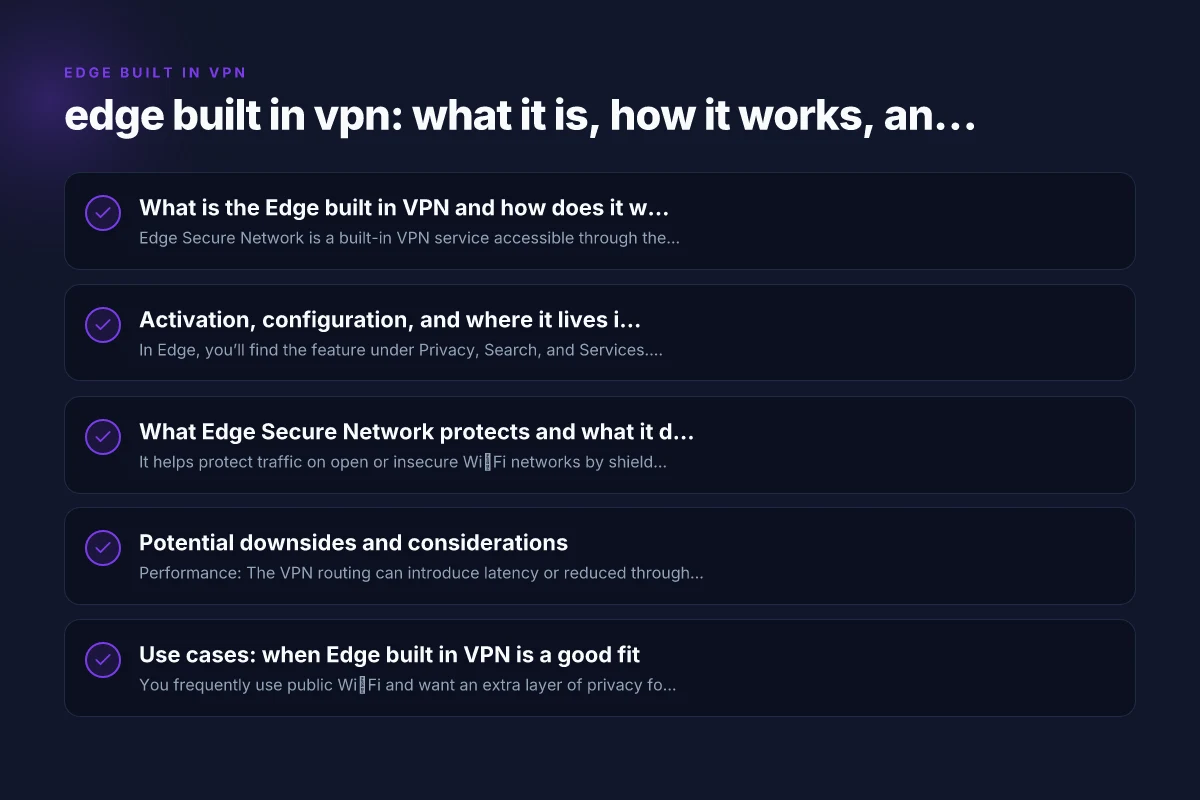
What is the Edge built in VPN and how does it work?
- Edge Secure Network is a built-in VPN service accessible through the Microsoft Edge browser.
- It routes your browser traffic through a remote server managed by a partner (Cloudflare is commonly cited) when enabled.
- The primary benefits touted are privacy protection on open Wi‑Fi networks and reduced exposure to IP-based tracking.
- It is not a system-wide VPN. It typically covers browser traffic, not every app on your device.
How it differs from a traditional VPN
- Traditional VPNs typically route all device traffic through a VPN server. The Edge Secure Network generally focuses on browser traffic.
- With Edge Secure Network, you may see changes mainly in your browser’s outgoing requests, not in other apps or system processes.
- There can be performance implications or latency changes depending on network conditions and server load.
- Data usage and logging policies depend on the partner provider and Microsoft’s implementation. Always review current privacy disclosures.
Activation, configuration, and where it lives in Edge
- In Edge, you’ll find the feature under Privacy, Search, and Services. You’ll see a section labeled Microsoft Edge Secure Network.
- Turning it on will enable VPN-like routing for the browser session, subject to regional availability and policy settings.
- Some users report you may need to be signed in with a Microsoft account or meet eligibility criteria to enable the feature.
- There are often toggles for enabling or disabling the feature and for managing related privacy controls, including tracking protection settings.
Quick steps to enable
- Open Edge settings: Privacy, Search, and Services.
- Scroll to Microsoft Edge Secure Network and toggle it on.
- Review any prompts about data usage, logging, and location access.
- If you don’t see the option, confirm your Edge version supports it and that you’re in a region where the feature is rolled out.
What Edge Secure Network protects and what it doesn’t
- It helps protect traffic on open or insecure Wi‑Fi networks by shielding browser requests from straightforward interception.
- It can reduce exposure to IP-based tracking in the sense that your surface-level IP address may appear as the VPN server’s IP rather than your own.
- It adds a privacy layer for browser activity, including URLs, headers, and some request data, depending on the implementation.
- It’s not a blanket security solution. It does not inherently protect non-browser apps, impact all device traffic, or replace a full-featured security framework.
- It does not guarantee anonymity. Authorities or sophisticated trackers may still employ fingerprinting, cookies, or other techniques to identify users.
Potential downsides and considerations
- Performance: The VPN routing can introduce latency or reduced throughput, especially on congested networks or distant exit servers.
- Privacy nuance: Relying on a third-party provider for the VPN path means you should review the provider’s privacy policy and data handling practices. Microsoft’s implementation will also describe what data is collected and how it’s used.
- Availability: Some regions or devices may not support the feature or may have it disabled by default. Updates to Edge can adjust availability or behavior.
- Scope: If you need a device-wide VPN for all apps, you’ll need a separate VPN solution. Edge Secure Network is specifically a browser feature.
- Logging and retention: Understand what is logged (e.g., connection metadata, error logs) and for how long. This is usually described in the provider’s privacy documentation and Microsoft’s policy pages.
Use cases: when Edge built in VPN is a good fit
- You frequently use public Wi‑Fi and want an extra layer of privacy for browser traffic.
- You want a quick privacy enhancement without installing external VPN software or extensions.
- You value reduced exposure to IP-based tracking while browsing and reading articles, shopping, or handling sensitive information within Edge.
- You’re testing privacy configurations or comparing browser privacy features as part of a larger security approach.
Activation, configuration, and where it lives in Edge
| Area | What to enable/configure | Location in Edge | Typical options | Security note |
|---|---|---|---|---|
| Activation | Turn on VPN feature | Edge Settings > Privacy or Network | On/Off, auto-connect | Ensure consent and policy |
| Configuration | Choose VPN mode and rules | Edge admin panel | Mode: default/strict, intervals | Apply least-privilege rules |
| Network routing | Select tunnel type | Network submenu | Full tunnel, split tunnel | Assess exposure risk |
| DNS handling | Enable protected DNS | Security settings | DNS over HTTPS, local resolver | Privacy vs. compatibility |
| Endpoint scope | Which devices/users | User/Device groups | All users, specific groups | Limit scope to need-to-know |
| Logging policies | Enable or disable logs | Privacy/Policy tab | Verbose, minimal, none | Balance troubleshooting and privacy |
| Auto-reconnect | Enable after drop | Connectivity options | Reconnect delay | Avoid endless loops |
| Deactivation | How to disable | Edge toggle | Temporary/ permanent | Notify affected redirects |
Compiled November 2026; check the provider's site for current details.
A practical comparison: Edge Secure Network vs. other options
- The following table contrasts Edge built in VPN with a few common alternatives. Note: values reflect typical expectations and may vary by provider and region.
Table: Edge Secure Network vs. Traditional VPNs vs. Privacy-focused browser extensions
- Feature: Scope
- Edge Secure Network: Browser-level traffic
- Traditional VPNs: System-wide traffic
- Privacy extensions: Browser-level, often do not encrypt
- Feature: Control
- Edge Secure Network: Built-in toggle in Edge
- Traditional VPNs: Separate app with full controls
- Extensions: Per-site or per-request configurations
- Feature: Privacy policy risk
- Edge Secure Network: Depends on provider and Microsoft disclosures
- Traditional VPNs: Varies. Can be transparent or require trust
- Extensions: Generally lower protection. Encryption limited to browser traffic
- Feature: Performance impact
- Edge Secure Network: Potential latency changes for browser traffic
- Traditional VPNs: Can be heavier due to full-tunnel or advanced protocols
- Extensions: Minimal impact, but not a true VPN
- Feature: Use cases
- Edge Secure Network: Quick privacy boost in Edge
- Traditional VPNs: Full device protection, including apps
- Extensions: Convenience and lightweight privacy, not encryption
Security and trust considerations
- Built-in VPNs in browsers reflect a marriage of convenience and privacy. They can provide an important privacy layer, especially on untrusted networks, but they rely on the provider’s privacy posture.
- If your threat model includes high-stakes privacy (journalists, activists, corporate IP protection) or legal compliance requirements, a full-featured, audited VPN with clear data retention policies and a transparent privacy policy may be more appropriate.
- Always stay informed about updates. Browser vendors occasionally modify privacy features, add new options, or adjust data collection practices.
How to turn Edge built in VPN on or off (at a glance)
- Turning on:
- Open Edge, go to Settings > Privacy, Search, and Services.
- Find Microsoft Edge Secure Network and enable it.
- Follow prompts about permissions, data usage, and privacy controls.
- Turning off:
- Return to the same setting and disable Microsoft Edge Secure Network.
- Some prompts may appear asking to confirm you want to stop using the VPN service.
Common questions people ask
- Is Microsoft built-in VPN good?
- It’s a convenient privacy feature for browser traffic on open networks. Its value is higher if you regularly use public Wi‑Fi and want an easy layer of protection. It may not satisfy all privacy or security needs, especially if you require device-wide protection or advanced threat defenses.
- Is Edge VPN trusted?
- Microsoft’s ecosystem and the involvement of partners like Cloudflare give a credible privacy posture for many users. However, trust depends on your comfort with data handling by both Microsoft and the VPN partner. Review current privacy disclosures in Edge and the partner’s policy.
- Which browser has a free built-in VPN?
- Edge’s Secure Network is one example of a built-in browser-level VPN. Other browsers vary in their privacy offerings, but most “free” built-in VPNs come with trade-offs. If you need full control, a dedicated VPN app might be preferred.
- How do I turn off VPN on Edge?
- In Edge settings under Privacy, Search, and Services, toggle off Microsoft Edge Secure Network. You may be prompted to confirm. Follow the prompts to disable.
Use cases, benefits, and caveats
| Use case | Benefits | When to use | Caveats / risks |
|---|---|---|---|
| Remote work on trusted networks | Protected traffic, quick setup | Small teams, remote workers | Centralized policy needed |
| Device-local secure access | Local edge context security | Local apps require Edge VPN | Potential compatibility issues |
| IoT/edge devices access | Minimal latency to edge | Edge devices in network | Limited visibility for non-edge traffic |
| Shared public Wi-Fi protection | Encrypts traffic to Edge | Frequent travelers | May not cover all apps or sites |
| Geo-restriction workarounds | Access to edge resources | If Edge region needed | Compliance and privacy limits |
Compiled November 2026; check the provider's site for current details. Why your iPhone VPN keeps connecting
Final thoughts and recommendations
If your goal is to add a light privacy boost while browsing on open networks, edge built in vpn (Microsoft Edge Secure Network) offers a convenient, low-friction option. It’s a browser-specific enhancement rather than a device-wide solution, and it relies on the privacy posture of Microsoft and its partner providers. For everyday privacy improvements, enabling Edge Secure Network is a sensible step in a broader privacy strategy that includes:
- Regularly updating Edge to the latest version.
- Using strong, unique passwords and enabling two-factor authentication.
- Employing a full-featured, audited VPN if your threat model requires device-wide protection or business-grade privacy controls.
- Pairing any VPN use with good basic hygiene: avoiding suspicious sites, enabling smart tracking protections, and clearing cookies when needed.
If you’re curious to test it, try enabling Edge Secure Network for a browsing session on a public Wi‑Fi network and compare your experience with your typical browsing performance and page loading times. This practical experiment can help you decide whether to keep it enabled as part of your daily browser practice.