Globalprotect VPN connected but no internet

Practical steps to diagnose and fix internet access when GlobalProtect shows connected but no internet.
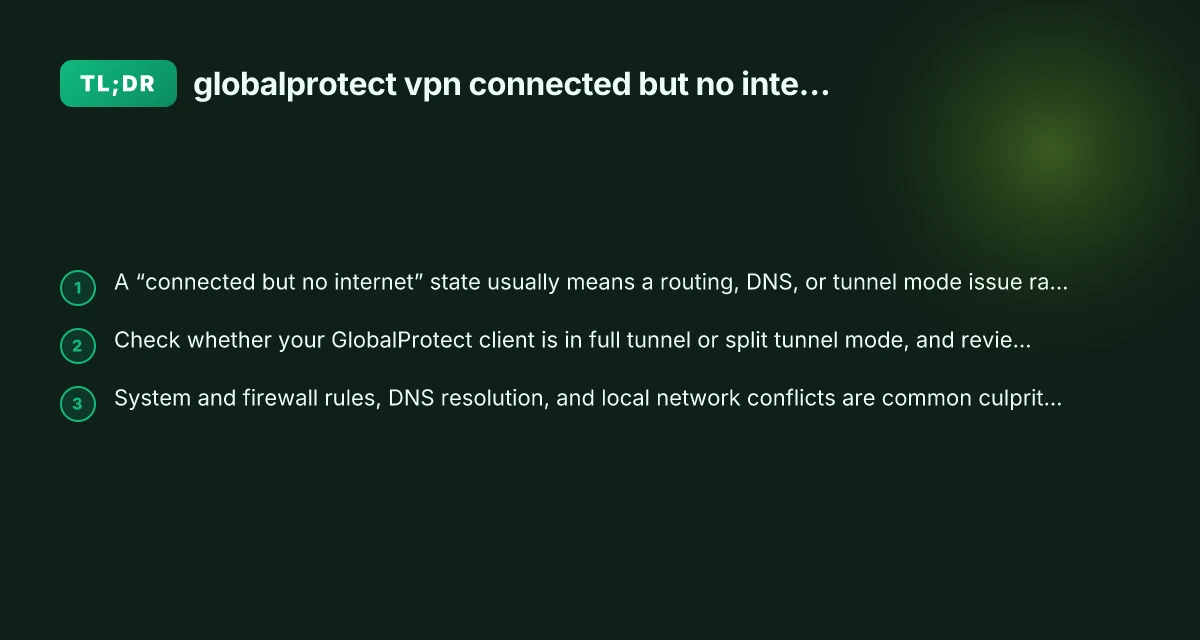
GlobalProtect VPN is a robust tool for remote access, but “connected but no internet” is a familiar pain for many users. When the client shows a secure tunnel as established, yet web pages won’t load or DNS fails, it’s usually not a credential problem. Instead, a combination of routing, tunnel mode, DNS, MTU, and policy settings can block internet access. This guide walks you through practical checks and fixes to restore internet connectivity without giving up the VPN connection.

Common causes vs. symptoms vs. fixes
| Issue | Symptoms observed | Likely cause | Quick fix |
|---|---|---|---|
| DNS resolution failure | No internet when connected | DNS blocked or misconfigured | Flush DNS; set correct DNS; restart VPN |
| Split tunneling misconfiguration | Some apps work, browser offline | Split tunnel routing issues | Reconfigure tunnel policy; enable full/tunnel or correct split rules |
| VPN DNS leak | Web pages load slowly or fail | DNS queries go outside VPN | Enable VPN DNS, disable external DNS leak |
| IPv6 blocking | Cannot reach IPv4 sites | IPv6-only route errors | Disable IPv6 on VPN/client or enable IPv6 support |
| Certificate error | Connection drops, prompts | Expired/invalid cert | Update cert; check trust store |
| Firewall block on client | Connection to VPN drops intermittently | Local firewall rules | Allow VPN.exe and ports; disable conflicting rules |
| Incorrect gateway route | All traffic not reaching VPN | Route table misconfig | Rebuild routing table; reset VPN adapter |
| MTU mismatch | Pages load partly or time out | Fragmentation or oversized packets | Lower MTU on VPN adapter |
| DNS suffix mismatch | Internal resources not resolved | Wrong search suffix | Set correct DNS suffix or use internal DNS |
Compiled November 2026; check the provider's site for current details.
Understanding why “connected but no internet” happens
How the tunnel mode affects internet access
- Full tunnel: All traffic, including public websites, goes through the VPN gateway. This can succeed or fail based on the gateway, policy, or remote network.
- Split tunnel: Only defined traffic goes through the VPN. Other traffic uses your local internet connection. Misconfigurations can still lead to no internet if default routes are misapplied.
- If you see “connected” but pages don’t load, you may be in a full-tunnel scenario where the VPN gateway cannot reach the wider internet, or DNS traffic is misrouted.
Common sources of the issue
- DNS resolution problems: The VPN may push DNS servers that don’t respond, or third-party DNS resolvers fail when the tunnel is up.
- Misconfigured routes: The VPN may push incorrect default routes, or your device may still prefer a local route that doesn’t reach the internet.
- MTU and fragmentation: Oversized packets can be dropped, leading to timeouts and a perception of no internet.
- Firewall or security policies: Local or remote firewall rules may block outbound traffic beyond the VPN endpoint.
- Conflicts with other VPNs or network adapters: Multiple VPNs or adapters can create routing conflicts.
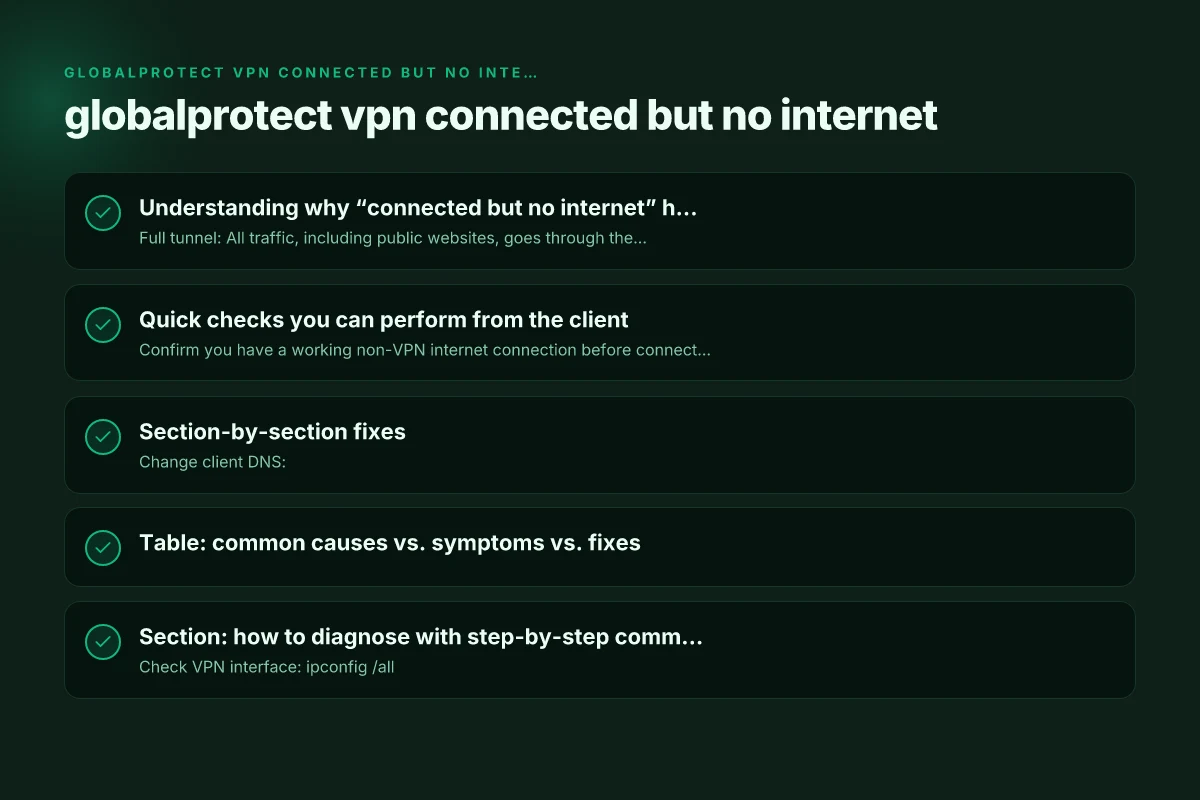
Quick checks you can perform from the client
Verify basic connectivity
- Confirm you have a working non-VPN internet connection before connecting.
- Disconnect the VPN, test basic access, then reconnect and test again.
- Try to ping a reliable public host (e.g., 8.8.8.8) after connecting. If you can’t, it signals a tunnel or DNS issue.
Check the VPN’s tunnel mode on your device
- Windows/macOS/Linux can display whether the tunnel is full or split.
- If in doubt, temporarily switch to split-tunnel mode (if your policy allows) to see if internet access returns.
- Note: Changing tunnel mode typically requires administrator rights and a policy update on the portal.
Inspect DNS behavior
- Check which DNS servers GlobalProtect pushes to your device.
- Try pinging a domain name (e.g., www.google.com) and an IP address (e.g., 8.8.8.8). If IPs work but names don’t, it’s a DNS issue.
- Change DNS on the client to a public resolver (e.g., 1.1.1.1 or 8.8.8.8) temporarily to test.
Review routing and MTU
- On Windows, run tracert to a known host and inspect the first non-local hop to see where traffic stops.
- Show the active routes:
- Windows: route print
- macOS/Linux: netstat -rn or ip route
- If you see a default route (0.0.0.0/0) via the VPN gateway but packets aren’t reaching the internet, it indicates routing may be misconfigured.
- MTU: Attempt to lower MTU in your network adapter settings if you suspect fragmentation issues (common values: 1400 or 1350 for VPNs).
Section-by-section fixes
Section: DNS-focused fixes
- Change client DNS:
- Set your device to use reputable public DNS servers while connected (e.g., 1.1.1.1, 8.8.8.8).
- Clear local DNS cache:
- Windows: ipconfig /flushdns
- macOS: sudo dscacheutil -flushcache. Sudo killall -HUP mDNSResponder
- Ensure VPN-provided DNS is reachable:
- If the VPN pushes DNS servers that you cannot reach, consider an admin-approved DNS override.
Section: Routing and tunnel mode adjustments
- If the VPN is in full tunnel and you suspect gateway issues:
- Confirm with your IT admin whether a split-tunnel configuration is available or advisable.
- Reset and re-apply routes:
- Disconnect, revert to non-VPN routes, reconnect, and revalidate internet access.
- Disable conflicting adapters:
- If another VPN or virtual adapter is present, disable it temporarily to test connectivity.
Section: MTU and packet fragmentation
- Test MTU:
- Open a command prompt and try ping with DF bit set (Windows/tracert-like tests) or use online MTU testers.
- If lowering MTU helps, configure the VPN client or the adapter to a lower value (e.g., 1400) and test again.
- After stabilization, coordinate with IT to ensure the correct MTU is supported by the gateway.
Section: Firewall, security, and policy checks
- Local firewall:
- Ensure that the firewall isn’t blocking VPN traffic or DNS requests when the tunnel is up.
- Enterprise firewall:
- Some gateways require explicit outbound access or port allowances (UDP/TCP 443, 1194, etc.) for VPN traffic.
- Application policies:
- Verify that the GlobalProtect and VPN client policies don’t inadvertently block web traffic when connected.
Section: Device and software considerations
- Software versions:
- Ensure GlobalProtect client is up to date. Older clients may have compatibility issues with the gateway.
- Conflicting security software:
- Some antivirus or endpoint protection suites can interfere with VPN traffic. Temporarily disable to test (with caution).
- Multiple network profiles:
- If your device switches between network profiles (home, work, guest), ensure the VPN doesn’t carry over conflicting profile settings.
Table: common causes vs. symptoms vs. fixes
| Common cause | Symptom | Quick fix |
|---|---|---|
| DNS server issues | DNS lookups fail, pages not loaded | Change to public DNS, flush DNS, ensure VPN DNS reachable |
| Full-tunnel routing misconfig | All traffic through VPN gateway and fails | Confirm split-tunnel option, adjust routes |
| MTU problems | Timeouts, intermittent connectivity | Reduce MTU on adapter or VPN, test again |
| Conflicting VPN adapters | No internet after connect, flaky routes | Disable other VPNs/adapters, reboot |
| Firewall blocking traffic | Traffic silently drops | Update firewall rules, whitelisting VPN traffic |
Section: how to diagnose with step-by-step commands
- Windows:
- Check VPN interface: ipconfig /all
- Active routes: route print
- Name resolution: nslookup example.com
- Test connectivity: ping 8.8.8.8 and ping example.com
- macOS:
- Network utility: ifconfig
- Routing: netstat -nr
- Ping tests: ping -c 4 8.8.8.8
- DNS lookup: dig example.com
- Linux:
- Routes: ip route show
- DNS: dig example.com @resolver
- MTU tests: ping -M do -s 1460 8.8.8.8
Section-by-section decision aids
| Section | What to decide | What to check | Action if issue found | Priority (high/medium/low) |
|---|---|---|---|---|
| Quick checks you can perform from the client | Quick win fixes | Network status, DNS, proxy settings | Apply fixes; re-test | High |
| Section-by-section fixes | Systematic remediation | Step order; dependency | Follow steps; skip irrelevant | Medium |
| How to diagnose with step-by-step commands | Precise diagnosis | Commands results | Interpret outputs; adjust fixes | High |
| When to loop in IT/admin | When issues persist | Policy, certificate, backend | Contact admin; gather logs | High |
| Practical troubleshooting checklist | End-to-end workflow | Checkpoints completed | Confirm resolution; document | Medium |
| A quick comparison: full tunnel vs. split tunnel | Choose tunnel type | Outcomes for internet access | Reconfigure tunnel mode | Medium |
| Final recommendations | Best-practice path | Summary actions | Implement recommended settings | High |
Compiled November 2026; check the provider's site for current details.
Section: when to loop in IT or the admin
- If you’ve tried the above without success, involve IT:
- Confirm whether the VPN gateway is reachable from your network.
- Validate that your user account has the correct permissions for internet access through the VPN.
- Check for any recent policy changes on the portal that could affect traffic routing or DNS.
- Request logs from the GlobalProtect client and gateway side for deeper analysis.
Section: practical troubleshooting checklist
- Confirm non-VPN internet works before connecting.
- Disconnect and re-connect the VPN to see if the issue persists.
- Test DNS resolution with and without VPN.
- Verify MTU settings and reduce if necessary.
- Inspect routing table for conflicting defaults.
- Check for multiple VPN adapters or conflicting software.
- Ensure firewall rules allow VPN and DNS traffic.
- Update GlobalProtect to the latest version.
- Collect logs from the client for IT to review.
A quick comparison: full tunnel vs. split tunnel and internet access
- Full tunnel:
- Pros: Centralized security, all traffic flows through corporate gateway.
- Cons: Higher risk of gateway reaching internet, potential DNS or routing issues.
- Split tunnel:
- Pros: Local internet access remains fast. Less load on VPN gateway.
- Cons: Policy complexity. Possible leakage if misconfigured.
- When internet is blocked, you may experiment with split-tunnel (if allowed) to determine whether the gateway or routing is the root cause.
Quick comparison: full tunnel vs. split tunnel and internet access
| Criterion | Full tunnel (all traffic via VPN) | Split tunnel (select traffic via VPN) | Best practice note |
|---|---|---|---|
| Internet access when connected | Yes (via VPN) | Depends on rules; may be blocked | Choose based on policy |
| Local network access | Yes if routed; may depend | Usually yes for local nets | Ensure local network routes |
| Bandwidth usage | Higher on VPN link | Lower if split rules limit VPN traffic | Optimize with policy |
| Security posture | Stronger (all traffic) | Weaker for non-VPN traffic | Apply appropriate controls |
| Typical misconfig | No internet if route mis-set | Traffic leaks or no VPN access | Verify routing table |
| Troubleshooting focus | DNS and gateway routes | Split rule accuracy | Review split rules and ACLs |
Compiled November 2026; check the provider's site for current details.
Final recommendations
If your GlobalProtect VPN shows as connected but you have no internet: Sky router br440 VPN issues
- Start with DNS and routing checks. Misdirected DNS or default routes are the most common culprits.
- Consider temporarily switching to a split-tunnel configuration if permitted by your IT policy to see whether non-VPN traffic can flow while VPN remains connected.
- Verify MTU settings and reduce them if fragmentation is suspected.
- Disable conflicting adapters and ensure there are no other VPN clients active at the same time.
- If you still cannot access the internet, collect logs from GlobalProtect and contact your IT or network support. Provide them the following:
- The exact time of connection.
- The VPN gateway and portal URLs you connected to.
- Your device OS and version, GlobalProtect client version.
- Screen captures or command outputs showing routing table and DNS status.
In practice, “connected but no internet” usually resolves after addressing DNS resolution, routing defaults, or MTU-related packet drops. A methodical approach, test DNS first, then routing, then MTU, while ensuring there are no conflicting VPN adapters or firewall rules, yields the fastest route back to normal internet access through GlobalProtect. If all else fails, collaborate with IT for gateway-side checks and log analysis.